

本文详细介绍如何使用 TypeScript 结合 Commander 和 Inquirer 库快速构建命令行工具(CLI)。内容涵盖项目初始化、bin 配置、TypeScript 与 Rollup 打包设置,以及实现交互式登录命令和自定义帮助信息的完整流程,旨在帮助开发者高效开发 Node.js 命令行应用。
CLI 的全称是 Command-Line Interface(命令行界面),通常指前端开发者常用的脚手架工具,例如 yo、vue-cli、react-cli 等。
CLI 工具能够极大地简化项目创建过程,下图展示了 vue-cli 的相关介绍:
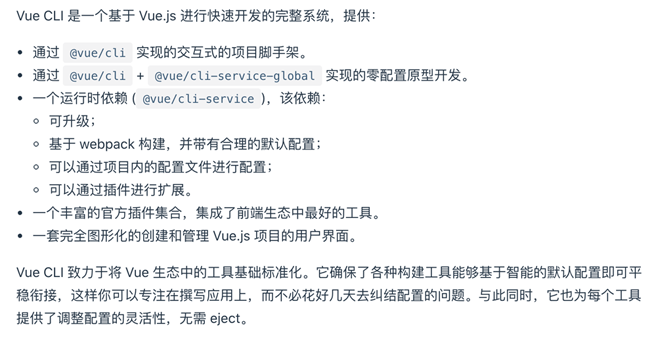
创建项目
执行以下命令来初始化一个项目:
npm init命令执行完毕后,项目根目录下仅会生成一个 package.json 文件。

在 package.json 文件中添加 bin 字段,并将其指向入口文件 dist/index.js。
在命令行环境中运行该工具时,需在入口文件的第一行添加 #!/usr/bin/env node,以指示系统使用 Node.js 执行该文件。
{
 "name": "cli-demo",
 "version": "0.0.1",
 "description": "cli demo",
 "keywords": [
 "cli"
 ],
 "bin": {
 "cli-demo": "dist/index.js"
 }
 ...
}
安装依赖
命令行工具通常涉及用户交互,Node.js 如何实现这一功能?已有成熟的库可供直接使用,主要包含两个:
- commander:提供完整的 Node.js 命令行解决方案。
- inquirer:提供交互式命令行工具支持。
将上述两个库安装至项目中:
yarn add commander inquirer由于项目基于 TypeScript 开发,并采用 Rollup 进行打包,需先安装相关依赖库:
yarn add typescript rollup rollup-plugin-terser rollup-plugin-typescript2 @types/inquirer -D配置
使用 TypeScript 开发时,首先需配置 tsconfig.json 文件。
{
 "compilerOptions": {
 "target": "ES6",
 "module": "ESNext",
 "sourceMap": false,
 "declaration": false,
 "outDir": "./dist",
 "moduleResolution": "Node",
 "esModuleInterop": true,
 "resolveJsonModule": true,
 "removeComments": false,
 "importHelpers": true,
 "strict": true,
 "lib": ["ES6", "DOM"]
 },
 "include": ["src"]
}
随后在根目录创建 rollup.config.js 文件,用于将 TypeScript 代码编译为 JavaScript。前文提到的在第一行添加 #!/usr/bin/env node 以指定 Node.js 运行环境,可通过在 rollup.config.js 的 banner 选项中配置,将 #!/usr/bin/env node 置于文件最前端。
import typescript from 'typescript'
import json from '@rollup/plugin-json'
import { terser } from 'rollup-plugin-terser'
import typescript2 from 'rollup-plugin-typescript2'

import { dependencies } from './package.json'

const external = Object.keys(dependencies || '')
const globals = external.reduce((prev, current) => {
 const newPrev = prev

 newPrev[current] = current
 return newPrev
}, {})

const defaultConfig = {
 input: './src/index.ts',
 output: {
 file: './dist/index.js',
 format: 'cjs',
 banner: '#!/usr/bin/env node',
 globals
 },
 external,
 plugins: [
 typescript2({
  exclude: 'node_modules/**',
  useTsconfigDeclarationDir: true,
  typescript,
  tsconfig: './tsconfig.json'
 }),
 json(),
 terser()
 ]
}

export default defaultConfig
实现一个简单的 cli
在根目录下创建 src 文件夹,并在其中创建 index.ts 文件。
添加引用
引入相关模块并实例化 Command 对象。
import { Command } from 'commander'
import pkg from '../package.json'

const program = new Command(pkg.name)
自定义命令
实现一个支持交互的自定义命令,模拟终端登录功能。使用 command 方法创建命令,description 用于描述命令功能,登录处理逻辑则编写在 action 方法中。最后调用 parse(process.argv) 方法解析命令。更多详细信息与用法,请参考:https://github.com/tj/commander.js/blob/master/Readme_zh-CN.md。
program
 .command('login')
 .description('模拟登录。')
 .action(() => {
  handleLogin()
 })

program.parse(process.argv)
交互功能使用了前述的 inquirer 库,用于接收用户输入的用户名和密码。选项的 type 属性值包括 input、password、number、checkbox、editor、list、rawList、expand、confirm,选项 name 由 inquirer.prompt 方法返回的对象决定,选项 validate 可用于验证输入是否符合既定规则。更多详细信息与用法,请参考:https://github.com/SBoudrias/Inquirer.js/blob/master/README.md
若选项 type 设置为 password,可通过 mask 设置掩码字符。
const handleLogin = () => {
 // 配置交互的用户名和密码
 const prompt = [
 {
  type: 'input',
  name: 'userName',
  message: '用户名:',
  validate: (value: string) => value.length > 0 || '用户名不能为空'
 },
 {
  type: 'password',
  name: 'password',
  message: '密码:',
  mask: '🙈 ',
  validate: (value: string) => value.length > 0 || '密码不能为空'
 }
 ]

 inquirer.prompt(prompt).then(({ userName, password }) => {
 if (userName === 'demo' || password === '123456') {
  console.log('登录成功')
  return
 }
 console.log('用户名或密码错误')
 })
}
其他
一个完善的 CLI 工具必须包含帮助信息,可通过 on('--help') 修改自定义帮助内容。
该配置必须在 parse 方法调用之前设置。
program.on('--help', () => {
 console.log('\n运行 cli-demo -h | --help 查看命令使用。\n')
})
此外,当未输入任何参数时程序会报错,可使用 exitOverride 方法重新退出,并在终端输出帮助信息。
program.exitOverride()

try {
 program.parse(process.argv)
} catch (error) {
 program.outputHelp()
}
至此,一个简单的 CLI 工具开发完成,接下来进行本地测试。在终端输入 npm link 生成全局软链接,以便方便调试和测试。
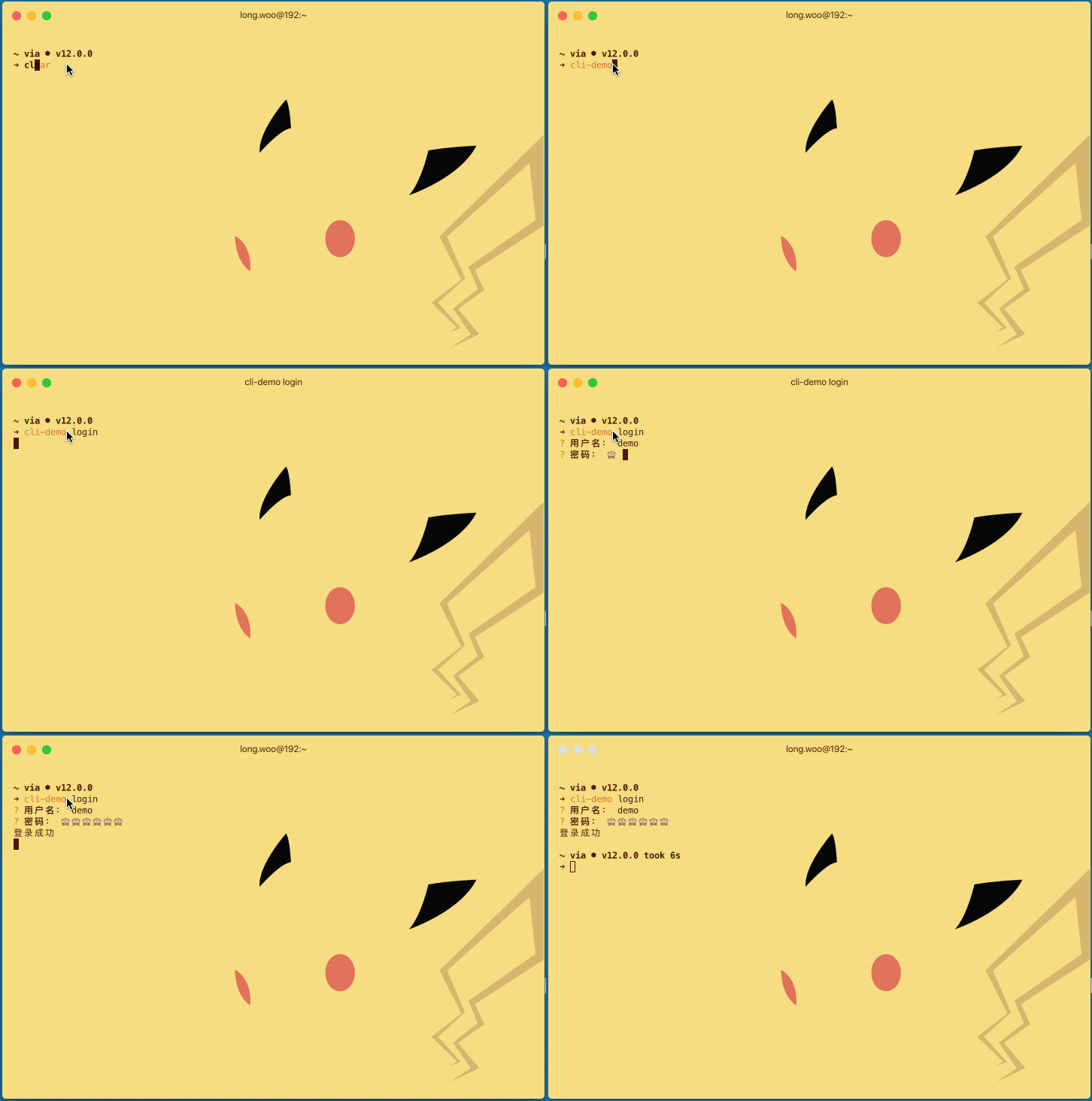
关于使用 TypeScript 快速开发 CLI 的实现示例介绍至此,更多 TypeScript 开发 CLI 相关内容请搜索本站历史文章或继续浏览后续文章,希望大家今后多多支持本站!