

本文介绍如何使用纯原生 JavaScript 实现一个支持拖拽、放大和缩小的全局悬浮窗功能。重点解决拖拽时误触发点击缩放、屏幕边界遮挡以及缩放后位置偏移三个核心问题。通过区分 mousedown 与 click 事件、限制最大移动距离及同步坐标记录,实现兼容性好且无第三方依赖的交互效果。
前言与功能概述
前言
近期团队开发了一款智能客服悬浮窗,要求具备拖动、放大及缩小功能。鉴于该组件为全局插件,为确保最佳兼容性,项目决定完全采用原生 JavaScript 编写,不引入任何第三方库或插件。在此分享开发过程中遇到的关键问题及其解决方案,供同行参考交流。
注:下文出现的“采宝”二字,为这个功能的产品名。
先看效果
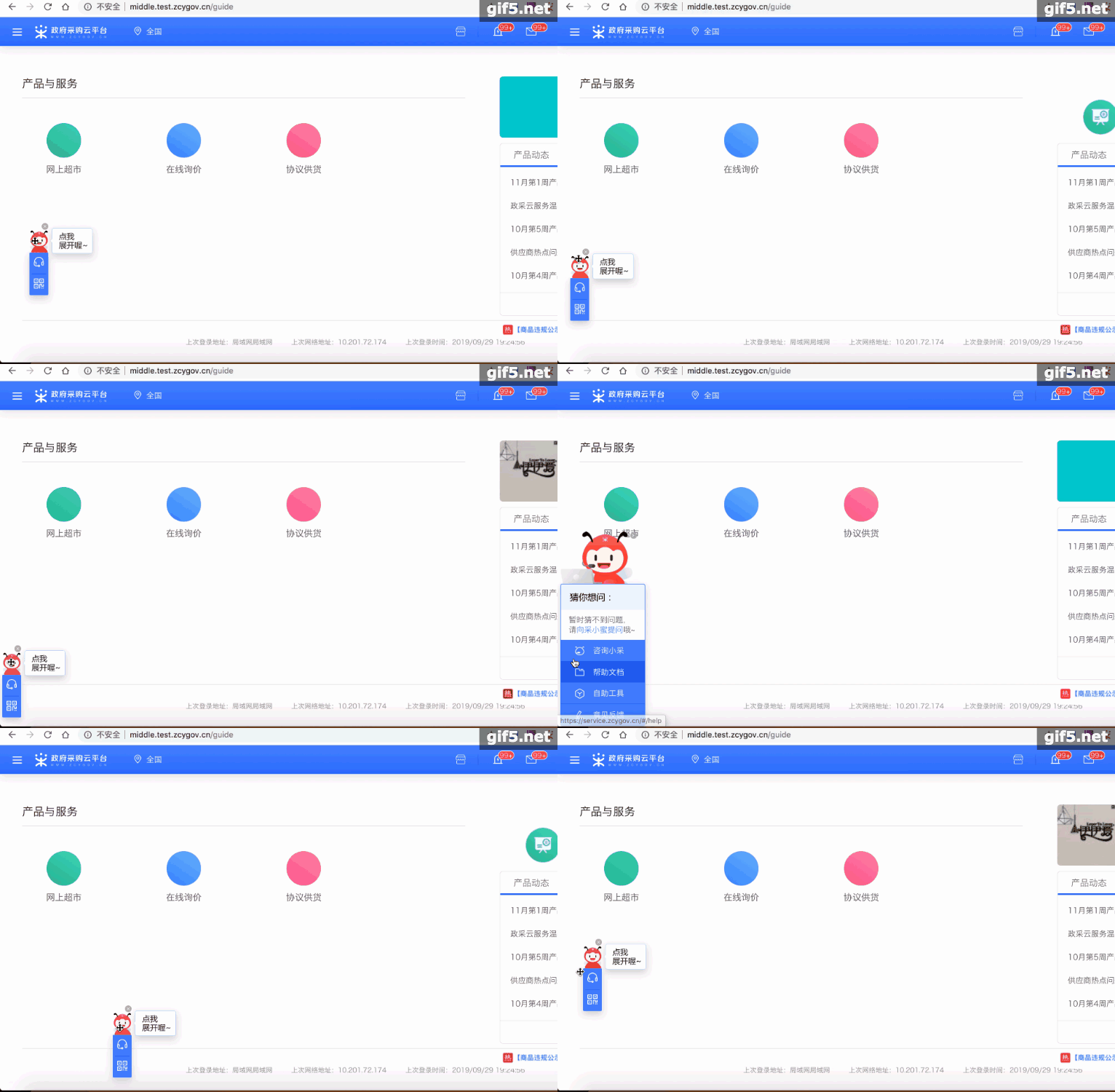
从展示的效果来看,实现此类功能似乎并不复杂。然而在实际开发中,笔者总结了三个主要的技术难点,并提供了相应的解决方案。
三个坑点
- 拖拽采宝时会导致采宝放大缩小
- 采宝显示在屏幕边界时被遮挡显示不全
- 采宝放大和缩小后,位置发生变化
解决拖拽与缩放的冲突
(一)拖拽时会导致采宝放大缩小
在操作采宝时,无论是鼠标拖动还是点击放大缩小,事件均需绑定在采宝头部的图标上。这意味着我们需要在同一个图标上同时绑定点击(click)和拖拽(mousedown)事件。然而,直接添加这两个事件会发现,触发 mousedown 时往往会连带触发 click 事件,导致在拖动过程中意外触发放大或缩小功能。
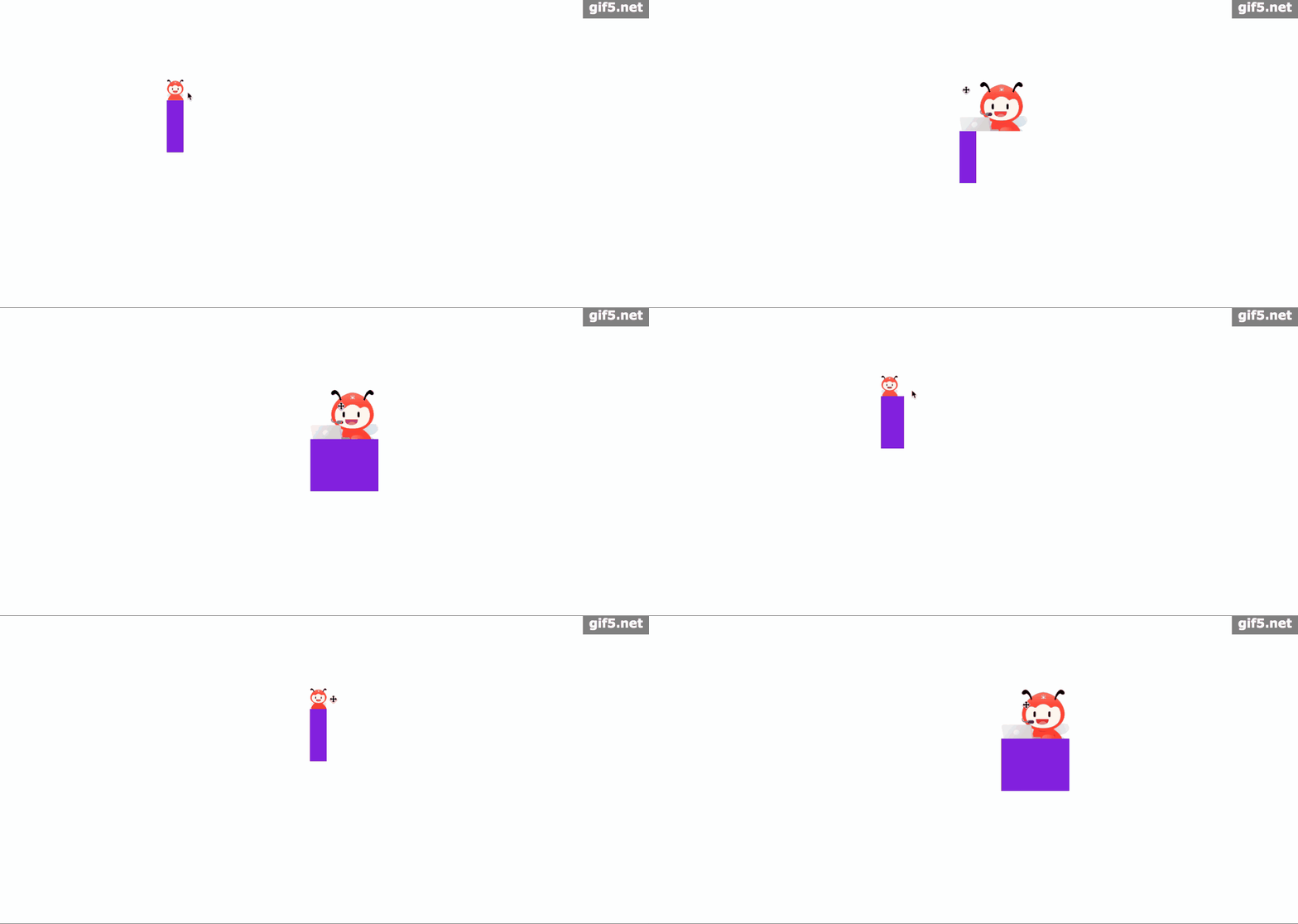
这种联动效果并非我们期望的,因此需要采取措施区分采宝上的 click 事件和 mousedown 事件,确保两者的触发互不干扰。
为此,我们在同一个 DIV 元素上同时绑定 mousedown 和 click 事件,并通过控制台输出日志,详细观察每个事件的触发顺序。
const moveBox = document.querySelector('.move');
moveBox.onmousedown = function (evt) {
 console.log('触发鼠标按下')
 moveBox.onmousemove = function (evt) {
 console.log('触发鼠标拖动')
 }
}
function moveBoxClick(e) {
 console.log('触发click')
}
moveBox.onmouseup = function () {
 console.log('触发鼠标抬起')
}
然后我们得到的结果是:
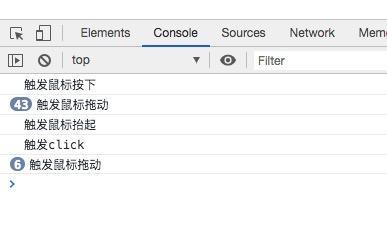
根据控制台输出,鼠标点击后的事件触发顺序如下:首先执行 mousedown 事件,接着是 mousemove 事件,然后是 mouseup 事件,最后才是 click 事件。
明确了事件触发顺序后,我们可以引入一个变量 isMove 来区分拖动和点击操作。在鼠标按下时重置 isMove 状态,在鼠标移动时修改 isMove 状态。
由于每次触发 click 事件前都会先触发 mousedown 事件,我们在 click 处理函数中增加判断逻辑:如果检测到鼠标发生了移动(即 isMove 为真),则不执行 click 事件。通过这种方式,成功将 click 事件与 mousedown 事件隔离,实现了拖拽时不触发缩放的功能。
click 事件增加判断
function moveBoxClick(e) {
 // 点击采宝
 const target = document.querySelector(".move");
 const smallImg = document.querySelector(".small-img");
 const magnifyImg = document.querySelector(".magnify-img");
 // 点击move盒子
 if (!isMove) {
 if (isBig) {
  smallImg.style.display = "block";
  magnifyImg.style.display = "none";
  target.style.width = "32px";
 } else {
  smallImg.style.display = "none";
  magnifyImg.style.display = "block";
  target.style.width = "130px";
 }
 isBig = !isBig;
 }
}
mousedown 事件重置 isMove 和 mousemove 改变 isMove
let isMove = false; // 是否是拖动
let isBig = false; // 是否是变大的盒子
let isMove = false; // 判断是否移动采宝
smallImg.onmousedown = magnifyImg.onmousedown = function(evt) {
 isMove = false; // 每次鼠标按下时,重置isMove
 document.onmousemove = function(e) {
 isMove = true; // 每次鼠标移动时,改变isMove
 };
};
利用 isMove 的状态判断,我们有效区分了 mousemove 和 click 事件,确保在拖动采宝时不会触发放大或缩小操作。
处理屏幕边界遮挡问题
(二)采宝显示在屏幕边界时被遮挡显示不全
在拖动采宝过程中,需要判断其当前定位坐标是否超出屏幕的高度和宽度,从而限制采宝的最大移动距离。此外,当小采宝点击放大时,也需要进行相应处理,确保放大后的采宝完全显示在可视区域内。
拖动时
const moveBox = document.querySelector(".move");
const smallImg = document.querySelector(".move .small-img");
const magnifyImg = document.querySelector(".move .magnify-img");
let isMove = false; // 是否是拖动
let isBig = false; // 是否是变大的盒子

smallImg.onmousedown = magnifyImg.onmousedown = function(evt) {
 // 拖动div盒子
 const clientX = evt.clientX;
 const clientY = evt.clientY;
 const pageX = moveBox.offsetLeft;
 const pageY = moveBox.offsetTop;
 const x = clientX - pageX;
 const y = clientY - pageY;

 document.onmousemove = function(e) {
 // 拖动后采宝的坐标
 let _x = e.clientX - x;
 let _y = e.clientY - y;
 const boxWidth = moveBox.offsetWidth;
 const boxHeight = moveBox.offsetHeight;
 if (_x < 0) {
  _x = 0;
 }
 // X坐标的最大值
 if (_x > window.screen.width - boxWidth) {
  _x = window.screen.width - boxWidth;
 }
 if (_y < 0) {
  _y = 0;
 }
 // Y坐标的最大值
 if (_y > document.documentElement.clientHeight - boxHeight) {
  _y = document.documentElement.clientHeight - boxHeight;
 }
 };
};
小采宝在边界放大时
// 点击时,判断采宝是否超出显示屏
function autoPotion () {
 let x = moveBox.offsetLeft;
 let y = moveBox.offsetTop;

 if (x < 0) {
  x = 0;
 } else if (x > document.documentElement.clientWidth - moveBox.offsetWidth) {
  x = document.documentElement.clientWidth - moveBox.offsetWidth;
 }

 if (y < 0) {
  y = 0;
 } else if (y > document.documentElement.clientHeight - moveBox.offsetHeight) {
  y = document.documentElement.clientHeight - moveBox.offsetHeight;
 }

 moveBox.style.left = x + "px";
 moveBox.style.top = y + "px";
}
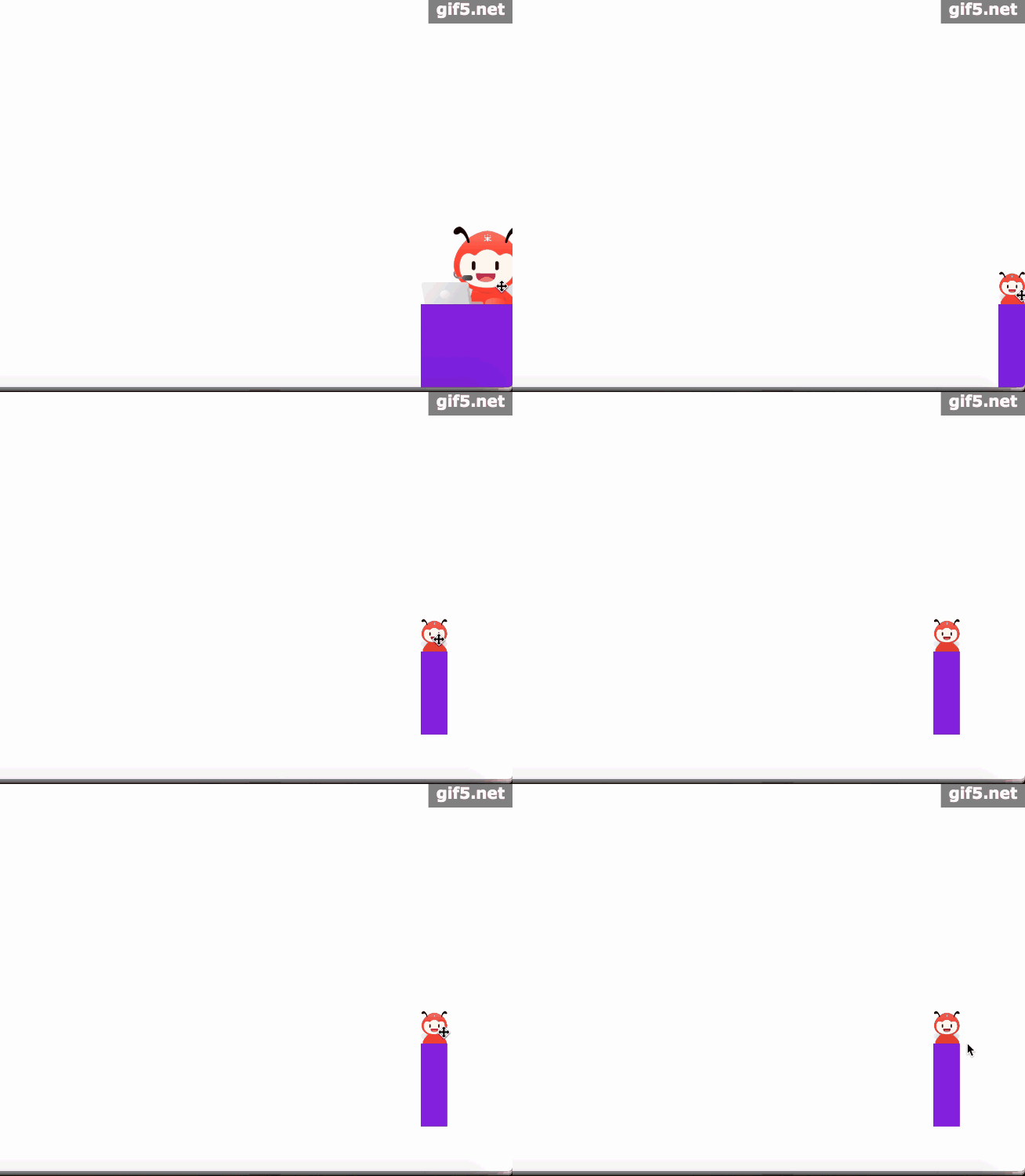
效果如下
保持缩放时的位置稳定性
(三)采宝放大和缩小后,位置发生变化
通过上述演示可见,当小采宝位于显示屏边界时,点击放大后再点击缩小,会发现采宝的位置发生了偏移。这是因为采宝是基于左上角坐标进行定位的,当小采宝移动到右下角时,点击放大会导致左上角坐标重新计算,从而引起位置变化。为解决此问题,我们在采宝移动完成后记录其左上角坐标,并在点击缩放时,将上次移动完成的坐标重新赋值给采宝,从而保持位置不变。
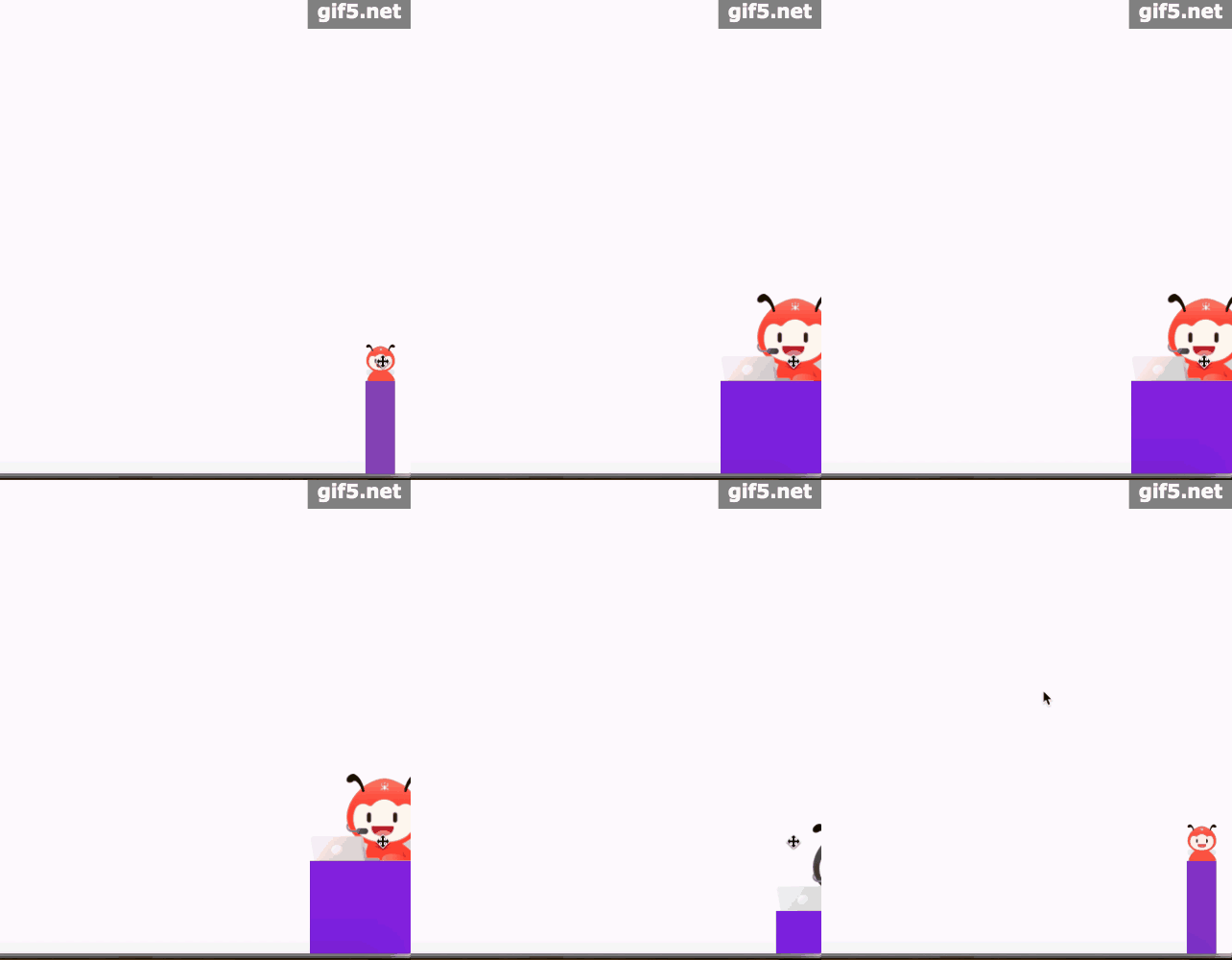
这样,我们在每次 mouseup 事件时记录采宝的位置,成功解决了采宝在放大缩小时位置发生变化的问题。
完整代码实现
完整的代码
HTML:
<div class="box">
 <div class="move">
 <img
  onclick="moveBoxClick()"
  class="small-img"
  draggable="false"
  src="https://zcy-cdn.oss-cn-shanghai.aliyuncs.com/f2e-assets/103bbf76-6248-421c-a3d6-28a525c459db.png"
  alt=""
 />
 <img
  onclick="moveBoxClick()"
  class="magnify-img"
  draggable="false"
  src="https://zcy-cdn.oss-cn-shanghai.aliyuncs.com/f2e-assets/90e26f49-9824-4443-b4aa-8aa64a3c8690.png"
  alt=""
 />
 <div class="content"></div>
 </div>
</div>
JavaScript
const moveBox = document.querySelector(".move");
const smallImg = document.querySelector(".move .small-img");
const magnifyImg = document.querySelector(".move .magnify-img");
var initX = 0; // 记录小采宝的x坐标
var initY = 0; // 记录小采宝的y坐标
let isMove = false; // 是否是拖动
let isBig = false; // 是否是变大的盒子

smallImg.onmousedown = magnifyImg.onmousedown = function(evt) {
  // 拖动div盒子
 const clientX = evt.clientX;
 const clientY = evt.clientY;
 const pageX = moveBox.offsetLeft;
 const pageY = moveBox.offsetTop;
 const x = clientX - pageX;
 const y = clientY - pageY;

 isMove = false;

 document.onmousemove = function(e) {
 const boxWidth = moveBox.offsetWidth;
 const boxHeight = moveBox.offsetHeight;
 let _x = e.clientX - x;
 let _y = e.clientY - y;
 if (_x < 0) {
  _x = 0;
 }
 if (_x > window.screen.width - boxWidth) {
  _x = window.screen.width - boxWidth;
 }
 if (_y < 0) {
  _y = 0;
 }
 if (_y > document.documentElement.clientHeight - boxHeight) {
  _y = document.documentElement.clientHeight - boxHeight;
 }

 if (isBig) {
  initX = _x;
  initY = _y;
 }

 moveBox.style.left = _x + "px";
 moveBox.style.top = _y + "px";

 isMove = true;
 };
};


document.onmouseup = function() {
 if (isMove) {
 initX = moveBox.offsetLeft;
 initY = moveBox.offsetTop;
 }
 document.onmousemove = null;
};

function moveBoxClick(e) {
 const target = document.querySelector(".move");
 const smallImg = document.querySelector(".small-img");
 const magnifyImg = document.querySelector(".magnify-img");
 // 点击move盒子
 if (!isMove) {
 if (isBig) {
  smallImg.style.display = "block";
  magnifyImg.style.display = "none";
  target.style.width = "32px";
  target.style.left = initX + 'px';
  target.style.top = initY + 'px';
 } else {
  smallImg.style.display = "none";
  magnifyImg.style.display = "block";
  target.style.width = "130px";
 }
 isBig = !isBig;

 setTimeout(() => {
  autoPotion();
 }, 100)
 }
}

// 点击时,判断采宝是否超出显示屏
function autoPotion () {
 let x = moveBox.offsetLeft;
 let y = moveBox.offsetTop;

 if (x < 0) {
 x = 0;
 } else if (x > document.documentElement.clientWidth - moveBox.offsetWidth) {
 x = document.documentElement.clientWidth - moveBox.offsetWidth;
 }

 if (y < 0) {
 y = 0;
 } else if (y > document.documentElement.clientHeight - moveBox.offsetHeight) {
 y = document.documentElement.clientHeight - moveBox.offsetHeight;
 }

 moveBox.style.left = x + "px";
 moveBox.style.top = y + "px";
}
总结
以上所述是小编给大家介绍的纯 JS 实现放大缩小拖拽功能,希望对大家有所帮助,如果大家有任何疑问请给我留言,小编会及时回复大家的。在此也非常感谢大家对本站网站的支持! 如果你觉得本文对你有帮助,欢迎转载,烦请注明出处,谢谢!