
精选常用前端特效JavaScript脚本源码下载与实操使用教程,涵盖回到顶部、手风琴折叠、轻量轮播等经典交互效果,提供完整代码、DOM机制解析与工程化引入指南。

当前位置:首页 > JavaScript DOM 与事件 > 正文
常用前端特效JavaScript脚本源码下载与使用示例
作者:像素漫游
时间:2026-10-30
浏览:367
文章目录
在日常网页与Web应用开发中,回到顶部、手风琴折叠面板、轮播图以及模态弹窗等交互特效出现频率极高。许多开发者往往直接引入动辄数百KB的重型UI库,不仅增加了网络传输负担,还容易引发框架版本冲突。本文聚焦常用原生JavaScript前端特效脚本,提供可独立运行的精简源码实现、下载整理策略与标准挂载步骤,帮助读者在无需依赖外部大型框架的前提下,快速集成稳定、高性能的前端交互效果。
前端特效脚本的下载获取与安全审查规范
获取前端特效脚本通常有三种主流途径:直接复制规范文档中的纯原生脚本、从开源代码仓库(如GitHub、Gitee)下载单文件,或通过公共CDN(如cdnjs、jsDelivr)获取成熟的轻量库源码。在下载或保存外部脚本到本地项目之前,必须严格完成代码审查,杜绝恶意注入与内存泄露隐患。
审查下载脚本时应重点关注三项指标:第一是依赖纯净度,优先选用无需外部依赖的Vanilla JS脚本;第二是DOM操作规范,排查是否存在未经转义的innerHTML赋值风险;第三是事件监听机制,确保高频事件绑定中包含防抖(Debounce)或节流(Throttle)处理逻辑。
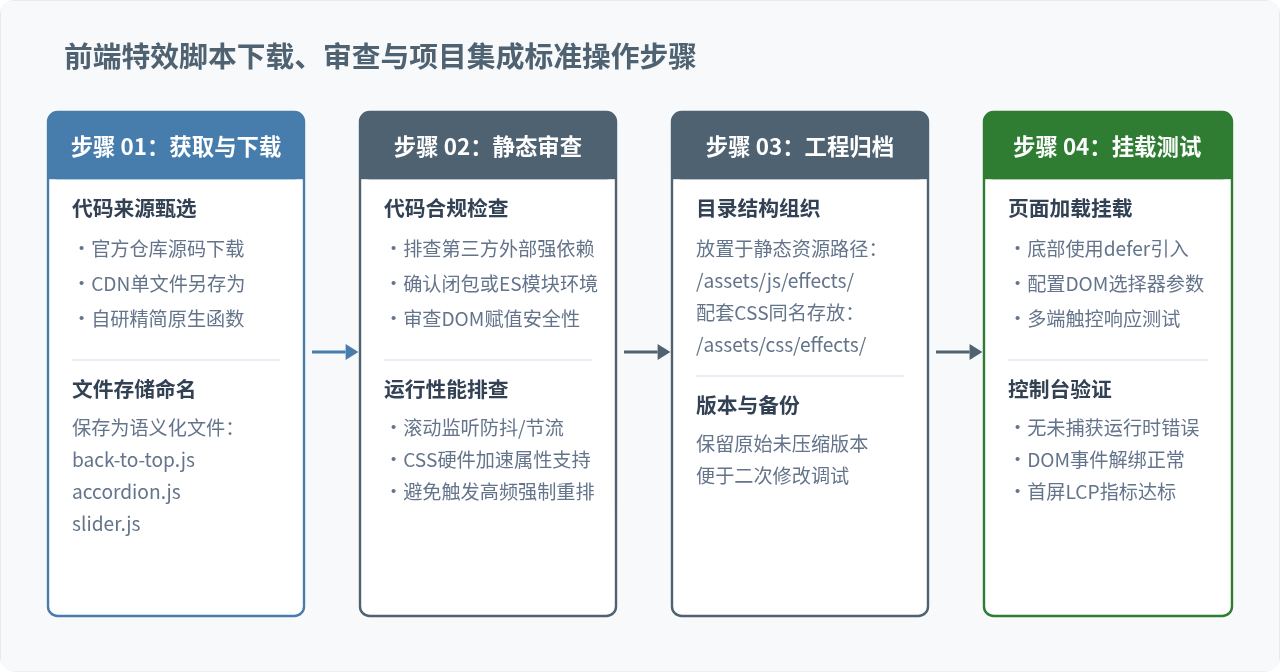
特效一:原生平滑“回到顶部”按钮
“回到顶部”是各类长页面最基础且必不可少的交互组件。优秀的实现应当满足三点要求:在页面未滚动时隐蔽不遮挡正文、滚动超过特定阈值(如300px)后淡入、点击时以原生平滑曲线滚动至顶部,且不污染浏览器URL哈希值。
1. 完整HTML与CSS代码
<!-- 回到顶部按钮结构 -->
<button id="backToTopBtn" class="back-to-top" aria-label="回到页面顶部">
  <svg viewBox="0 0 24 24" width="20" height="20" fill="currentColor">
    <path d="M12 4l-8 8h5v8h6v-8h5z"/>
  </svg>
</button>

<style>
.back-to-top {
  position: fixed;
  right: 24px;
  bottom: 24px;
  width: 44px;
  height: 44px;
  background-color: #477DAD;
  color: #ffffff;
  border: none;
  border-radius: 50%;
  cursor: pointer;
  display: flex;
  align-items: center;
  justify-content: center;
  box-shadow: 0 4px 10px rgba(0, 0, 0, 0.15);
  opacity: 0;
  visibility: hidden;
  transform: translateY(12px);
  transition: opacity 0.3s ease, visibility 0.3s ease, transform 0.3s ease;
  z-index: 999;
}
.back-to-top.is-visible {
  opacity: 1;
  visibility: visible;
  transform: translateY(0);
}
.back-to-top:hover {
  background-color: #38648b;
}
</style>
2. JavaScript实现源码(源码保存为 back-to-top.js)
/**
 * 原生平滑回到顶部脚本
 * 文件名:back-to-top.js
 */
(function() {
  'use strict';

  function initBackToTop(options) {
    const config = Object.assign({
      buttonId: 'backToTopBtn',
      threshold: 300,
      behavior: 'smooth'
    }, options);

    const btn = document.getElementById(config.buttonId);
    if (!btn) return;

    let ticking = false;

    // 滚动监听:通过 requestAnimationFrame 节流
    function onScroll() {
      if (!ticking) {
        window.requestAnimationFrame(() => {
          if (window.scrollY > config.threshold) {
            btn.classList.add('is-visible');
          } else {
            btn.classList.remove('is-visible');
          }
          ticking = false;
        });
        ticking = true;
      }
    }

    // 点击事件:平滑滚动到顶部
    btn.addEventListener('click', () => {
      window.scrollTo({
        top: 0,
        behavior: config.behavior
      });
    });

    window.addEventListener('scroll', onScroll, { passive: true });
  }

  // DOM加载完成后自动初始化
  if (document.readyState === 'loading') {
    document.addEventListener('DOMContentLoaded', () => initBackToTop());
  } else {
    initBackToTop();
  }
})();
实现细节提示:
代码中使用了
{ passive: true } 参数声明滚动监听器,告知浏览器该处理函数不会调用 preventDefault(),从而允许浏览器在执行滚动手势时不必等待JS处理完成,显著消除页面滚动的卡顿感。
特效二:手风琴折叠面板(Accordion)
手风琴组件常用于常见问题解答(FAQ)、设置面板及移动端菜单折叠。相比通过逐个元素绑定事件的传统写法,采用事件委托(Event Delegation)机制不仅能大幅减少事件监听器占用的内存,还能天然支持动态新增面板内容。
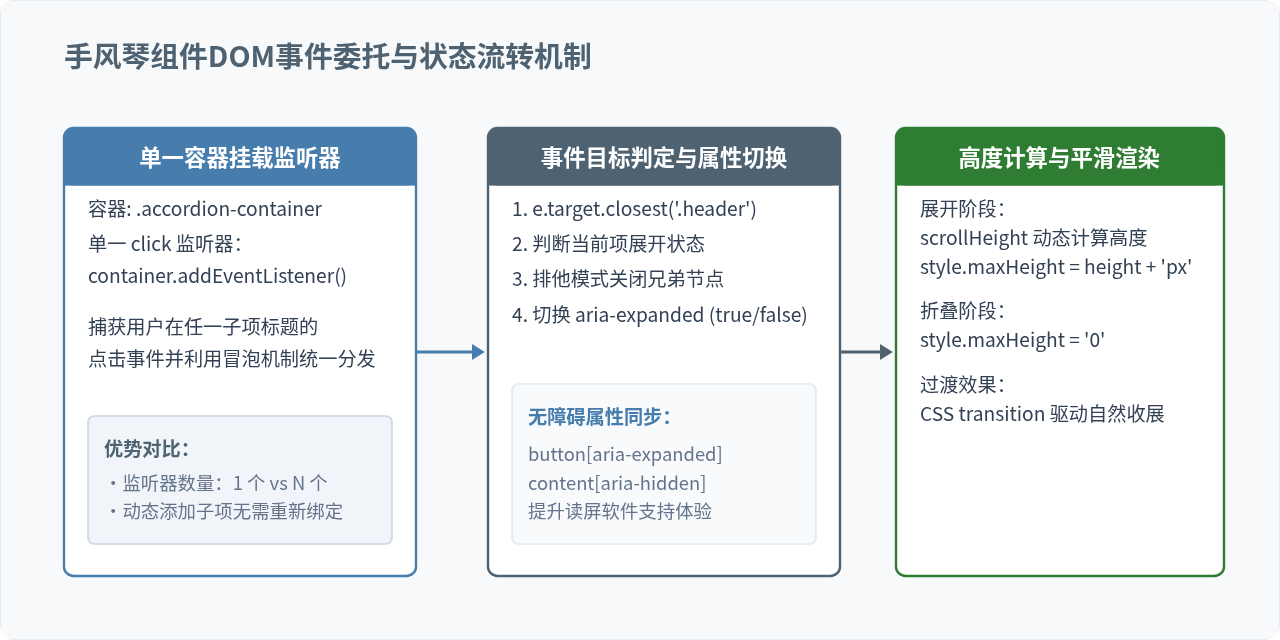
1. 手风琴HTML与CSS结构
<div class="accordion-container" id="faqAccordion">
  <div class="accordion-item">
    <button class="accordion-header" aria-expanded="false">
      <span>如何选择适合项目的前端特效脚本?</span>
      <span class="accordion-icon">+</span>
    </button>
    <div class="accordion-body" style="max-height: 0;">
      <div class="accordion-content">
        优先评估业务复杂度。如果仅需要几个高频交互,自写或采用轻量原生脚本体积仅2-5KB;只有当组件间存在大量全局状态联动时才考虑重型UI框架。
      </div>
    </div>
  </div>
  <div class="accordion-item">
    <button class="accordion-header" aria-expanded="false">
      <span>脚本如何避免污染全局命名空间?</span>
      <span class="accordion-icon">+</span>
    </button>
    <div class="accordion-body" style="max-height: 0;">
      <div class="accordion-content">
        使用IIFE立即执行函数包裹代码,或者直接采用ES6原生的模块化方式(export/import)引入,保证变量在局部词法作用域内封闭。
      </div>
    </div>
  </div>
</div>

<style>
.accordion-container {
  border: 1px solid #e2e8f0;
  border-radius: 8px;
  overflow: hidden;
  margin: 16px 0;
}
.accordion-item {
  border-bottom: 1px solid #e2e8f0;
}
.accordion-item:last-child {
  border-bottom: none;
}
.accordion-header {
  width: 100%;
  padding: 16px 20px;
  background: #ffffff;
  border: none;
  display: flex;
  justify-content: space-between;
  align-items: center;
  font-size: 15px;
  font-weight: 600;
  color: #334155;
  cursor: pointer;
  text-align: left;
}
.accordion-header:hover {
  background: #f8fafc;
}
.accordion-icon {
  font-size: 18px;
  transition: transform 0.3s ease;
}
.accordion-item.is-open .accordion-icon {
  transform: rotate(45deg);
}
.accordion-body {
  overflow: hidden;
  transition: max-height 0.3s ease-out;
}
.accordion-content {
  padding: 0 20px 16px;
  color: #64748b;
  font-size: 14px;
  line-height: 1.6;
}
</style>
2. 手风琴JavaScript实现源码(源码保存为 accordion.js)
/**
 * 原生手风琴折叠面板脚本
 * 文件名:accordion.js
 */
class Accordion {
  constructor(selector, options = {}) {
    this.container = document.querySelector(selector);
    if (!this.container) return;

    this.options = Object.assign({
      allowMultiple: false // 是否允许同时展开多个面板
    }, options);

    this.init();
  }

  init() {
    // 事件委托:将点击监听挂在顶层容器上
    this.container.addEventListener('click', (event) => {
      const header = event.target.closest('.accordion-header');
      if (!header) return;

      const currentItem = header.closest('.accordion-item');
      const body = currentItem.querySelector('.accordion-body');
      const isOpen = currentItem.classList.contains('is-open');

      // 如果不允许多个同时展开,先折叠其他已展开项
      if (!this.options.allowMultiple && !isOpen) {
        this.closeAll();
      }

      if (isOpen) {
        this.closeItem(currentItem, header, body);
      } else {
        this.openItem(currentItem, header, body);
      }
    });
  }

  openItem(item, header, body) {
    item.classList.add('is-open');
    header.setAttribute('aria-expanded', 'true');
    // 动态获取内容实际高度并赋值
    body.style.maxHeight = body.scrollHeight + 'px';
  }

  closeItem(item, header, body) {
    item.classList.remove('is-open');
    header.setAttribute('aria-expanded', 'false');
    body.style.maxHeight = '0px';
  }

  closeAll() {
    const activeItems = this.container.querySelectorAll('.accordion-item.is-open');
    activeItems.forEach(item => {
      const header = item.querySelector('.accordion-header');
      const body = item.querySelector('.accordion-body');
      this.closeItem(item, header, body);
    });
  }
}

// 导出或直接实例化
document.addEventListener('DOMContentLoaded', () => {
  new Accordion('#faqAccordion');
});
特效三:轻量响应式轮播图(Slider)
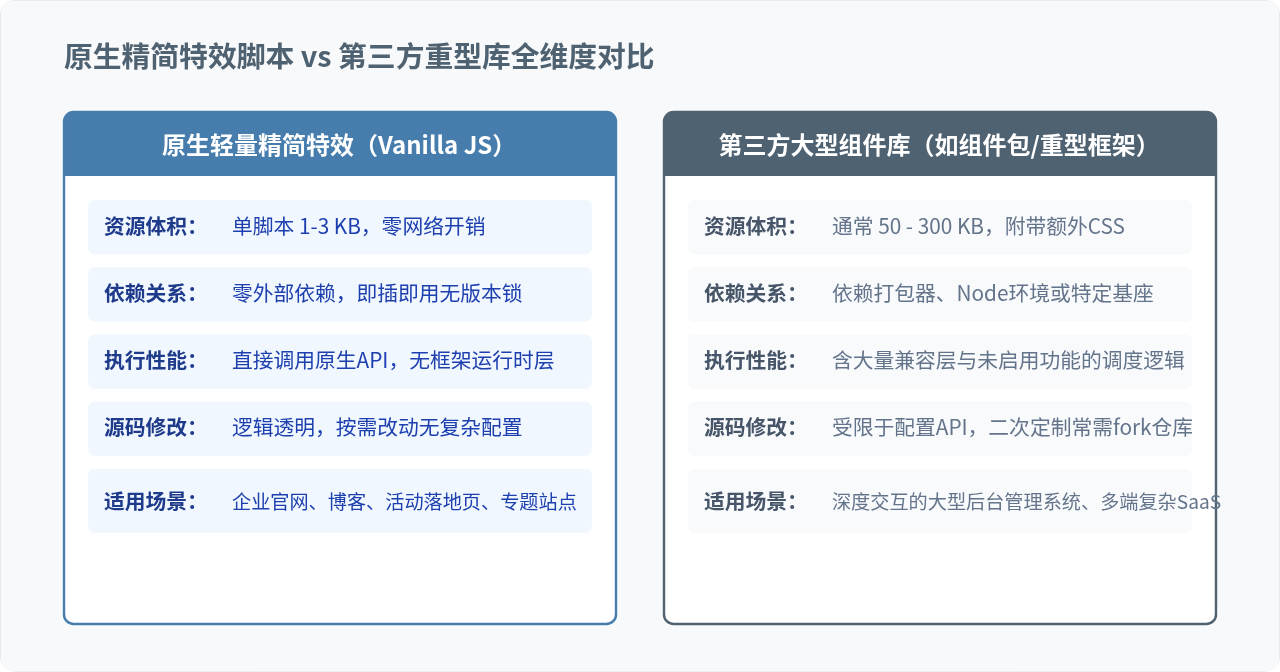
在首页展示焦点图或推荐内容时,全功能的第三方轮播插件打包体积通常在50KB至100KB左右,包含大量大部分项目用不到的三维变换、触摸滚轮与缩略图引擎。下面提供一个仅50行原生JavaScript的轻量轮播实现,支持自动播放、前进后退切换与鼠标悬停暂停。
1. 轮播图HTML与CSS结构
<div class="slider-wrapper" id="homeSlider">
<div class="slider-track">
<div class="slider-slide" style="background: #e2e8f0;"><span>第一屏推荐内容</span></div>
<div class="slider-slide" style="background: #cbd5e1;"><span>第二屏核心功能</span></div>
<div class="slider-slide" style="background: #94a3b8;"><span>第三屏客户案例</span></div>
</div>
<button class="slider-btn prev" aria-label="上一张"><</button>
<button class="slider-btn next" aria-label="下一张">></button>
</div>
<style>
.slider-wrapper {
position: relative;
width: 100%;
height: 240px;
overflow: hidden;
border-radius: 8px;
margin: 16px 0;
}
.slider-track {
display: flex;
height: 100%;
transition: transform 0.4s ease-in-out;
will-change: transform;
}
.slider-slide {
min-width: 100%;
height: 100%;
display: flex;
align-items: center;
justify-content: center;
font-size: 18px;
color: #1e293b;
font-weight: bold;
}
.slider-btn {
position: absolute;
top: 50%;
transform: translateY(-50%);
width: 36px;
height: 36px;
background: rgba(0,0,0,0.4);
color: #fff;
border: none;
border-radius: 50%;
cursor: pointer;
display: flex;
align-items: center;
justify-content: center;
}
.slider-btn.prev { left: 12px; }
.slider-btn.next { right: 12px; }
.slider-btn:hover { background: rgba(0,0,0,0.7); }
</style>2. 轮播图JavaScript实现源码(源码保存为 slider.js)
/**
 * 原生轻量轮播图脚本
 * 文件名:slider.js
 */
function createSlider(containerId, intervalTime = 4000) {
  const container = document.getElementById(containerId);
  if (!container) return;

  const track = container.querySelector('.slider-track');
  const slides = container.querySelectorAll('.slider-slide');
  const prevBtn = container.querySelector('.slider-btn.prev');
  const nextBtn = container.querySelector('.slider-btn.next');

  let currentIndex = 0;
  const total = slides.length;
  let timer = null;

  function goToSlide(index) {
    if (index < 0) {
      currentIndex = total - 1;
    } else if (index >= total) {
      currentIndex = 0;
    } else {
      currentIndex = index;
    }
    // 使用CSS transform 驱动,保障60fps流畅度
    track.style.transform = `translateX(-${currentIndex * 100}%)`;
  }

  function startAutoPlay() {
    stopAutoPlay();
    timer = setInterval(() => {
      goToSlide(currentIndex + 1);
    }, intervalTime);
  }

  function stopAutoPlay() {
    if (timer) {
      clearInterval(timer);
      timer = null;
    }
  }

  // 绑定前进后退按钮
  prevBtn.addEventListener('click', () => {
    goToSlide(currentIndex - 1);
    startAutoPlay();
  });

  nextBtn.addEventListener('click', () => {
    goToSlide(currentIndex + 1);
    startAutoPlay();
  });

  // 鼠标悬停时暂停播放
  container.addEventListener('mouseenter', stopAutoPlay);
  container.addEventListener('mouseleave', startAutoPlay);

  startAutoPlay();
}

document.addEventListener('DOMContentLoaded', () => {
  createSlider('homeSlider', 3500);
});
原生精简特效脚本与第三方大型UI库全方位对比
在技术选型时,很多团队习惯直接安装流行框架的轮子。为了直观展现两者在工程落地中的差异,以下从体积、依赖、渲染机制与定制成本等多维度进行系统对比:
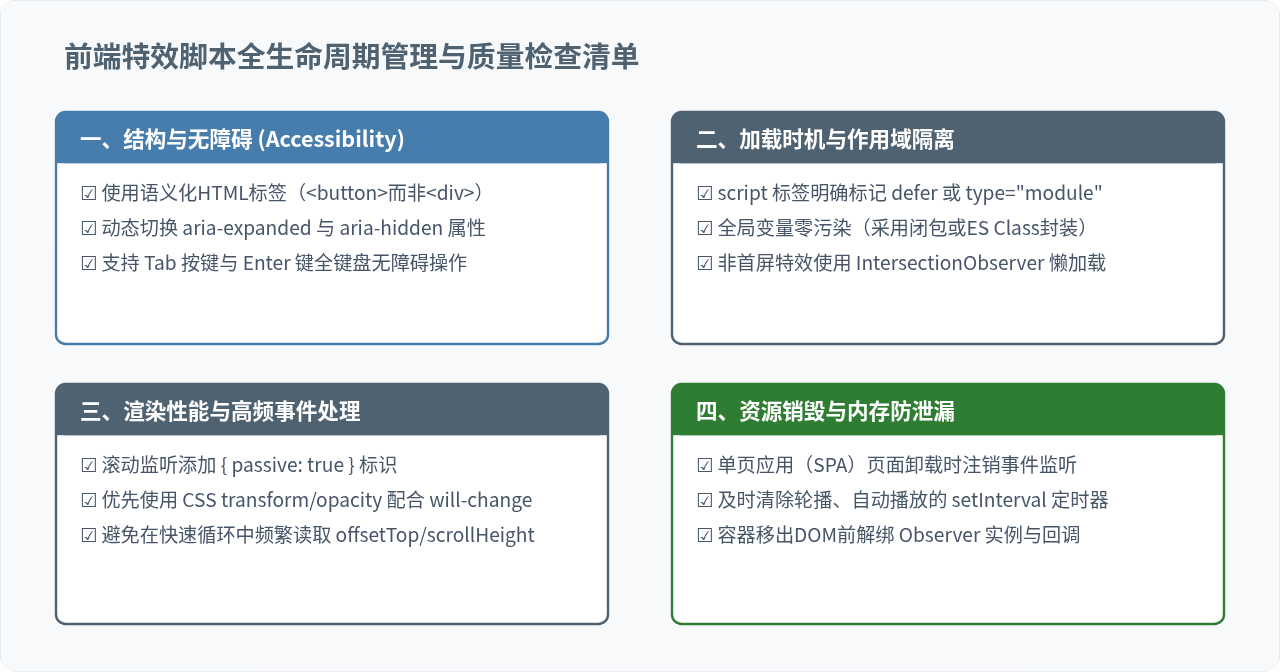
工程化引入方式与性能优化清单
将下载整理好的特效脚本引入到HTML页面时,不同的加载策略对页面的核心性能指标(如LCP最大内容绘制、FID输入延迟)有着决定性影响。推荐采用以下两类标准方式引入:
1. 经典多页面网站的标准引入(带defer标签)
<!-- 在 HTML 的 <head> 或 <body> 底部引入 -->
<!-- defer保证脚本并行下载并在HTML解析完毕后按顺序执行,避免阻塞渲染 -->
<script src="assets/js/effects/back-to-top.js" defer></script>
<script src="assets/js/effects/accordion.js" defer></script>
<script src="assets/js/effects/slider.js" defer></script>
2. 现代前端工程的ES Module动态导入
// 仅当用户滚动靠近特效区域时再动态加载脚本(按需加载)
const observer = new IntersectionObserver((entries) => {
  entries.forEach(entry => {
    if (entry.isIntersecting) {
      import('./effects/slider.js').then(module => {
        module.createSlider('homeSlider');
      });
      observer.unobserve(entry.target);
    }
  });
});

const sliderTarget = document.getElementById('homeSlider');
if (sliderTarget) {
  observer.observe(sliderTarget);
}
总结与落地建议
掌握原生JavaScript编写常用前端特效不仅能帮助我们深度理解浏览器事件循环与DOM渲染树的更新机理,更能在实际项目中为网站节省可观的带宽开销与解析时间。在实践中,建议将本文整理的回到顶部、手风琴折叠面板与轻量轮播等脚本按功能模块统一归档在项目的公共静态资源目录下,通过统一的命名规范进行维护。根据项目规模合理选择原生精简脚本与重型组件库,在确保代码整洁可控的同时,让终端用户获得丝滑流畅的交互体验。
实用工具推荐
电子包浆
使用 ›绿化、压缩、噪点和虚拟水印,自由调节做旧程度。
图片压缩
使用 ›选择画质和输出格式,预览压缩前后的大小。
作者最新文章
相关文章