

本文详细介绍如何在微信小程序中实现仿小米日历的日程预约功能。通过Canvas绘制时间网格,结合点击、长按拖动与双击拉伸等手势操作,实现预约时间段的创建、移动、拉伸与删除。文章涵盖顶部日期选择、中部Canvas交互逻辑及底部数据回显,提供完整代码实现与性能优化建议。
针对仪器设备的预约使用场景,本文参考小米日历的日程预约交互模式,开发对应的功能页面。
效果展示
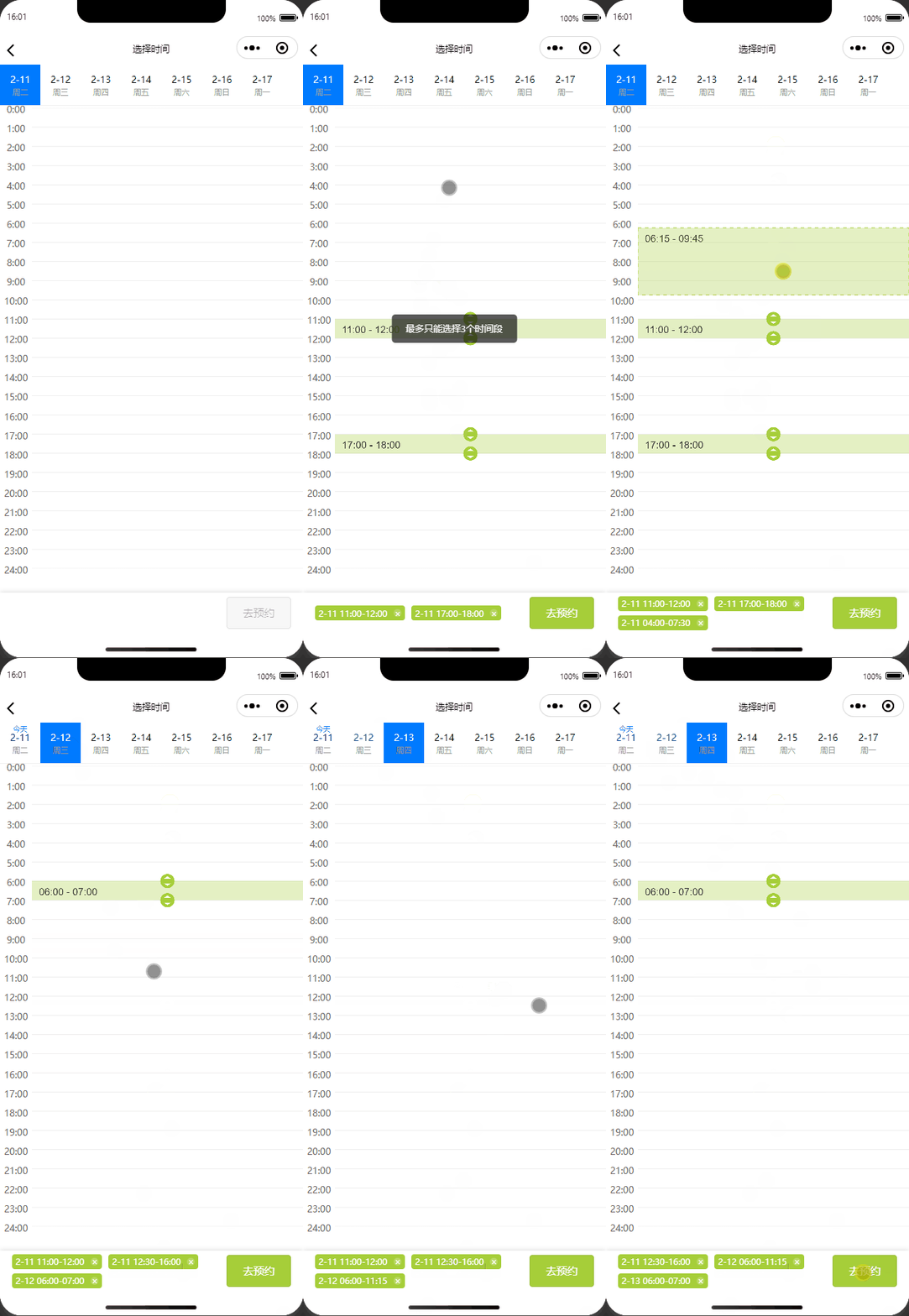
需求分析
- 顶部七日选择器
- 界面顶部需横向展示从当前日期开始的连续七天,并清晰区分月份与日期。
- 在七天的时间范围内,用户总共可以预约的时间段数量限制为3个。
- 中部canvas绘制区
- 界面左侧需绘制时间刻度,作为时间参考基准。
- 界面右侧为绘制区域,总计包含24个大格,每个大格代表1小时。每个大格后续需细分为4个小格,即每个小格代表15分钟。
- 右侧绘制区功能
- 交互方式一:单击。
- 交互方式二:长按。用户可通过长按并拖动来移动已激活的预约区域,且不同激活区域之间需保持互斥,不能重叠。
- 交互方式三:双击。用户双击已选中的预约区域,可改变该预约的起止时间。
- 底部数据回显区
- 系统需实时显示当前选中的预约时间段。
- 功能支持删除已创建的预约时间段。
代码实现
一、构建基础页面结构
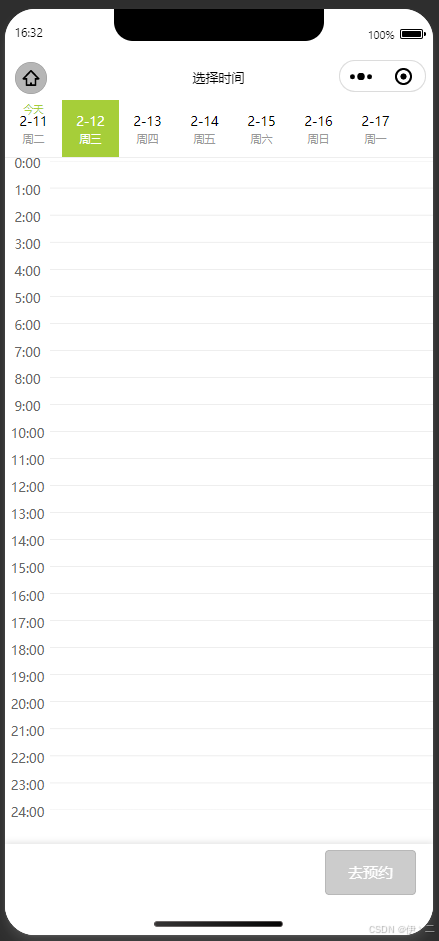
1. 顶部日期选择器
获取当前日期,并计算未来六天的所有日期,解析出具体的月-日格式,存入数组dateList中。
 // 初始化日期列表
  initDateList() {
    const dateList = [];
    const weekDays = ['周日', '周一', '周二', '周三', '周四', '周五', '周六'];
    for (let i = 0; i < 7; i++) {
      const date = new Date();
      // 获取未来几天的日期
      date.setDate(date.getDate() + i);
      dateList.push({
        date: date.getTime(),
        month: date.getMonth() + 1,
        day: date.getDate(),
        weekDay: weekDays[date.getDay()]
      });
    }
    this.setData({ dateList });
  },
<view
wx:for="{{ dateList }}"
wx:key="date"
class="date-item {{ currentDateIndex === index ? 'active' : '' }}"
bindtap="onDateSelect"
data-index="{{ index }}"
>
<text class="date-text">{{ item.month }}-{{ item.day }}</text>
<text class="week-text">{{ item.weekDay }}</text>
<text class="today-text" wx:if="{{ index === 0 }}">今天</text>
</view>2. 中部canvas绘制
左侧包含25条数据,范围从0:00到24:00,仅作为标志数据显示;主体部分为右侧的24格,通过canvas进行绘制。
初始化canvas,获取其宽高,并通过ctx.scale(dpr,dpr)缩放canvas以适应设备的像素比。
绘制网格线,构建时间背景。
   for (let i = 0; i <= 24; i++) {
     ctx.beginPath();
     const y = i * hourHeight;
     ctx.moveTo(0, y);
     ctx.lineTo(width, y);
     ctx.stroke();
   }
3. 底部数据回显
二、中间canvas功能细分
1. 激活状态的判断
首先给canvas添加点击事件bindtouchstart="onCanvasClick"。
获取点击坐标,并解析首次触摸点的位置touch[0],其中clientX 和clientY分别表示触摸点在屏幕上的横纵坐标。
const query = wx.createSelectorQuery();
query.select('#timeGridCanvas')
  .boundingClientRect(rect => {
    const x = e.touches[0].clientX - rect.left;
    const y = e.touches[0].clientY - rect.top;
计算时间格,确定点击位置对应的时间区间。
const hourIndex = Math.floor(y / this.data.hourHeight);hourHeight: rect.height / 24,该值在initCanvas初始化时已提前计算好,代表每个时间格的高度。
获取选中的时间段,判断点击是否落在已存在的预约块内。
const existingBlockIndex = this.data.selectedBlocks.findIndex(block =>
          hourIndex >= block.startHour && hourIndex < block.endHour
);使用findIndex方法查找点击位置是否在已选时间段内。
取消选中逻辑:当点击空白区域或已选块时,需处理取消选中的状态。
if (existingBlockIndex !== -1) {
  // 从当前日期的选中块中移除
  const newSelectedBlocks = [...this.data.selectedBlocks];
  newSelectedBlocks.splice(existingBlockIndex, 1);
  // 从所有选中块中移除
  const currentDate = `${this.data.dateList[this.data.currentDateIndex].month}-${this.data.dateList[this.data.currentDateIndex].day}`;
  const allBlockIndex = this.data.allSelectedBlocks.findIndex(block =>
    block.date === currentDate &&
    block.startHour === this.data.selectedBlocks[existingBlockIndex].startHour
  );
  const newAllBlocks = [...this.data.allSelectedBlocks];
  if (allBlockIndex !== -1) {
    newAllBlocks.splice(allBlockIndex, 1);
  }
  this.setData({
    selectedBlocks: newSelectedBlocks,
    allSelectedBlocks: newAllBlocks
  });
}同时需要考虑两个数组:当前日期选中时间段selectedBlocks,以及七日内选中时间段总数allSelectedBlocks。
新增时间段逻辑:先检查是否达到最大选择限制,若未超限,则创建新的时间段对象。
else {
  // 检查限制
  if (this.data.allSelectedBlocks.length >= 3) {
    wx.showToast({
      title: '最多只能选择3个时间段',
      icon: 'none'
    });
    return;
  }
  // 添加新时间段
  const startHour = Math.floor(y / this.data.hourHeight);
  const endHour = startHour + 1;
  const newBlock = {
    date: `${this.data.dateList[this.data.currentDateIndex].month}-${this.data.dateList[this.data.currentDateIndex].day}`,
    startHour: startHour,
    endHour: endHour,
    startTime: this.formatTime(startHour * 60),
    endTime: this.formatTime(endHour * 60)
  };
  this.setData({
    selectedBlocks: [...this.data.selectedBlocks, newBlock],
    allSelectedBlocks: [...this.data.allSelectedBlocks, newBlock]
  });
}
若未超过限制,执行添加新时间段的代码逻辑。
date: 当前选中的日期
startHour: 开始小时
endHour: 结束小时
startTime: 格式化后的开始时间
endTime: 格式化后的结束时间
2. 时间块拉伸逻辑
检测拉伸手柄:为了避免与后期的长按拖动逻辑冲突,在选中时间块上额外添加上下手柄以作区分。
checkResizeHandle(x, y) {
  const handleSize = 16; // 手柄的点击范围大小
  for (let i = 0; i < this.data.selectedBlocks.length; i++) {
    const block = this.data.selectedBlocks[i];
    const startY = block.startHour * this.data.hourHeight;
    const endY = block.endHour * this.data.hourHeight;
    // 检查是否点击到上方手柄
    if (y >= startY - handleSize && y <= startY + handleSize) {
      return { blockIndex: i, isStart: true, position: startY };
    }
    // 检查是否点击到下方手柄
    if (y >= endY - handleSize && y <= endY + handleSize) {
      return { blockIndex: i, isStart: false, position: endY };
    }
  }
  return null;
}
处理拖拽拉伸逻辑:在判断确定点击到拉伸手柄的情况下,执行相应的处理逻辑。
const resizeHandle = this.checkResizeHandle(x, y);
        if (resizeHandle) {
          // 开始拉伸操作
          this.setData({
            isResizing: true,
            resizingBlockIndex: resizeHandle.blockIndex,
            startY: y,
            initialY: resizeHandle.position,
            isResizingStart: resizeHandle.isStart
          });
          return;
        }
isResizing:标记正在拉伸
startY:开始拖动的位置
initialY:手柄的初始位置
isResizingStart:是否在调整开始时间处理拖动过程:需要根据拖动的距离来计算新的时间,将拖动的距离转换成时间的变化。简单来说,假设一小时占60px的高度,那么15min=15px,如果用户往下拖动30px,换算成时间就是30min。
// 计算拖动了多远
const deltaY = currentY - startY;  // 比如拖动了30像素
// 计算15分钟对应的高度
const quarterHeight = hourHeight / 4;  // 假设hourHeight是60,那么这里是15
// 计算移动了多少个15分钟
const quarterMoved = Math.floor(Math.abs(deltaY) / quarterHeight) * (deltaY > 0 ? 1 : -1);
// 计算新的时间
const newTime = originalTime + (quarterMoved * 0.25);  // 0.25代表15分钟
更新时间显示:计算出新的时间后,需要在确保有效范围内的同时,对齐15min的刻度并转化显示格式。
// 确保时间合理,比如不能小于0点,不能超过24点
if (newTime >= 0 && newTime <= 24) {
  // 对齐到15分钟
  const alignedTime = Math.floor(newTime * 4) / 4;
  // 转换成"HH:MM"格式
  const hours = Math.floor(alignedTime);
  const minutes = Math.round((alignedTime - hours) * 60);
  const timeString = `${hours.toString().padStart(2, '0')}:${minutes.toString().padStart(2, '0')}`;
}
结束拉伸逻辑:当松手时,清楚拖动状态,将标识符置false this.setData({ isResizing: false, // 结束拖动状态 resizingBlockIndex: null, // 清除正在拖动的时间块 startY: 0 // 重置起始位置 });
3. 时间块拖动逻辑
长按时间块:首先找到点击的时间块并存储信息,在原视图上”删除“该时间块,并标记拖动状态。
onCanvasLongPress(e) {
  // 1. 先找到用户点击的是哪个时间块
  const hourIndex = Math.floor(y / this.data.hourHeight);
  const pressedBlockIndex = this.data.selectedBlocks.findIndex(block =>
    hourIndex >= block.startHour && hourIndex < block.endHour
  );
  // 2. 如果真的点到了时间块
  if (pressedBlockIndex !== -1) {
    // 3. 保存这个时间块的信息,因为待会要用
    const pressedBlock = {...this.data.selectedBlocks[pressedBlockIndex]};
    // 4. 从原来的位置删除这个时间块
    const newBlocks = [...this.data.selectedBlocks];
    newBlocks.splice(pressedBlockIndex, 1);
    // 5. 设置拖动状态
    this.setData({
      isDragging: true,                // 标记正在拖动
      dragBlock: pressedBlock,         // 保存被拖动的时间块
      dragStartY: y,                   // 记录开始拖动的位置
      selectedBlocks: newBlocks,       // 更新剩下的时间块
      dragBlockDuration: pressedBlock.endHour - pressedBlock.startHour  // 记录时间块长度
    });
  }
}
时间块投影:为了区分正常激活时间块,将长按的以投影虚化方式显示,提示拖动结束的位置。首先计算触摸移动的距离,并根据上文,推测相应时间变化。在合理的范围内,检测是否和其他时间块互斥,最终更新时间块的显示。
onCanvasMove(e) {
  if (this.data.isDragging) {
    const y = e.touches[0].clientY - rect.top;
    const deltaY = y - this.data.dragStartY;
    const quarterHeight = this.data.hourHeight / 4;
    const quarterMoved = Math.floor(deltaY / quarterHeight);
    const targetHour = this.data.dragBlock.startHour + (quarterMoved * 0.25);
    const boundedHour = Math.max(0, Math.min(24 - this.data.dragBlockDuration, targetHour));
    const isOccupied = this.checkTimeConflict(boundedHour, boundedHour + this.data.dragBlockDuration);
    this.setData({
      dragShadowHour: boundedHour,     // 投影的位置
      dragShadowWarning: isOccupied    // 是否显示冲突警告
    });
  }
}互斥检测:排除掉当前拖动时间块,检测与其余是否重叠。具体来说,假设当前时间块9:00-10:00,新位置9:30-10:30,这种情况startHour(9:30) < block.endHour(10:00),endHour(10:30) > block.startHour(9:00)所以检测为重叠。
checkTimeConflict(startHour, endHour) {
  return this.data.selectedBlocks.some(block => {
    if (block === this.data.dragBlock) return false;
    return (startHour < block.endHour && endHour > block.startHour);
  });
}
结束拖动:当位置不互斥,区域有效的情况下,放置新的时间块,并添加到列表中,最后清理所有拖动相关的状态。
onCanvasEnd(e) {
  if (this.data.isDragging) {
    if (this.data.dragShadowHour !== null &&
        this.data.dragBlock &&
        !this.data.dragShadowWarning) {
      const newHour = Math.floor(this.data.dragShadowHour * 4) / 4;
      const duration = this.data.dragBlockDuration;
      const newBlock = {
        startHour: newHour,
        endHour: newHour + duration,
        startTime: this.formatTime(Math.round(newHour * 60)),
        endTime: this.formatTime(Math.round((newHour + duration) * 60))
      };
      const newSelectedBlocks = [...this.data.selectedBlocks, newBlock];
      this.setData({ selectedBlocks: newSelectedBlocks });
    } else if (this.data.dragShadowWarning) {
      const newSelectedBlocks = [...this.data.selectedBlocks, this.data.dragBlock];
      this.setData({ selectedBlocks: newSelectedBlocks });
      wx.showToast({
        title: '该时间段已被占用',
        icon: 'none'
      });
    }
    this.setData({
      isDragging: false,
      dragBlock: null,
      dragStartY: 0,
      dragCurrentY: 0,
      dragShadowHour: null,
      dragBlockDuration: null,
      dragShadowWarning: false
    });
  }
}
三、底部数据回显
就是基本的数据更新回显,通过setData方法实现。
新增时间段回显:当用户新增时间段后,底部列表需同步更新显示。
const newBlock = {
  date: `${this.data.dateList[this.data.currentDateIndex].month}-${this.data.dateList[this.data.currentDateIndex].day}`,
  startHour: startHour,
  endHour: endHour,
  startTime: this.formatTime(startHour * 60),
  endTime: this.formatTime(endHour * 60)
};
this.setData({
  allSelectedBlocks: [...this.data.allSelectedBlocks, newBlock]
});
删除时间段映射:当用户删除时间段后,底部列表需同步移除对应条目。
removeTimeBlock(e) {
  const index = e.currentTarget.dataset.index;
  const removedBlock = this.data.allSelectedBlocks[index];
  // 从总列表中删除
  const newAllBlocks = [...this.data.allSelectedBlocks];
  newAllBlocks.splice(index, 1);
  const currentDate = `${this.data.dateList[this.data.currentDateIndex].month}-${this.data.dateList[this.data.currentDateIndex].day}`;
  if (removedBlock.date === currentDate) {
    const newSelectedBlocks = this.data.selectedBlocks.filter(block =>
      block.startHour !== removedBlock.startHour ||
      block.endHour !== removedBlock.endHour
    );
    this.setData({ selectedBlocks: newSelectedBlocks });
  }
  this.setData({ allSelectedBlocks: newAllBlocks });
}
总结
相比于初版的div控制时间块的操作,canvas的渲染性能更好,交互也也更加灵活(dom操作的时候还需要考虑到阻止事件冒泡等情况),特别是频繁更新时,并且具有完全自定义的绘制能力和更精确的触摸事件处理。
到此这篇关于微信小程序日程预约的文章就介绍到这了,更多相关微信小程序日程预约内容请搜索本站以前的文章或继续浏览下面的相关文章希望大家以后多多支持本站!