

本文深入介绍了JavaScript中除console.log外常用的10个Console方法。涵盖以表格形式展示数据的console.table、用于断言调试的console.assert、输出堆栈跟踪的console.trace,以及处理错误流的console.error。此外还讲解了count系列计时与计数、group分组、clear清屏及dir查看HTML元素等方法,帮助开发者提升调试效率与代码可读性。
大家肯定都熟悉 console.log(),并且可能一直在频繁使用它。它的普及率极高,以至于在集成开发环境中输入时,Visual Studio Intellicode 等智能工具通常会优先推荐它,排在其他控制台方法之前。
本文将深入探讨一些极具实用价值的控制台方法,并分析它们在数据可视化、代码调试等场景下的具体应用。
1. table()
当需要在代码中以表格形式(例如对象数组)展示一组对象数据时,console.table() 方法就能发挥重要作用。以下面的汽车列表为例:
const cars = [
  {
    color: 'red',
    age: 4,
    maxSpeed: 120,
  },
  {
    color: 'blue',
    age: 2,
    maxSpeed: 100,
  },
  {
    color: 'yellow',
    age: 3,
    maxSpeed: 160,
  },
];通常我们会如何检查控制台中的这些对象呢?console.log() 是一种常见做法:
console.log(cars);在 Chrome 浏览器的开发者工具控制台中,我们可以查看记录对象的各类属性,且不受层级限制。
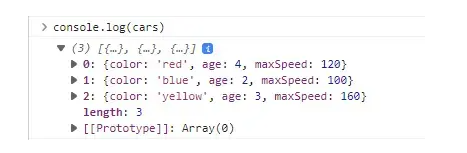
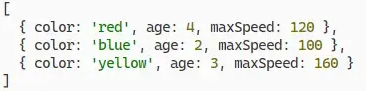
在 Node.js 终端环境中,我们不仅能查看属性,还能获得色彩区分的效果:
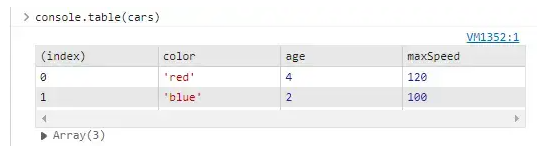
虽然这是一种可行的方法,但 console.table() 方法提供了一种更为优雅的替代方案:
console.table(cars);console.table() 在 Chrome 浏览器控制台中:
console.table() in Node.js Node.js 中的
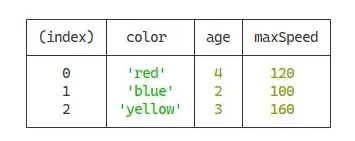
顾名思义,该方法以直观易懂的表格形式呈现数据,效果类似于电子表格。它也完全适用于数组阵列的展示。
const arr = [
  [1, 3, 5],
  [2, 4, 6],
  [10, 20, 30],
];
console.table(arr);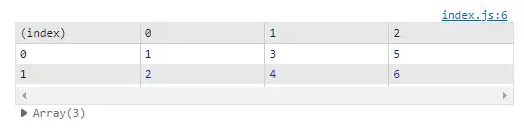
2. assert()
console.assert() 非常适合用于调试目的,它接收一个断言表达式。当断言结果为 false 时,会向控制台写入错误信息;但如果结果是 true,则不会发生任何输出:
const num = 13;
console.assert(num > 10, 'Number must be greater than 10');
console.assert(num > 20, 'Number must be greater than 20');
第一个断言通过是因为 num 大于 10,所以控制台仅显示第二个断言的结果:

3. trace()
console.trace() 可以帮助您在调用它的位置输出当前的堆栈跟踪信息。例如:
function a() {
  b();
}
function b() {
  c();
}
function c() {
  console.trace();
}
a();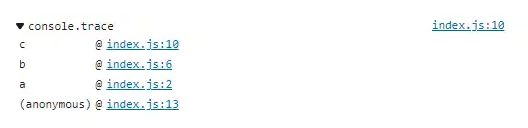
4. error()
error() 可能是第二常用的 Console 方法。在 Chrome 浏览器控制台中,它会以独特的红色字体显示错误信息。
console.error('This is an error message.');
console.log('This is a log message.');
不过,在 Node.js 环境中并不会出现这种颜色区分:
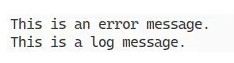
尽管外观相似,但信息在内部被写入不同的位置。console.error() 写入 stderr 流,而 console.log() 写入 stdout 流。你可以使用 process.stderr 和 process.stdout 来访问这些流。这对于将错误信息和普通日志重定向到不同的文件非常有用,就像我们在下面的代码示例中所做的那样。
const fs = require('fs');
const errorFs = fs.createWriteStream('./error-log.txt');
process.stderr.write = errorFs.write.bind(errorFs);
const infoFs = fs.createWriteStream('./info-log.txt');
process.stdout.write = infoFs.write.bind(infoFs);
console.error('This is an error message.');
console.log('This is a log message.');
运行此代码时,传递给 error() 和 log() 的信息将输出到相应的文件,而不是控制台。
5. warn()
console.warn() 在 Chrome 浏览器控制台中输出黄色信息,用于表示警告。
console.warn('This is a warning message');
在 Node.js 中,信息会像 console.error() 一样写入 stderr 流。
6. count() 和 countReset()
console.count() 用于记录当前调用 count() 的执行次数。这是另一个非常有用的调试工具。
function shout(message) {
  console.count();
  return message.toUpperCase() + '!!!';
}
shout('hey');
shout('hi');
shout('hello');
由于我们没有指定标签,因此显示的默认标签是 default。我们可以通过为 count() 传递一个字符串参数来实现自定义标签:
function shout(message) {
  console.count(message);
  return message.toUpperCase() + '!!!';
}
shout('hey');
shout('hi');
shout('hello');
shout('hi');
shout('hi');
shout('hello');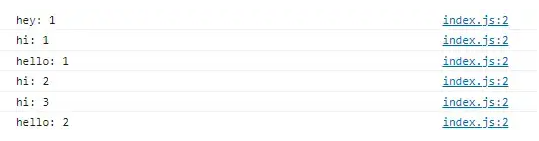
现在,每条信息都拥有独立的计数。countReset() 方法可将指定标签的计数重置为零。
function shout(message) {
  console.count(message);
  return message.toUpperCase() + '!!!';
}
shout('hi');
shout('hello');
shout('hi');
shout('hi');
shout('hello');
console.countReset('hi');
shout('hi');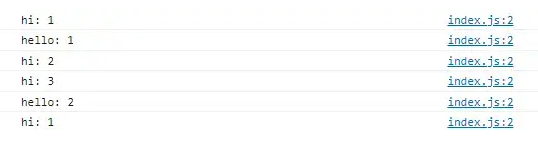
7. time(), timeEnd(), and timeLog()
我们可以组合使用这些方法来测量程序中特定操作所消耗的时间。
const arr = [...Array(10)];
const doubles1 = [];
console.time('for of');
let i = 0;
for (; i < 1000; i++) {
  for (const item of arr);
}
console.timeLog('for of');
for (; i < 1000000; i++) {
  for (const item of arr);
}
console.timeEnd('for of');
console.time('forEach');
i = 0;
for (; i < 1000; i++) {
  arr.forEach(() => {});
}
console.timeLog('forEach');
for (; i < 1000000; i++) {
  arr.forEach(() => {});
}
console.timeEnd('forEach');
在此,我们将对 for of 和 forEach 循环进行性能比较。time() 启动定时器,并执行其传递的标签所指定的操作。timeLog() 在不停止计时器的情况下记录当前持续时间,我们用它来显示迭代一千次后的时间。timeEnd() 记录当前持续时间并停止计时器。我们在一百万次迭代后调用它。
从结果来看,forEach() 比 for of 更快。
8. clear()
console.clear() 通过清除日志来清理控制台中的杂乱信息。
console.log('A log message.');
console.clear();
9. group(), groupCollapsed(), and groupEnd()
console.group() 为其后的控制台信息添加一级缩进。console.groupEnd() 会将缩进程度重置为调用前面的 console.group() 之前的缩进状态。
console.log('This is the outer level');
console.group();
console.log('Level 2');
console.group();
console.log('Level 3');
console.warn('More of level 3');
console.groupEnd();
console.log('Back to level 2');
console.groupEnd();
console.log('Back to the outer level');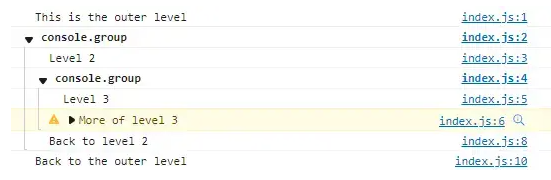
console.groupCollapsed() 创建了一个类似 console.group() 的组,但该组默认是折叠状态,直到用户使用旁边的“披露”按钮将其展开。
console.log('This is the outer level');
console.group();
console.log('Level 2');
console.groupCollapsed();
console.log('Level 3 ');
console.warn('More of level 3');
console.groupEnd();
console.log('Back to level 2');
console.groupEnd();
console.log('Back to the outer level');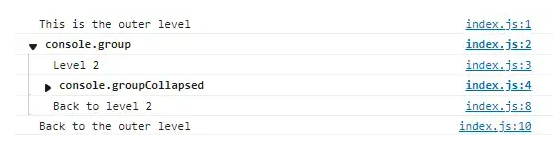
10. dir()
console.log() 将 HTMLElement 记录为 HTML 格式,我们可以在控制台中直接浏览:
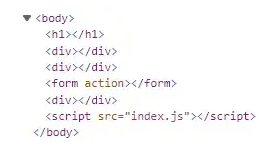
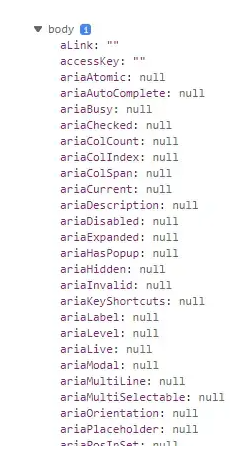
但是,console.dir() 会将其记录为一个对象,并显示一个交互式的属性列表:
总结
正如你在本文中所看到的,除了 console.log() 之外,还有许多控制台方法可用。其中一些只是在控制台 UI 中用颜色和更好的可视化来点缀,而另一些则可以作为调试和性能测试的强大工具。
到此这篇关于10个很少使用的JavaScript Console方法分享的文章就介绍到这了,更多相关JavaScript Console内容请搜索本站以前的文章或继续浏览下面的相关文章希望大家以后多多支持本站!