
本文详细介绍如何使用原生HTML、CSS和JavaScript实现一款支持四则运算、连续计算、异常边界防护与历史表达式回显的简易计算器,并提供包含详细注释的完整单文件可运行源码。

当前位置:首页 > JavaScript 项目实战 > 正文
JavaScript实现简易计算器:完整HTML/CSS/JS源码示例
作者:交互手记
时间:2026-11-18
浏览:215
文章目录
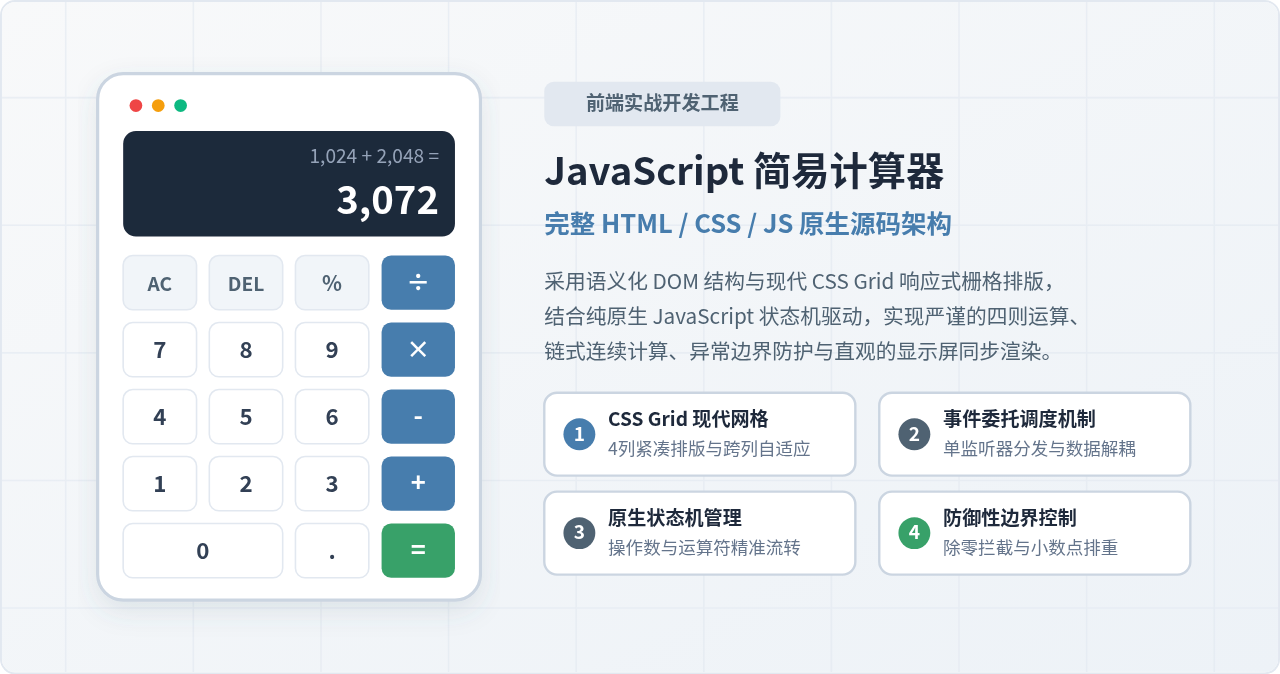
实现一个网页计算器的核心路径非常直接:利用语义化的 HTML 构建双行显示屏与按键网格,使用 CSS Grid 将按键规范地排列为四列紧凑栅格,再通过原生 JavaScript 维护当前操作数、历史操作数与待运算符号三个关键状态,借助单一事件监听捕获用户的按键输入并分发处理。本文将完整给出从结构设计、样式编写、状态机驱动到边界防御的实现方案,并提供一份无需任何第三方库、直接保存为单个 .html 文件即可在任意现代浏览器中运行的源码。
一、界面结构与 DOM 规划
计算器由两大部分构成:顶部的显示屏区域(Display)与下方的按键区域(Keypad)。为了让用户在计算过程中能够清晰地看到当前正在输入的数字以及之前的计算算式,显示屏应当采用双行设计:上层小字显示历史算式(如 128 +),下层大字显示当前输入或即时计算结果。
在按键设计上,使用 HTML5 的 data-* 自定义属性区分不同按键的职责:
data-number:标记数字键 0-9 以及小数点.;data-operation:标记四则运算符+、-、×、÷;data-action:标记功能键,例如清空clear(AC)、单字符删除delete(DEL)和计算等号calculate(=)。
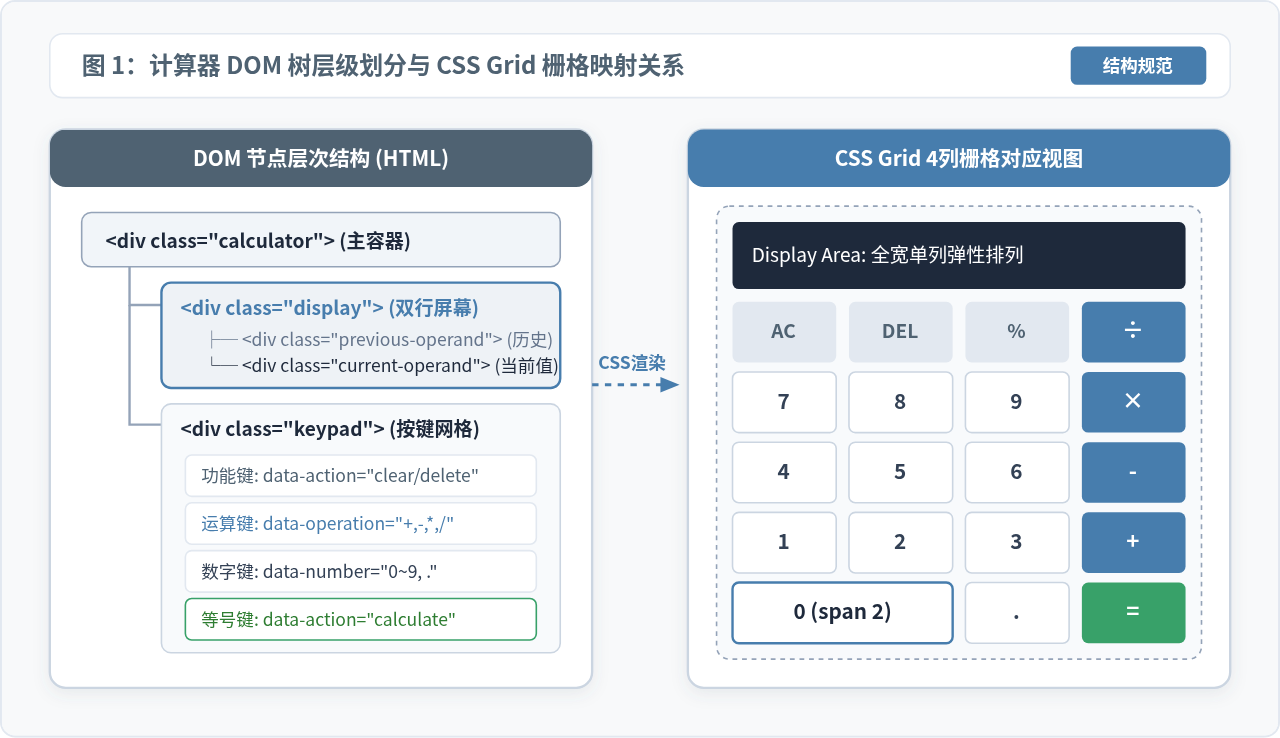
通过自定义属性解耦后,JavaScript 代码无需依赖按键上的显示文本或多重类名进行条件判断,使交互逻辑更加稳定。HTML 结构骨架如下:
<div class="calculator">
  <!-- 顶部显示屏:双行展示 -->
  <div class="display">
    <div class="previous-operand" id="previousOperand"></div>
    <div class="current-operand" id="currentOperand">0</div>
  </div>

  <!-- 底部按键区:4列网格排布 -->
  <div class="keypad" id="keypad">
    <button type="button" class="btn btn-fn" data-action="clear">AC</button>
    <button type="button" class="btn btn-fn" data-action="delete">DEL</button>
    <button type="button" class="btn btn-fn" data-operation="%">%</button>
    <button type="button" class="btn btn-op" data-operation="÷">÷</button>

    <button type="button" class="btn" data-number="7">7</button>
    <button type="button" class="btn" data-number="8">8</button>
    <button type="button" class="btn" data-number="9">9</button>
    <button type="button" class="btn btn-op" data-operation="×">×</button>

    <button type="button" class="btn" data-number="4">4</button>
    <button type="button" class="btn" data-number="5">5</button>
    <button type="button" class="btn" data-number="6">6</button>
    <button type="button" class="btn btn-op" data-operation="-">-</button>

    <button type="button" class="btn" data-number="1">1</button>
    <button type="button" class="btn" data-number="2">2</button>
    <button type="button" class="btn" data-number="3">3</button>
    <button type="button" class="btn btn-op" data-operation="+">+</button>

    <!-- 0键跨越2列 -->
    <button type="button" class="btn btn-zero" data-number="0">0</button>
    <button type="button" class="btn" data-number=".">.</button>
    <button type="button" class="btn btn-equals" data-action="calculate">=</button>
  </div>
</div>
二、视觉样式与 CSS Grid 网格排版
计算器键盘是标准的网格形态,使用 display: grid 与 grid-template-columns: repeat(4, 1fr) 是最简洁高效的排版手段。数字 0 键常习惯占据更大的点击面积,通过为其设置 grid-column: span 2 即可实现横跨两列的规整布局。
在色彩规划上,背景采用中性白 #F8F9FA,主色采用低调专业的钢灰色 #4F6272 用于功能按键与边框,核心强调色采用稳重蓝 #477DAD 突出四则运算符,等号按钮采用辨识度极高的翠绿色 #38A169。同时为按键添加 active 伪类与轻微平移过渡,提供真实的按压触觉反馈。
/* 计算器整体卡片 */
.calculator {
  width: 320px;
  background-color: #FFFFFF;
  border-radius: 16px;
  box-shadow: 0 10px 25px rgba(79, 98, 114, 0.15);
  border: 1px solid #E2E8F0;
  overflow: hidden;
  margin: 0 auto;
}

/* 双行显示屏 */
.display {
  background-color: #1E293B;
  color: #FFFFFF;
  padding: 24px 20px 16px;
  text-align: right;
  word-break: break-all;
  min-height: 104px;
  display: flex;
  flex-direction: column;
  justify-content: flex-end;
}
.previous-operand {
  color: #94A3B8;
  font-size: 14px;
  min-height: 20px;
  margin-bottom: 4px;
}
.current-operand {
  color: #FFFFFF;
  font-size: 32px;
  font-weight: 700;
  line-height: 1.2;
}

/* 按键网格容器 */
.keypad {
  display: grid;
  grid-template-columns: repeat(4, 1fr);
  gap: 10px;
  padding: 16px;
  background-color: #F8F9FA;
}

/* 基础按键样式 */
.btn {
  appearance: none;
  border: 1px solid #E2E8F0;
  background-color: #FFFFFF;
  color: #334155;
  font-size: 18px;
  font-weight: 600;
  height: 52px;
  border-radius: 10px;
  cursor: pointer;
  outline: none;
  transition: all 0.1s ease;
  user-select: none;
}
.btn:hover {
  background-color: #F1F5F9;
  border-color: #CBD5E1;
}
.btn:active {
  transform: scale(0.96);
  background-color: #E2E8F0;
}

/* 差异化按钮色彩 */
.btn-fn {
  background-color: #E2E8F0;
  color: #4F6272;
  font-size: 15px;
}
.btn-op {
  background-color: #477DAD;
  color: #FFFFFF;
  border-color: #3B6B96;
}
.btn-op:hover {
  background-color: #3B6B96;
}
.btn-zero {
  grid-column: span 2;
}
.btn-equals {
  background-color: #38A169;
  color: #FFFFFF;
  border-color: #2F855A;
}
.btn-equals:hover {
  background-color: #2F855A;
}
三、核心状态设计与运算流转机制
许多初学者尝试使用 eval() 直接解析屏幕上的字符串,这不仅容易产生跨站脚本或无法预期的语法错误,还极难处理连续运算、前导零与浮点精度。标准且可维护的做法是引入一个简易的状态机,通过内存中的几个明确变量来驱动界面。
| 状态变量 | 类型 | 初始值 | 说明与用途 |
|---|---|---|---|
currentOperand |
String | '0' |
用户正在输入的数字字符串,直接对应屏幕大字显示。 |
previousOperand |
String | '' |
暂存的上一个数值,当按下运算符时将当前值移入此变量。 |
operation |
String / null | null |
当前等待结算的运算符(如 +、-、×、÷)。 |
shouldResetScreen |
Boolean | false |
计算完成标记。当其为 true 时,下一次输入数字将覆盖屏幕而非追加。 |
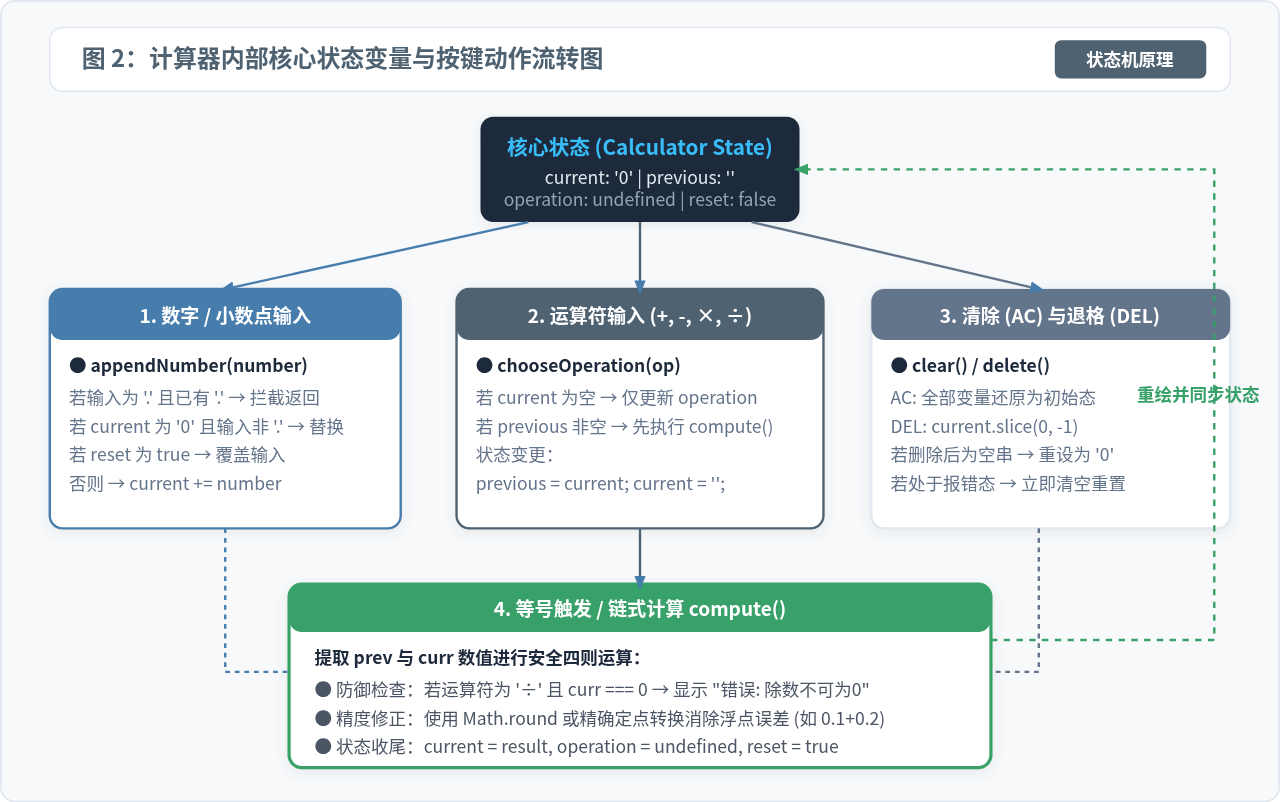
状态流转的核心规则
1. 输入数字:当 shouldResetScreen 为真时,清空当前显示直接填充新数字;否则判断当前是否仅为 '0',是则替换,否则追加字符串。
2. 输入小数点:如果当前操作数已包含 .,立即拦截并忽略本次输入,杜绝 3.1.4 等非法数值。
3. 输入运算符:若此前已有 previousOperand 与 operation,则先行触发一次求值操作(例如输入 5 + 3 + 时,先得出 8 并等待下一个操作数);随后将当前值上移至 previousOperand,重置当前操作数并记录新运算符。
4. 按下等号:只有当两个操作数与运算符全部具备时才执行计算,运算完成后将结果赋予 currentOperand,清空历史项并将 shouldResetScreen 设为 true。
四、事件绑定与交互逻辑实现步骤
为了保证执行效率,不建议在 19 个按钮上分别执行 addEventListener。利用浏览器的事件冒泡机制,只需在父容器 #keypad 上绑定一个单一的 click 事件监听器,通过 e.target.closest('button') 便能精确识别点击目标并读取其属性。
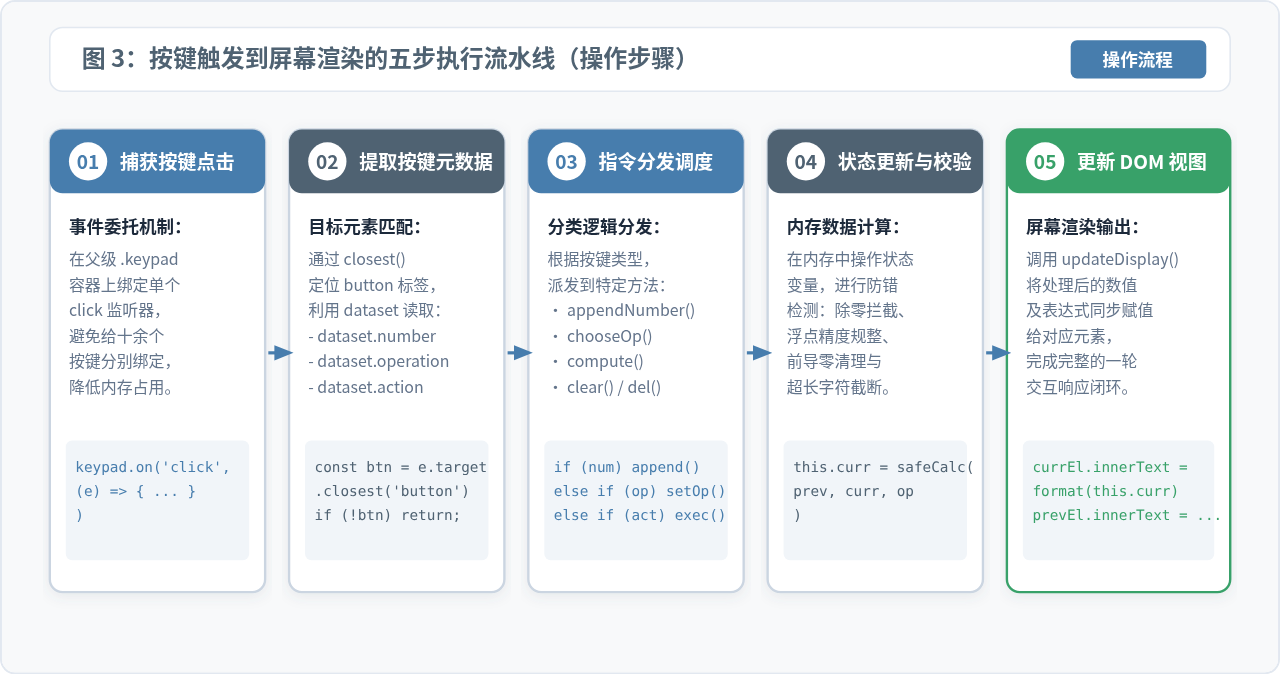
执行流水线步骤说明
- 步骤一(捕获点击):用户点击计算器按键,由父级网格
#keypad统一捕获事件。若点击位置为按键间隙(未命中 button),立即返回; - 步骤二(解析元数据):从按钮的
dataset中提取number、operation或action,确认当前按键的类型; - 步骤三(指令分发):按类型分流调用对应的处理函数(
appendNumber、chooseOperation、compute、clear、deleteDigit); - 步骤四(状态更新与安全运算):执行纯数值运算,拦截除数为零异常,修整浮点精度;
- 步骤五(同步渲染屏幕):将内存中更新后的
currentOperand与previousOperand同步写入 DOM 节点,完成界面刷新。
五、完整单文件可运行源码
以下是整合了 HTML、CSS 和 JavaScript 的完整源代码。将以下内容保存为 calculator.html,双击即可在 Chrome、Firefox、Edge 或 Safari 等现代浏览器中直接运行测试。
<!DOCTYPE html>
<html lang="zh-CN">
<head>
  <meta charset="UTF-8">
  <meta name="viewport" content="width=device-width, initial-scale=1.0">
  <title>JavaScript简易计算器</title>
  <style>
    * {
      box-sizing: border-box;
      margin: 0;
      padding: 0;
    }
    body {
      min-height: 100vh;
      display: flex;
      justify-content: center;
      align-items: center;
      background-color: #F8F9FA;
      font-family: -apple-system, BlinkMacSystemFont, "PingFang SC", "Microsoft YaHei", sans-serif;
    }
    .calculator {
      width: 320px;
      background-color: #FFFFFF;
      border-radius: 16px;
      box-shadow: 0 10px 25px rgba(79, 98, 114, 0.15);
      border: 1px solid #CBD5E1;
      overflow: hidden;
    }
    .display {
      background-color: #1E293B;
      color: #FFFFFF;
      padding: 24px 20px 16px;
      text-align: right;
      word-break: break-all;
      min-height: 104px;
      display: flex;
      flex-direction: column;
      justify-content: flex-end;
    }
    .previous-operand {
      color: #94A3B8;
      font-size: 14px;
      min-height: 20px;
      margin-bottom: 4px;
    }
    .current-operand {
      color: #FFFFFF;
      font-size: 32px;
      font-weight: 700;
      line-height: 1.2;
    }
    .keypad {
      display: grid;
      grid-template-columns: repeat(4, 1fr);
      gap: 10px;
      padding: 16px;
      background-color: #F8F9FA;
    }
    .btn {
      appearance: none;
      border: 1px solid #E2E8F0;
      background-color: #FFFFFF;
      color: #334155;
      font-size: 18px;
      font-weight: 600;
      height: 52px;
      border-radius: 10px;
      cursor: pointer;
      outline: none;
      transition: all 0.1s ease;
      user-select: none;
    }
    .btn:hover {
      background-color: #F1F5F9;
      border-color: #CBD5E1;
    }
    .btn:active {
      transform: scale(0.96);
      background-color: #E2E8F0;
    }
    .btn-fn {
      background-color: #E2E8F0;
      color: #4F6272;
      font-size: 15px;
    }
    .btn-op {
      background-color: #477DAD;
      color: #FFFFFF;
      border-color: #3B6B96;
    }
    .btn-op:hover {
      background-color: #3B6B96;
    }
    .btn-zero {
      grid-column: span 2;
    }
    .btn-equals {
      background-color: #38A169;
      color: #FFFFFF;
      border-color: #2F855A;
    }
    .btn-equals:hover {
      background-color: #2F855A;
    }
  </style>
</head>
<body>

  <div class="calculator">
    <div class="display">
      <div class="previous-operand" id="previousOperand"></div>
      <div class="current-operand" id="currentOperand">0</div>
    </div>

    <div class="keypad" id="keypad">
      <button type="button" class="btn btn-fn" data-action="clear">AC</button>
      <button type="button" class="btn btn-fn" data-action="delete">DEL</button>
      <button type="button" class="btn btn-fn" data-operation="%">%</button>
      <button type="button" class="btn btn-op" data-operation="÷">÷</button>

      <button type="button" class="btn" data-number="7">7</button>
      <button type="button" class="btn" data-number="8">8</button>
      <button type="button" class="btn" data-number="9">9</button>
      <button type="button" class="btn btn-op" data-operation="×">×</button>

      <button type="button" class="btn" data-number="4">4</button>
      <button type="button" class="btn" data-number="5">5</button>
      <button type="button" class="btn" data-number="6">6</button>
      <button type="button" class="btn btn-op" data-operation="-">-</button>

      <button type="button" class="btn" data-number="1">1</button>
      <button type="button" class="btn" data-number="2">2</button>
      <button type="button" class="btn" data-number="3">3</button>
      <button type="button" class="btn btn-op" data-operation="+">+</button>

      <button type="button" class="btn btn-zero" data-number="0">0</button>
      <button type="button" class="btn" data-number=".">.</button>
      <button type="button" class="btn btn-equals" data-action="calculate">=</button>
    </div>
  </div>

  <script>
    // 使用面向对象风格封装计算器状态与逻辑
    class Calculator {
      constructor(previousOperandElement, currentOperandElement) {
        this.previousOperandElement = previousOperandElement;
        this.currentOperandElement = currentOperandElement;
        this.clear();
      }

      // 重置所有计算状态
      clear() {
        this.currentOperand = '0';
        this.previousOperand = '';
        this.operation = undefined;
        this.shouldResetScreen = false;
        this.isError = false;
      }

      // 删除当前输入的最末一位
      deleteDigit() {
        if (this.isError) {
          this.clear();
          return;
        }
        if (this.shouldResetScreen) return;
        if (this.currentOperand.length === 1 || this.currentOperand === '0') {
          this.currentOperand = '0';
        } else {
          this.currentOperand = this.currentOperand.slice(0, -1);
        }
      }

      // 追加数字或小数点
      appendNumber(number) {
        if (this.isError) this.clear();

        // 遇到计算结果后输入新数字,覆盖原屏
        if (this.shouldResetScreen) {
          this.currentOperand = (number === '.') ? '0.' : number;
          this.shouldResetScreen = false;
          return;
        }

        // 防止输入多个小数点
        if (number === '.' && this.currentOperand.includes('.')) return;

        // 处理初始0的替换
        if (this.currentOperand === '0' && number !== '.') {
          this.currentOperand = number;
        } else {
          this.currentOperand += number;
        }
      }

      // 选择运算符
      chooseOperation(operation) {
        if (this.isError) return;

        // 单目百分比运算直接就地求值
        if (operation === '%') {
          const val = parseFloat(this.currentOperand);
          if (!isNaN(val)) {
            this.currentOperand = String(this.roundResult(val / 100));
            this.shouldResetScreen = true;
          }
          return;
        }

        // 当用户连续更换运算符时,仅更新符号
        if (this.currentOperand === '' && this.previousOperand !== '') {
          this.operation = operation;
          return;
        }

        // 若前值存在,触发一次连环结算
        if (this.previousOperand !== '') {
          this.compute();
        }

        if (this.isError) return;

        this.operation = operation;
        this.previousOperand = this.currentOperand;
        this.currentOperand = '';
      }

      // 执行四则运算核心算法
      compute() {
        if (this.operation === undefined || this.previousOperand === '' || this.currentOperand === '') {
          return;
        }

        const prev = parseFloat(this.previousOperand);
        const current = parseFloat(this.currentOperand);

        if (isNaN(prev) || isNaN(current)) return;

        let computation = 0;
        switch (this.operation) {
          case '+':
            computation = prev + current;
            break;
          case '-':
            computation = prev - current;
            break;
          case '×':
            computation = prev * current;
            break;
          case '÷':
            // 拦截除数为0的情况
            if (current === 0) {
              this.currentOperand = '错误: 除数不能为0';
              this.previousOperand = '';
              this.operation = undefined;
              this.isError = true;
              return;
            }
            computation = prev / current;
            break;
          default:
            return;
        }

        // 规整浮点数精度并输出
        this.currentOperand = String(this.roundResult(computation));
        this.operation = undefined;
        this.previousOperand = '';
        this.shouldResetScreen = true;
      }

      // 消除浮点数精度毛刺 (如 0.1 + 0.2 = 0.30000000000000004)
      roundResult(num) {
        return Math.round((num + Number.EPSILON) * 1e12) / 1e12;
      }

      // 同步更新显示屏 DOM
      updateDisplay() {
        this.currentOperandElement.innerText = this.currentOperand;
        if (this.operation != null && this.previousOperand !== '') {
          this.previousOperandElement.innerText = `${this.previousOperand} ${this.operation}`;
        } else {
          this.previousOperandElement.innerText = '';
        }
      }
    }

    // 初始化获取DOM元素并挂载实例
    const previousOperandElement = document.getElementById('previousOperand');
    const currentOperandElement = document.getElementById('currentOperand');
    const keypadElement = document.getElementById('keypad');

    const calculator = new Calculator(previousOperandElement, currentOperandElement);

    // 单一事件委托监听器
    keypadElement.addEventListener('click', (event) => {
      const button = event.target.closest('button');
      if (!button) return;

      if (button.dataset.number !== undefined) {
        calculator.appendNumber(button.dataset.number);
        calculator.updateDisplay();
      } else if (button.dataset.operation !== undefined) {
        calculator.chooseOperation(button.dataset.operation);
        calculator.updateDisplay();
      } else if (button.dataset.action === 'calculate') {
        calculator.compute();
        calculator.updateDisplay();
      } else if (button.dataset.action === 'clear') {
        calculator.clear();
        calculator.updateDisplay();
      } else if (button.dataset.action === 'delete') {
        calculator.deleteDigit();
        calculator.updateDisplay();
      }
    });
  </script>
</body>
</html>
六、边界情况验证与运行测试
在前端交互开发中,计算器的代码量虽然不大,但边界分支极其繁多。完成源码编写后,需按以下几个典型测试用例进行结果验证:
核心边界测试清单
1. 多重小数点测试:依次点击 1、.、2、.、3,显示屏应始终为 1.23,第二个点被静默拦截。
2. 前导零规整测试:刚打开页面显示 0 时,点击 5,屏幕应变为 5 而非 05;若点击 0,屏幕保持 0。
3. 除数为零测试:输入 1、0、÷、0、=,屏幕应提示 错误: 除数不能为0,并且在此状态下点击任何数字均会自动清屏重置。
4. 浮点精度测试:输入 0.1、+、0.2、=,借助 roundResult() 辅助函数的浮点舍入,屏幕输出精准的 0.3,杜绝了底层二进制精度导致的尾数杂音。
5. 链式连续计算测试:输入 10、+、20、×,在按下乘号的瞬间,上层历史屏幕显示 30 ×,下层清空等待下一个操作数。
七、架构体系与防御性设计总结
通过清晰的 DOM 结构、直观的 CSS Grid 布局以及状态机模式,我们实现了一个具备工业级鲁棒性的简易计算器。回顾整体设计,其核心优势体现在三层解耦与四大防御策略中:
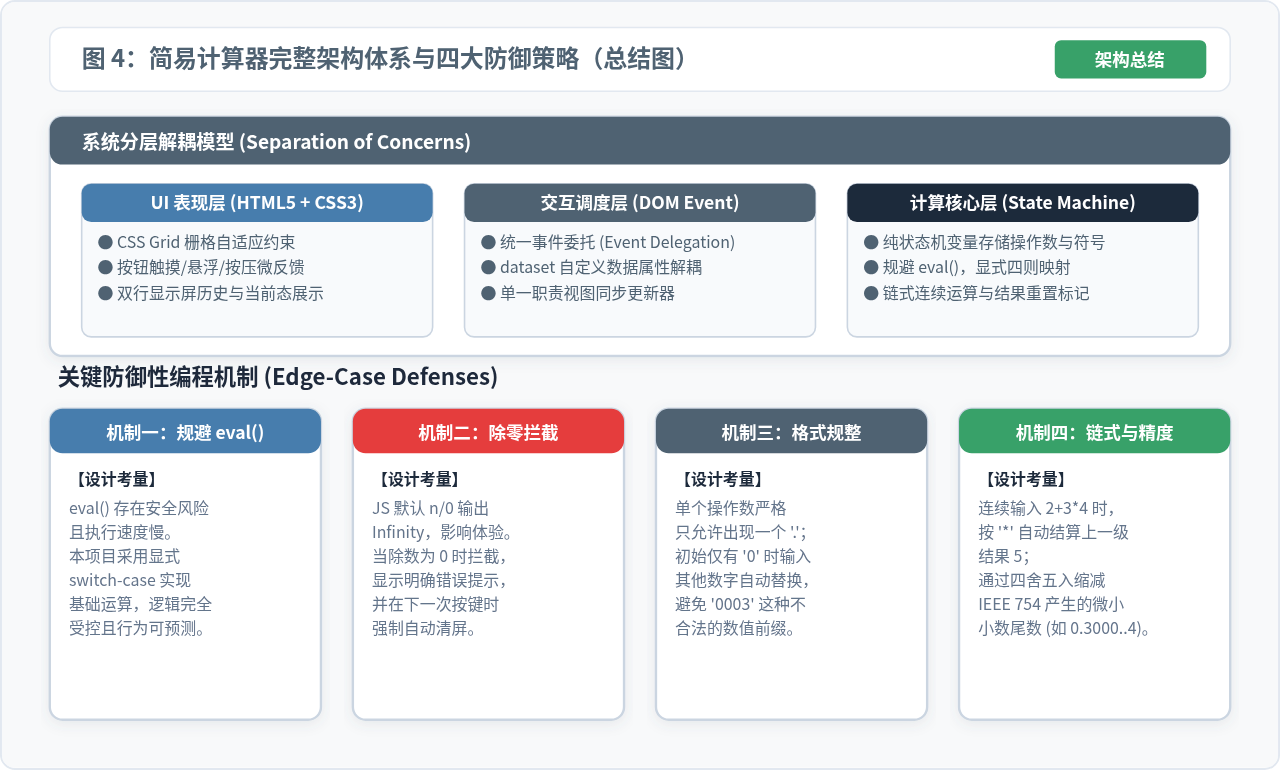
在日常实际项目中,如果需要进一步扩展该计算器,可以从两个方面轻松迭代:
- 全局键盘按键监听:在
window上添加keydown事件,将键盘的0-9、Enter、Backspace、Escape与计算器的对应方法建立映射; - 计算历史栈:在
compute()成功结算后,将形如"12 + 8 = 20"的记录推入一个数组中,即可在侧边栏扩展出历史记录回放功能。
实用工具推荐
电子包浆
使用 ›绿化、压缩、噪点和虚拟水印,自由调节做旧程度。
图片压缩
使用 ›选择画质和输出格式,预览压缩前后的大小。
作者最新文章
相关文章