

本文介绍如何在 Node.js 脚本中通过调用 Windows PowerShell 命令,利用 System.Windows.Forms 组件实现文件及文件夹选择功能,无需依赖 Electron。文章详细说明了 CMD 与 PowerShell 下的不同调用方式,解决了中文路径乱码、输出格式处理及多选文件等常见问题,并提供了 Windows 和 macOS 下的具体命令示例。
前言
近期在开发一些小型脚本,采用 Node.js 作为运行环境。其中许多功能模块需要用户交互,具体表现为选择一个或多个文件,或者选择一个文件夹。
最初的实现方案是让用户手动输入目录路径。由于这只是一个普通的终端文本输入框,按下 Tab 键无法提供路径自动补全提示,操作非常繁琐,且极易出现输入错误。
针对这种情况,网络上常见的解决方案是引入 Electron。然而,对于一个小脚本而言,引入 Electron 显得过于沉重。经过思考,我决定尝试通过 PowerShell 来实现类似的文件选择器功能。
通过命令唤醒文件选择器
通过 cmd / powershell 唤醒文件选择器
我对 PowerShell 并不熟悉,于是迅速打开 GPT 寻求帮助。GPT 不负众望,很快给出了可行的解决方案。
注意这里有区别:cmd 终端中需要调用
powershell.exe如果当前已经是在 powershell 终端的话,直接运行对应的指令即可
- 在 cmd 中运行:
powershell.exe -Command "& {Add-Type -AssemblyName System.Windows.Forms; $FileDialog = New-Object System.Windows.Forms.OpenFileDialog; $result = $FileDialog.ShowDialog(); if ($result -eq 'OK') { Write-Output $FileDialog.FileName }}"
- 在 powershell 中运行:
& {Add-Type -AssemblyName System.Windows.Forms; $FileDialog = New-Object System.Windows.Forms.OpenFileDialog; $result = $FileDialog.ShowDialog(); if ($result -eq 'OK') { Write-Output $FileDialog.FileName }}
运行效果:选择文件后终端会输出你选择的文件的全路径

在 nodejs 调用 cmd 命令
const { exec, execSync } = require('child_process')

const command = `powershell.exe -Command "& {Add-Type -AssemblyName System.Windows.Forms; $FileDialog = New-Object System.Windows.Forms.OpenFileDialog; $result = $FileDialog.ShowDialog(); if ($result -eq 'OK') { Write-Output $FileDialog.FileName }}"`

// 异步执行
exec(command, (error, file) => {
  console.log(error, file)
})

// 同步执行
const filePath = execSync(command)
console.log('选择的文件', filePath)
到这结束了吗?并没有,我选择的是一个包含中文名称的路径,输入结果如下:

几个小问题:
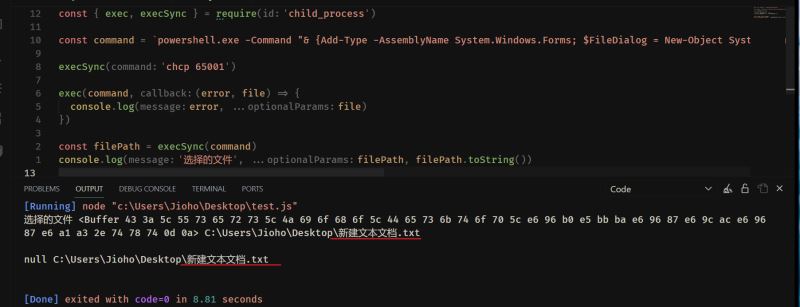
- execSync 同步执行的代码返回的是
Buffer类型- 可以用
filePath.toString()获取实际的路径
- 可以用
- 选择的文件/文件夹包含中文,返回乱码的问题
- 这个需要设置终端的编码类型,也就是在执行上面的命令执行先执行
chcp 650
- 这个需要设置终端的编码类型,也就是在执行上面的命令执行先执行
- 遇到执行警告:
libpng warning: iCCP: cHRM chunk does not match sRGB- 卸载 QQ 拼音(虽然我也不知道具体是哪里的问题,不过确实是 QQ 拼音引起的)
调整后执行效果如下:
如何实现多选文件 / 选择文件夹?
- 选择目录
# 加载 Windows.Forms 程序集
Add-Type -AssemblyName System.Windows.Forms

# 创建 FolderBrowserDialog 对象
$folderDialog = New-Object System.Windows.Forms.FolderBrowserDialog

# 设置对话框的属性
$folderDialog.Description = "请选择文件夹"
$folderDialog.RootFolder = [System.Environment+SpecialFolder]::MyComputer

# 显示文件夹选择对话框
$result = $folderDialog.ShowDialog()

# 检查用户是否点击了 "确定" 按钮
if ($result -eq [System.Windows.Forms.DialogResult]::OK) {
    # 输出所选文件夹的路径
    Write-Output $folderDialog.SelectedPath
} else {
    # 用户取消选择,这里输出空路径
    Write-Output ""
}
合并成一行代码则是:
- cmd 执行:
powershell.exe -Command "& {Add-Type -AssemblyName System.Windows.Forms; $folderDialog = New-Object System.Windows.Forms.FolderBrowserDialog; $folderDialog.Description = '请选择文件夹'; $folderDialog.RootFolder = [System.Environment+SpecialFolder]::MyComputer; $result = $folderDialog.ShowDialog(); if ($result -eq [System.Windows.Forms.DialogResult]::OK) { Write-Output $folderDialog.SelectedPath } else { Write-Output '' }}"
多选文件同理:
# 加载 Windows.Forms 程序集
Add-Type -AssemblyName System.Windows.Forms

# 创建 OpenFileDialog 对象
$fileDialog = New-Object System.Windows.Forms.OpenFileDialog

# 设置对话框的属性
$fileDialog.Multiselect = $true
$fileDialog.Title = "请选择文件"
$fileDialog.Filter = "All Files (*.*)|*.*"

# 显示文件选择对话框
$result = $fileDialog.ShowDialog()

# 检查用户是否点击了 "确定" 按钮
if ($result -eq [System.Windows.Forms.DialogResult]::OK) {
    # 输出所选文件的路径(数组)
    Write-Output $fileDialog.FileNames
} else {
    # 用户取消选择
    Write-Output ""
}
合并为一行命令:
powershell.exe -Command "& {Add-Type -AssemblyName System.Windows.Forms; $fileDialog = New-Object System.Windows.Forms.OpenFileDialog; $fileDialog.Multiselect = $true; $fileDialog.Title = '请选择文件'; $fileDialog.Filter = 'All Files (*.*)|*.*'; $result = $fileDialog.ShowDialog(); if ($result -eq [System.Windows.Forms.DialogResult]::OK) { Write-Output $fileDialog.FileNames } else { Write-Output '' }}"
一些细节
- 如果是选择单个文件/选择文件目录。输出的结果会包含一些前后空格和换行,所以需要通过
filePath.trim()处理一下多余的字符 - 如果是多选的文件,返回的是字符串,每个文件以换行隔开的,也是需要自行处理
- 眼尖的朋友可能发现了在多选的命令中有一段代码:
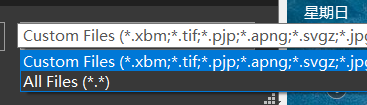
$fileDialog.Filter = "All Files (*.*)|*.*"可以用于设置可选择的文件类型的。 对应的是这个功能:
- 就不再细说了~ 自行摸索
MacOS 如何实现用命令打开选择器
以下的命令完全来自 GPT,并没有经过测试。自行判断代码是否正常运行 (原谅我并没有 mac)
- 选择一个文件
osascript -e 'POSIX path of (choose file with prompt "请选择一个文件")'
- 选择一个目录
osascript -e 'POSIX path of (choose folder with prompt "请选择一个目录")'
- 选择多个文件 (略)gpt 给出的答案非常的长,而且我没电脑试验,所以就不放代码了,有试验过的可以告诉我补充一下~
最后
至此,我的小脚本使用体验已经拉满,再也不用一个个输入文件路径了。
总结下所有用到的命令:
Windows
- 选择单个文件
powershell.exe -Command "& {Add-Type -AssemblyName System.Windows.Forms; $FileDialog = New-Object System.Windows.Forms.OpenFileDialog; $result = $FileDialog.ShowDialog(); if ($result -eq 'OK') { Write-Output $FileDialog.FileName }}"
- 选择文件目录
powershell.exe -Command "& {Add-Type -AssemblyName System.Windows.Forms; $folderDialog = New-Object System.Windows.Forms.FolderBrowserDialog; $folderDialog.Description = '请选择文件夹'; $folderDialog.RootFolder = [System.Environment+SpecialFolder]::MyComputer; $result = $folderDialog.ShowDialog(); if ($result -eq [System.Windows.Forms.DialogResult]::OK) { Write-Output $folderDialog.SelectedPath } else { Write-Output '' }}"
- 选择多个文件
powershell.exe -Command "& {Add-Type -AssemblyName System.Windows.Forms; $fileDialog = New-Object System.Windows.Forms.OpenFileDialog; $fileDialog.Multiselect = $true; $fileDialog.Title = '请选择文件'; $fileDialog.Filter = 'All Files (*.*)|*.*'; $result = $fileDialog.ShowDialog(); if ($result -eq [System.Windows.Forms.DialogResult]::OK) { Write-Output $fileDialog.FileNames } else { Write-Output '' }}"
MacOS
- 选择一个文件
osascript -e 'POSIX path of (choose file with prompt "请选择一个文件")'
- 选择一个目录
osascript -e 'POSIX path of (choose folder with prompt "请选择一个目录")'
- 选择多个文件
以上就是nodejs不用electron实现打开文件资源管理器并选择文件的详细内容,更多关于nodejs实现打开文件资源管理器的资料请关注本站其它相关文章!