

本文详解如何使用JavaScript结合Math.atan2函数计算鼠标相对于元素中心的角度,通过数学转换将弧度映射为上下左右四个方向。文章提供了完整的代码示例,展示如何根据计算结果触发相应的入场或离场动画效果,适用于需要交互反馈的前端开发场景。
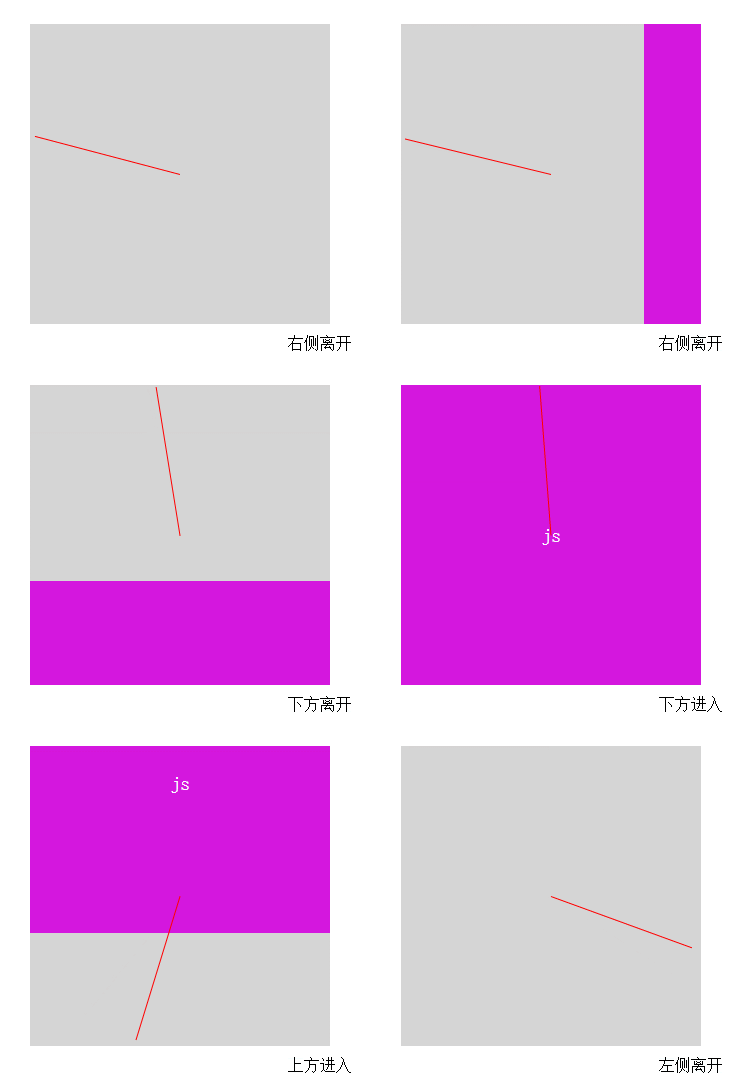
最终效果展示
鼠标方向判断核心逻辑
实现该功能的核心在于准确判断鼠标进入和离开元素的具体方向。
JavaScript代码实现
$("li").on("mouseenter mouseleave",function(e) {
   var w = this.offsetWidth;
   var h = this.offsetHeight;
   var x = e.pageX - this.getBoundingClientRect().left - w/2;
   var y = e.pageY - this.getBoundingClientRect().top - h/2;
   var direction = Math.round((((Math.atan2(y, x) * 180 / Math.PI) + 180) / 90) + 3) % 4; //direction的值为“0,1,2,3”分别对应着“上,右,下,左”
   var eventType = e.type;
   var res = Math.atan2(y, x) / (Math.PI / 180) + 180 ;
   $('.line').css('transform','rotate('+ res +'deg)');
   // console.log(((Math.atan2(y, x) * 180 / Math.PI) + 180));
   // console.log(Math.round((Math.atan2(y, x) / (Math.PI / 180) + 180) / 90 + 3) % 4);
   var dirName = new Array('上方','右侧','下方','左侧');
    $('.res').text(res + 'deg');
   if(eventType == 'mouseenter'){
    $('.res').text(dirName[direction]+'进入');
    animationIn(direction);
   }else{
    $('.res').text(dirName[direction]+'离开');
    animationOut(direction);
   }
  });
代码的关键逻辑集中在计算direction变量的值上。
角度计算与转换原理
Math.atan2(y,x) 返回-PI 到 PI 之间的值(负180°到正180°),是从 X 轴正向逆时针旋转到点 (x,y) 时经过的角度 这里的结果是一个弧度值。那如何把这个值转换为角度呢
计算方法是将上述结果除以一度的弧度值(Math.PI / 180),从而得到具体的角度数值。
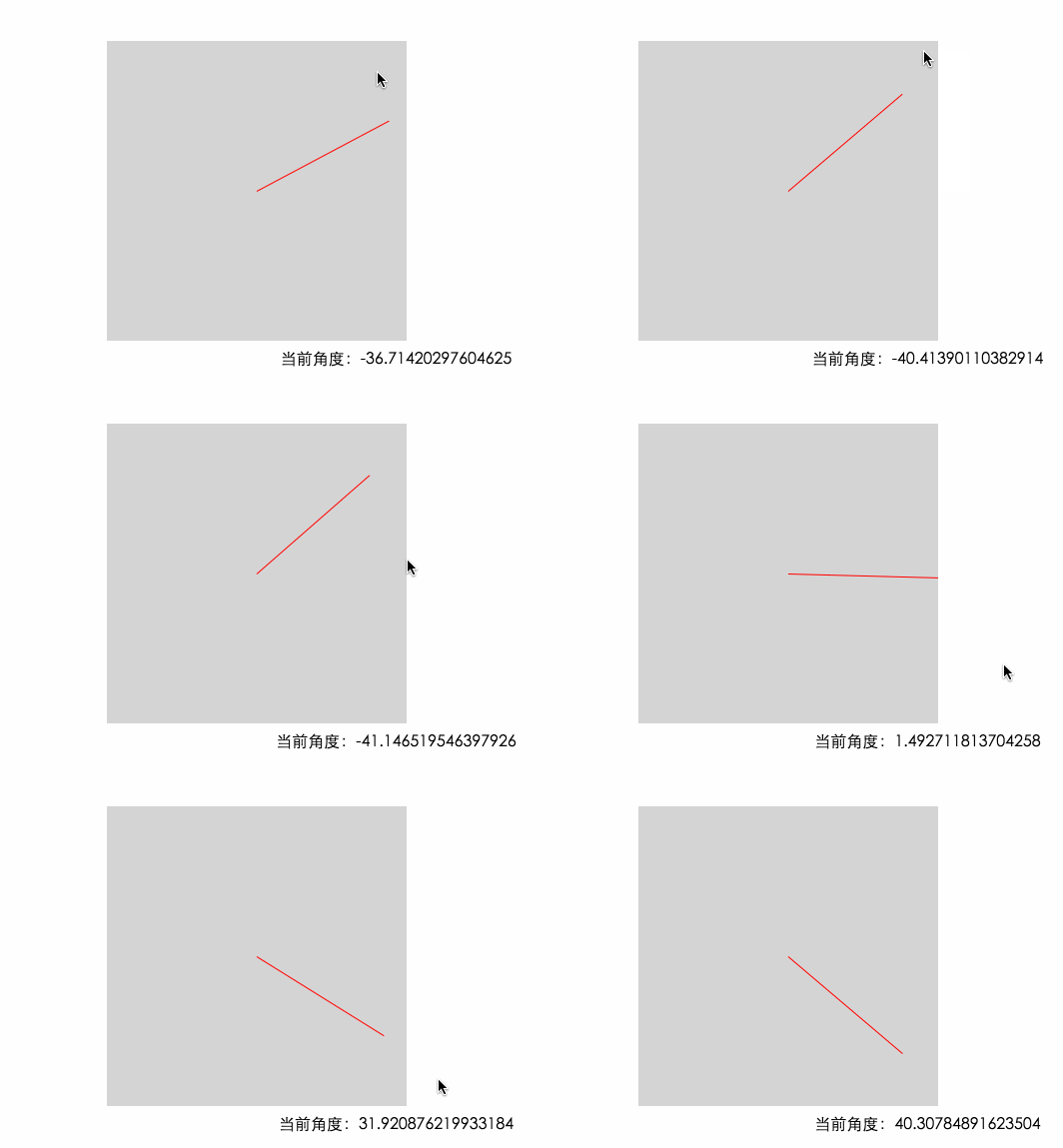
根据几何关系,当鼠标从右侧进入时,角度范围位于-45°至45°之间;底部对应45°至135°;左侧对应135°至180°以及-180°至-135°;顶部则对应-135°至-45°。
由于上述计算结果包含负值且不符合常规习惯,我们在结果基础上加上180,使角度范围变为0°至360°。此时,0°的位置位于左侧中间。
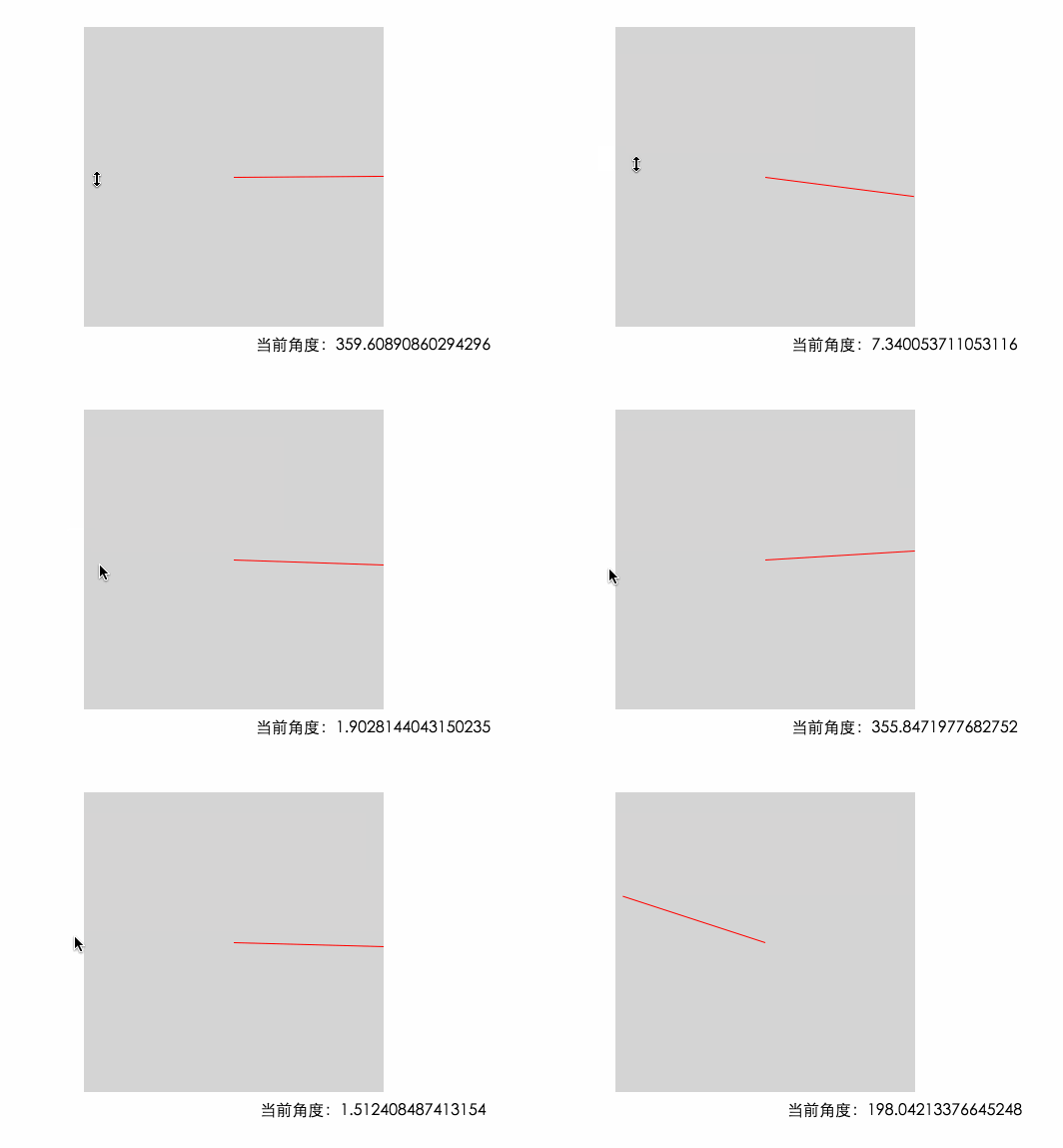
0度位置示意图
经过转换后的角度范围分布如下:
0°至44°以及315°至360°对应左侧。
45°至134°对应上侧。
135°至224°对应右侧。
225°至314°对应下侧。
为了简化判断,我们将计算出的角度除以90并进行四舍五入,以45°作为分界线进行归类。
上侧计算结果为1。
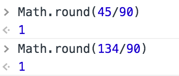
上侧
右侧计算结果为2。
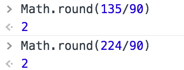
右侧
下侧计算结果为3。
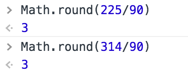
下侧
左侧的计算结果存在两种情况:0°至44°结果为0,而315°至360°结果为4。
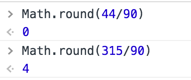
左侧
当前计算结果共有5个值(左侧两个,其他三侧各一个)。为了精简结果,我们对每次计算结果加3后与4取余。
左侧加3后变为3和7,取余后均为3。
上侧加3后为4,取余后为0。
右侧加3后为5,取余后为1。
下侧加3后为6,取余后为2。
最终映射结果为:0代表上侧,1代表右侧,2代表下侧,3代表左侧。通过控制元素的left和top属性,即可实现相应的动画效果。
完整HTML与动画示例
<!DOCTYPE html>
<html lang="en">
 <head>
  <meta charset="UTF-8">
  <title>Document</title>
  <style type="text/css">
   * {
    padding: 0;
    margin: 0;
   }

   html,
   body {
    width: 100%;
    height: 100%;
   }

   ul {
    list-style: none;
    position: relative;
    width: 600px;
    width: 100%;
   }

   ul> li {
    margin: 50px auto;
    position: relative;
    width: 300px;
    height: 300px;
    background-color: black;
    overflow: hidden;
   }

   ul> li .bg {
    position: absolute;
    width: 300px;
    height: 300px;
    left: -100%;
    top: 0;
    background-color: red;
    text-align: center;
    line-height: 300px;
    color: blue;
    font-size: 150px;
   }

   .line {
    position: absolute;
    width: 50%;
    height: 1px;
    background: red;
    right: 0;
    top: 50%;
    transition: all .3s;
    transform-origin: left;
   }

   .res {
    text-align: center;
   }
  </style>
 </head>

 <body>
  <ul>
   <li>
    <div class="bg">
     SB
    </div>
   </li>
  </ul>
  <div class="res"></div>
  <script src="js/jquery-3.1.1.js"></script>
  <script>
   $("li").on("mouseenter mouseleave", function(e) {
    var $bg = $(this).find('.bg');
    var w = this.offsetWidth; //获取元素宽度
    var h = this.offsetHeight; //获取元素高度
    var toTop = this.getBoundingClientRect().top + document.body.scrollTop; //兼容滚动条
    var x = e.pageX - this.getBoundingClientRect().left - w / 2; //获取当前鼠标的x轴位置(相对于这个li的中心点)
    var y = e.pageY - toTop - h / 2; ////获取当前鼠标的y轴位置(相对于这个li的中心点)
    var direction = Math.round((((Math.atan2(y, x) * 180 / Math.PI) + 180) / 90) + 3) % 4; //direction的值为“0,1,2,3”分别对应着“上,右,下,左”
    var eventType = e.type;
    var res = Math.atan2(y, x) / (Math.PI / 180) + 180;
    $('.line').css('transform', 'rotate(' + res + 'deg)');
    var dirName = new Array('上方', '右侧', '下方', '左侧');
    if(eventType == 'mouseenter') {
     $('.res').text(dirName[direction] + '进入');
     animationIn(direction, $bg);
    } else {
     $('.res').text(dirName[direction] + '离开');
     animationOut(direction, $bg);
    }
   });
   function animationIn(direction, ele) {
    switch(direction) {
     case 0:
      ele.css({
       left: 0,
       top: '-100%'
      }).animate({
       top: 0
      }, 300);
      break;
     case 1:
      ele.css({
       left: '100%',
       top: 0
      }).animate({
       left: 0
      }, 300);
      break;
     case 2:
      ele.css({
       left: 0,
       top: '100%'
      }).animate({
       top: 0
      }, 300);
      break;
     case 3:
      ele.css({
       left: '-100%',
       top: 0
      }).animate({
       left: 0
      }, 300);
      break;
    }
   }
   function animationOut(direction, ele) {
    switch(direction) {
     case 0:
      ele.animate({
       top: '-100%'
      }, 300);
      break;
     case 1:
      ele.animate({
       left: '100%'
      }, 300);
      break;
     case 2:
      ele.animate({
       top: '100%'
      }, 300);
      break;
     case 3:
      ele.animate({
       left: '-100%'
      }, 300);
      break;
    }
   }
  </script>
 </body>
</html>
以上就是本文的全部内容,希望本文的内容对大家的学习或者工作能带来一定的帮助,同时也希望多多支持本站!