

本文介绍基于Node.js封装的图片拼接插件,支持横向、纵向及批量图片合并。通过GraphicsMagick和Sharp.js实现高效处理,提供自定义矩阵拼接功能,适用于自动化图像处理场景。
前言
在进行图片合成时,传统方式通常依赖Photoshop等专业图像处理软件。为满足通过代码直接执行图片拼接的需求,本文介绍了一款基于Node.js开发的工具包,旨在实现自动化的图片合并操作。
插件效果
该工具包支持多种图片合并场景,包括基础的双图拼接以及更复杂的批量处理与自定义布局。
1、横向拼接两张图片
假设现有两张待处理图片,利用该工具可将其水平合并为一张宽幅图片。


代码:
const consoleInput = require('@jyeontu/img-concat');
const ImgConcatClass = new ImgConcat();
const p1 = {
    left:'.\\img\\n1.jpg',
    right:'.\\img\\n2.jpg',
    target:'.\\longImg'
}
// 横向拼接两张图片
ImgConcatClass.collapseHorizontal(p1).then(res=>{
    console.log(`拼接完成,图片路径为${res}`);
});
效果;

2、纵向拼接两张图片
沿用上述两张图片,将其垂直方向进行合并,生成高幅图片。
代码:
const consoleInput = require('@jyeontu/img-concat');
const ImgConcatClass = new ImgConcat();
const p1 = {
    left:'.\\img\\n1.jpg',
    right:'.\\img\\n2.jpg',
    target:'.\\longImg'
}
//纵向拼接两张图片
ImgConcatClass.collapseVertical(p1).then(res=>{
    console.log(`拼接完成,图片路径为${res}`);
});
效果:

3、批量拼接
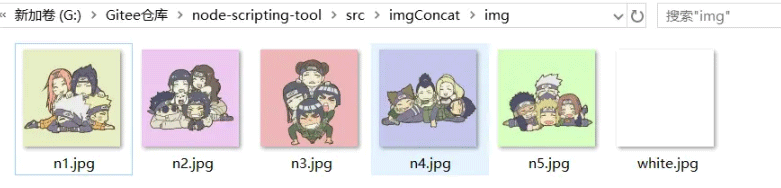
该工具支持对指定目录下的所有图片进行批量合并,生成长图。例如,需处理目录下的全部图像文件。
3.1 横向拼接长图
代码:
const consoleInput = require('@jyeontu/img-concat');
const ImgConcatClass = new ImgConcat();
const p = {
    folderPath:'.\\img',        //资源目录
    targetFolder:'.\\longImg',  //转换后图片存放目录
    direction:'y'               //拼接方向,y为横向,n为纵向
}
// 拼接目录下的所有图片
ImgConcatClass.concatAll(p).then(res=>{
    console.log(`拼接完成,图片路径为${res}`);
})
效果:

3.2 纵向拼接长图
代码:
const consoleInput = require('@jyeontu/img-concat');
const ImgConcatClass = new ImgConcat();
const p = {
    folderPath:'.\\img',        //资源目录
    targetFolder:'.\\longImg',  //转换后图片存放目录
    direction:'n'               //拼接方向,y为横向,n为纵向
}
// 拼接目录下的所有图片
ImgConcatClass.concatAll(p).then(res=>{
    console.log(`拼接完成,图片路径为${res}`);
})
效果:

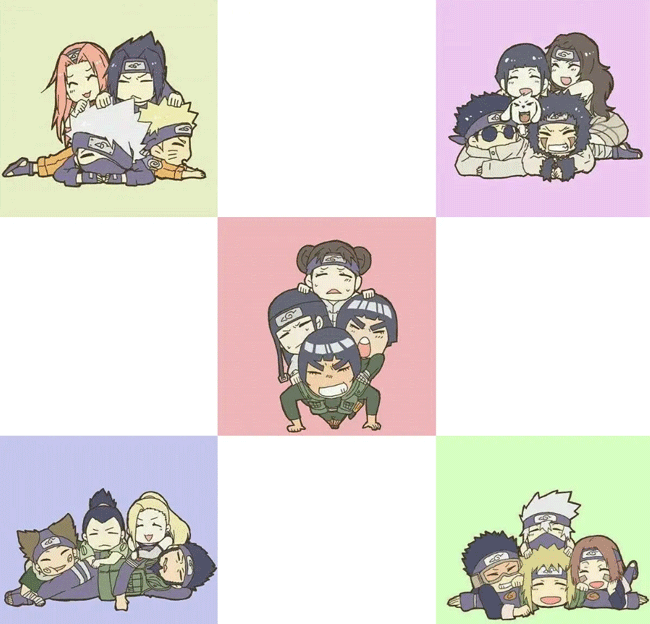
4、自定义拼接矩阵
用户可定义shape为二维数组,以指定每个位置对应的图片路径,实现灵活的矩阵式拼接布局。
代码:
const consoleInput = require('@jyeontu/img-concat');
const ImgConcatClass = new ImgConcat();
const p = {
    shape:[['.\\img\\n1.jpg','.\\img\\white.jpg','.\\img\\n2.jpg'],
            ['.\\img\\white.jpg','.\\img\\n3.jpg','.\\img\\white.jpg'],
            ['.\\img\\n4.jpg','.\\img\\white.jpg','.\\img\\n5.jpg']
        ],
    target:'.\\longImg'
};
//自定义矩阵拼接图片
ImgConcatClass.conCatByMaxit(p).then(res=>{
    console.log(`拼接完成,图片路径为${res}`);
});
效果:
插件实现
1、单张图片拼接
底层调用GraphicsMagick库执行图片的追加与合并操作。
const gm = require('gm');
collapse (left,right,target,flag = true) {
    return new Promise((r) => {
      gm(left).append(right,flag).write(target, err => {
            if(err) console.log(err);
            r();
      })
    })
}
2、量拼接
- 利用sharp.js获取图片元数据并调整分辨率,确保输出质量。
- 通过fs模块读取指定目录下的文件列表。
- 使用path模块处理文件路径,确保跨平台兼容性。
- 集成@jyeontu/progress-bar模块,在控制台打印处理进度条。
const gm = require('gm');
const fs = require('fs');
const path = require('path');
const progressBar = require('@jyeontu/progress-bar');
const {getFileSuffix,getMetadata,resizeImage} = require('./util');

doConcatAll = async(folderPath,targetFolder,direction) => {
    let fileList = fs.readdirSync(folderPath);
    fileList.sort((a, b) => {
      return path.basename(a) - path.basename(b);
    });
    const extensionName = getFileSuffix(fileList[0], ".");
    let targetFilePath = path.join(targetFolder, new Date().getTime() + '.' + extensionName);
    const barConfig = {
      duration: fileList.length - 1,
      current: 0,
      block:'█',
      showNumber:true,
      tip:{
          0: '拼接中……',
          100:'拼接完成'
      },
      color:'green'
    };
    let progressBarC = new progressBar(barConfig);
    const imgInfo = await this.getImgInfo(path.join(folderPath, fileList[0]));
    for (let index = 1; index < fileList.length; index++) {
      let leftFile = path.join(folderPath, fileList[index - 1]);
      let rightFile = path.join(folderPath, fileList[index]);
      const leftPath = await this.resizeImage({
        path:leftFile,
        width:imgInfo.width,
        height:imgInfo.height
      });
      const rightPath = await this.resizeImage({
        path:rightFile,
        width:imgInfo.width,
        height:imgInfo.height
      });
      progressBarC.run(index);
      await this.collapse(index == 1 ? leftPath : targetFilePath,rightPath,targetFilePath,direction);
      fs.unlinkSync(leftPath);
      fs.unlinkSync(rightPath);
    }
    console.log('');
    return targetFilePath;
  }
3、自定义矩阵拼接
const gm = require('gm');
const fs = require('fs');
const path = require('path');
const progressBar = require('@jyeontu/progress-bar');
const {getFileSuffix,getMetadata,resizeImage} = require('./util');
async conCatByMaxit(res){
    const {shape} = res;
    const tmpList = [];
    const barConfig = {
      duration: shape[0].length * shape.length,
      current: 0,
      block:'█',
      showNumber:true,
      tip:{
          0: '拼接中……',
          100:'拼接完成'
      },
      color:'green'
    };
    const progressBarC = new progressBar(barConfig);
    let target = '';
    let extensionName = getFileSuffix(shape[0][0], ".");
    const imgInfo = await this.getImgInfo(shape[0][0]);
    for(let i = 0; i < shape.length; i++){
      target = res.target + '\\' + `targetImg${i}.${extensionName}`;
      for(let j = 1; j < shape[i].length; j++){
        const leftPath = await this.resizeImage({
          path:shape[i][j - 1],
          width:imgInfo.width,
          height:imgInfo.height
        });
        const rightPath = await resizeImage({
          path:shape[i][j],
          width:imgInfo.width,
          height:imgInfo.height
        });
        tmpList.push(leftPath,rightPath,target);
        progressBarC.run(shape[i].length * i + j);
        await this.collapse(j == 1 ? leftPath : target,rightPath,target);
      }
      if( i > 0){
          await this.collapse(res.target + '\\' + `targetImg${i - 1}.${extensionName}`,target,target,false);
      }
    }
    progressBarC.run(shape[0].length * shape.length);
    const newTarget = res.target + '\\' + new Date().getTime() + `.${extensionName}`;
    fs.renameSync(target,newTarget)
    for(let i = 0; i < tmpList.length; i++){
      try{
        fs.unlinkSync(tmpList[i]);
      }catch(err){
        // console.error(err);
      }
    }
    console.log('');
    return newTarget;
}
插件使用
1、依赖引入
const consoleInput = require('@jyeontu/img-concat');
const ImgConcatClass = new ImgConcat();
2、横向拼接两张图片
2.1参数说明
- left
左侧源图片的文件路径。
- right
右侧源图片的文件路径。
- target
合并后图片的保存目录路径。
2.2示例代码
const p1 = {
    left:'.\\img\\n1.jpg',
    right:'.\\img\\n2.jpg',
    target:'.\\longImg'
}
// 横向拼接两张图片
ImgConcatClass.collapseHorizontal(p1).then(res=>{
    console.log(`拼接完成,图片路径为${res}`);
});
2、纵向拼接两张图片
3.1参数说明
- left
左侧源图片的文件路径。
- right
右侧源图片的文件路径。
- target
合并后图片的保存目录路径。
3.2示例代码
const p1 = {
    left:'.\\img\\n1.jpg',
    right:'.\\img\\n2.jpg',
    target:'.\\longImg'
}
// 纵向拼接两张图片
ImgConcatClass.collapseVertical(p1).then(res=>{
    console.log(`拼接完成,图片路径为${res}`);
});
4、批量拼接
4.1参数说明
- folderPath
源图片所在的资源目录路径。
- targetFolder
合并后图片的保存目录路径。
- direction
指定合并方向,'y'代表横向拼接,'n'代表纵向拼接。
4.2示例代码
const consoleInput = require('@jyeontu/img-concat');
const ImgConcatClass = new ImgConcat();
const p = {
    folderPath:'.\\img',        //资源目录
    targetFolder:'.\\longImg',  //合并后图片存放目录
    direction:'y'               //拼接方向,y为横向,n为纵向
}
// 拼接目录下的所有图片
ImgConcatClass.concatAll(p).then(res=>{
    console.log(`拼接完成,图片路径为${res}`);
})
5、自定义拼接矩阵
5.1参数说明
- shape
定义图片合并的矩阵结构,传入二维数组指定各位置图片路径。
- target
最终合并图片的保存路径。
5.2示例代码
const p = {
    shape:[['.\\img\\n1.jpg','.\\img\\white.jpg','.\\img\\n2.jpg'],
            ['.\\img\\white.jpg','.\\img\\n3.jpg','.\\img\\white.jpg'],
            ['.\\img\\n4.jpg','.\\img\\white.jpg','.\\img\\n5.jpg']
        ],
    target:'.\\longImg'
};
//自定义矩阵拼接图片
ImgConcatClass.conCatByMaxit(p).then(res=>{
    console.log(`拼接完成,图片路径为${res}`);
});
本文介绍了基于Node.js封装的图片拼接插件,涵盖了横向、纵向及批量处理功能。更多Node.js插件开发相关内容,请参考本站其他文章或继续浏览后续内容,感谢支持。