

本文介绍如何利用HTML、CSS及JavaScript构建一个轻量级的桌面级便签系统。系统依托localStorage实现数据持久化,确保便签内容在手动清除前永久保存。通过引入animation.css库增强交互体验,并支持右键菜单操作,旨在提供一种便捷、直观的网页端笔记记录方案。
首先展示最终运行效果。
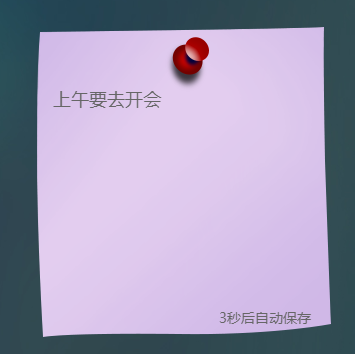
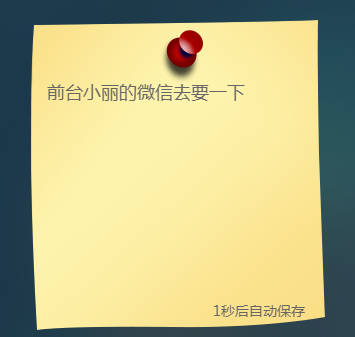
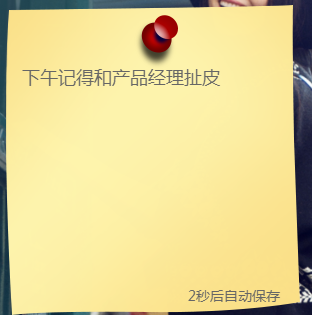
系统架构与技术选型
该系统的核心载体为网页,通过HTML、CSS与JavaScript技术栈构建出一个简易的便签管理应用。
界面交互中采用的动画效果依赖于animation.css库,而数据持久化存储则使用了浏览器的localStorage机制。
只要用户未手动执行清空便签的操作,所有创建的便签内容将一直保留在本地,这一特性使得日常使用极为便捷。
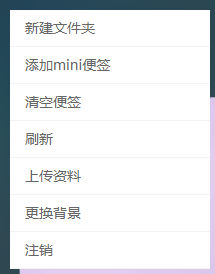
用户可通过鼠标右键点击便签区域,以呼出操作菜单。
核心代码实现
以下是实现该功能的具体代码逻辑。
<!doctype html>
<html>
    <head>
        <meta http-equiv="Content-Type" content="text/html; charset=utf-8"/>
        <title>WEBQQ桌面级便签系统</title>
        <meta name="keywords" content="关键词,关键词">
        <meta name="description" content="">

        <style type="text/css">
            *{margin:0;padding:0;}
            body{background:url("images/bg.jpg");background-size:cover;font-size:12px;font-family:"微软雅黑";color:#666;}

            /*menu start*/
            .menu{width:200px;background:#fff;display:none;position:absolute;left:0;top:0;z-index:1;}
            .menu ul li{border-bottom:1px solid #F3F3F3;list-style:none;line-height:36px;font-size:14px;padding-left:15px;}
            .menu ul li:hover{background:#647E7C;color:#fff;}
            /*end menu*/

            #test{font-size:24px;color:#fff;}

            /*box start*/
            .box{position:relative;}
            .box .b_list{width:294px;height:310px;position:absolute;}
            .box .b_list .b_content{width:256px;height:220px;position:absolute;top:60px;left:16px;outline: none;font-size:18px;}
            .box .timer{position:absolute;bottom:10px;right:20px;font-size:14px;}
            /*end box*/

        </style>
    <link type="text/css" rel="stylesheet" href="css/animate.css" rel="external nofollow" ></link>
    </head>
<body>

    <!--menu start-->
    <div class="menu">
        <ul>
            <li>新建文件夹</li>
            <li onclick="tz_menu(1);">添加mini便签</li>
            <li onclick="tz_menu(2);">清空便签</li>
            <li>刷新</li>
            <li>上传资料</li>
            <li>更换背景</li>
            <li>注销</li>
        </ul>
    </div>
    <!--end menu-->

    <p id="test"></p>

    <!--box start-->
    <div class="box"></div>
    <!--end box-->


<!--引入jQuery官方类库-->
<script type="text/javascript" src="js/jquery-1.11.1.min.js"></script>
<script type="text/javascript">

    $(function(){

        // 页面加载时运行
        var _Mark = localStorage.getItem("_Mark");
        if(_Mark){
            $(".box").html(_Mark);
            auto_timer();
        }


        // 屏蔽浏览器的右键
        document.oncontextmenu = function(){
            return false;
        }

        // 按下鼠标显示右键菜单
        $(document).mousedown(function(e){
            var key = e.which; // 获取鼠标的键位(右键3,左键1,鼠标滚轮2)
            if(key == 3){
                var x = e.clientX;
                var y = e.clientY;
                $("#test").html("X = " + x + " : Y = " + y);
                $(".menu").show().css({left:x,top:y});
            }
        });

        // 隐藏右键
        $(document).click(function(){
            $(".menu").hide();
        });

    });


        // 右键的功能
        function tz_menu(flag){
            // 添加便签
            if(flag == 1){
                // 获取当前鼠标的右键的位置
                var left = $(".menu").offset().left;
                var top = $(".menu").offset().top;

                // 生成1到3的随机数
                var random = Math.floor(Math.random()*3) + 1;

                $(".box").append("<div class='b_list animated rollIn' style='left:"+left+"px;top:"+top+"px;'><img src='images/"+random+".png' alt='便签' width='294' height='310'/>"+
                                "<div class='b_content' contenteditable='true'></div>"+
                                "<p class='timer'><span>3</span>秒后自动保存</p></div>");
                auto_timer();

            }

            // 清空标签
            if(flag == 2){
                $(".b_list").removeClass("animated rollIn").addClass("animated bounceOut").fadeOut(1000);
                // 清空缓存
                localStorage.removeItem("_Mark");
            }
        }

        // 自动保存时间
        function auto_timer(){
            var count = 3;
            var timer = setInterval(function(){
                if(count <= 0){
                    count = 3;
                    // 保存本地内容
                    localStorage.setItem("_Mark",$(".box").html());
                }
                $(".timer").find("span").text(count);
                count--;
            },1000);
        }


</script>

</body>
</html>
如需获取完整源代码及所需素材,请访问提供的下载链接。
至此,关于基于JavaScript打造桌面级便签系统的介绍完毕。如需了解更多相关技术内容,建议查阅本站过往文章或继续浏览后续系列教程,感谢支持。