

本文详细介绍如何使用JavaScript实现购物网站常见的商品图片放大镜功能。通过HTML构建小图与大图容器,CSS定义布局与样式,JS监听鼠标事件计算坐标比例,动态调整遮罩层与放大图片的位置,实现鼠标移动时局部细节放大的交互体验。
功能概述与布局设计
本文分享了一段使用JavaScript实现购物网站商品图片放大镜功能的具体代码,供读者参考学习。
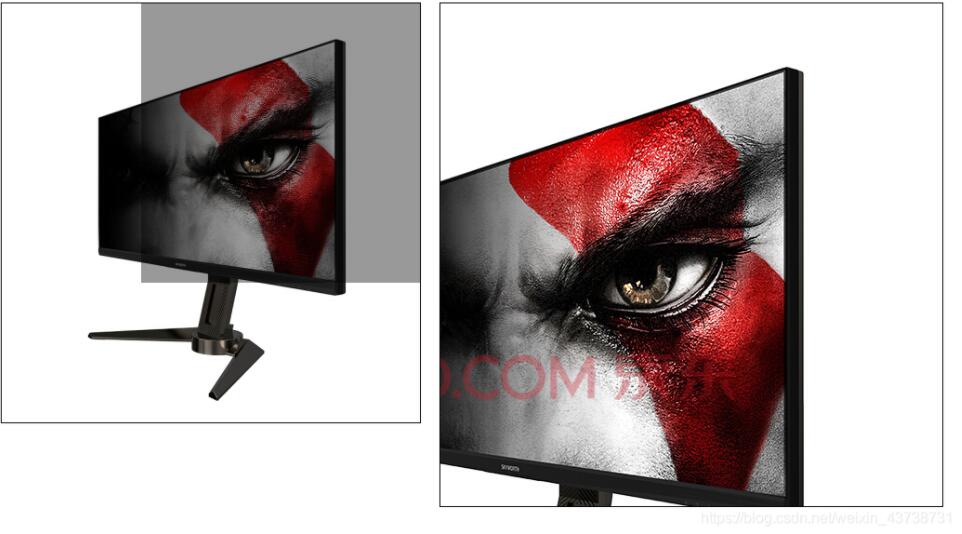
首先展示最终实现的视觉效果。
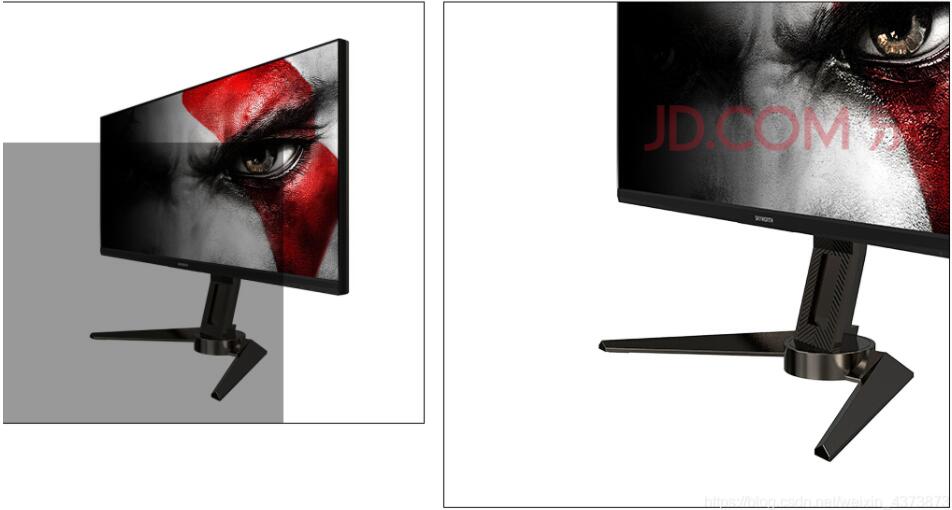
在布局方面,页面左侧设置一个小图容器,内部包含一个可移动的鼠标跟随框;右侧则设置一个大图容器,用于显示放大后的细节。
CSS样式定义
<div class="box">
        <div class="small">
            <img src="small3.jpg" alt="">
            <div class="move"></div>
        </div>
        <div class="big">
            <img src="big3.jpg" alt="">
        </div>
</div>
接下来编写CSS样式代码。
.small{
    position: relative;
    float: left;
    width: 450px;
    height: 450px;
    border:1px solid #000;
}
.small .move{
    position: absolute;
    top:0;
    width: 300px;
    height: 300px;
    background-color: rgba(0,0,0,0.4);
    cursor:move;
    display: none;
}
.big{
    position: relative;
    float: left;
    width: 540px;
    height: 540px;
    margin-left: 20px;
    overflow: hidden;
    border:1px solid #000;
    display: none;
}
.big img{
    position: absolute;
    top:0;
    left: 0;
}
核心逻辑由JavaScript实现,主要包含元素获取、事件监听及坐标计算。
JavaScript交互逻辑实现
var box=document.getElementsByClassName('box')[0],small=box.getElementsByClassName('small')[0],move=small.getElementsByClassName('move')[0],smallImg=small.getElementsByTagName('img')[0],big=box.getElementsByClassName('big')[0],bigImg=big.getElementsByTagName('img')[0];
    //首先把需要的元素都获取出来
    small.onmouseover=function(){
        move.style.display='block';
        big.style.display="block";
    };
    small.onmouseout=function(){
        move.style.display='none';
        big.style.display="none";
    };
    small.onmousemove=function(e){
        e=e||window.event;//兼容性考虑
        var x=e.clientX-smallImg.getBoundingClientRect().left-move.offsetWidth/2;
        var y=e.clientY-smallImg.getBoundingClientRect().top-move.offsetHeight/2;
        if(x<0){
            x=0;
        }
        if(x>smallImg.offsetWidth-move.offsetWidth){
            x=smallImg.offsetWidth-move.offsetWidth;
        }
        if(y<0){
            y=0;
        }
        if(y>smallImg.offsetHeight-move.offsetHeight){
            y=smallImg.offsetHeight-move.offsetHeight;
        }
        move.style.left=x+"px";
        move.style.top=y+"px";
        //实现左边move块跟随鼠标移动的代码
        var scale=bigImg.offsetWidth/smallImg.offsetWidth;
        //按照比例放大
        bigImg.style.left='-'+x*scale+'px';
        //因为图片是需要左移和上移的所以要加负号
        bigImg.style.top='-'+y*scale+'px';
    }
至此,放大镜交互效果即告完成。
以上内容为本文的全部分享,希望能为读者的学习带来帮助,也欢迎继续支持本站。