

本文介绍两种在JavaScript中检测元素是否位于浏览器视口内的方法。第一种利用getBoundingClientRect计算坐标,兼容性较好但存在性能开销;第二种基于Intersection Observer API,通过异步回调监听元素相交状态,性能更优。文章包含具体代码示例与对比分析。
前言
本文分享两种监测元素是否处于浏览器视口范围内的技术方案。
1. 基于坐标计算的位置检测
利用 Element.getBoundingClientRect() 方法获取元素相对于视口的几何位置信息。
const isElementVisible = (el) => {
 const rect = el.getBoundingClientRect();
};
首先获取当前浏览器窗口的宽度和高度数据。
const isElementVisible = (el) => {
 const rect = el.getBoundingClientRect();
  const vWidth = window.innerWidth || document.documentElement.clientWidth;
  const vHeight = window.innerHeight || document.documentElement.clientHeight;
};
通过对比元素边界与窗口尺寸来判断其可见性,具体逻辑参考相关图示。
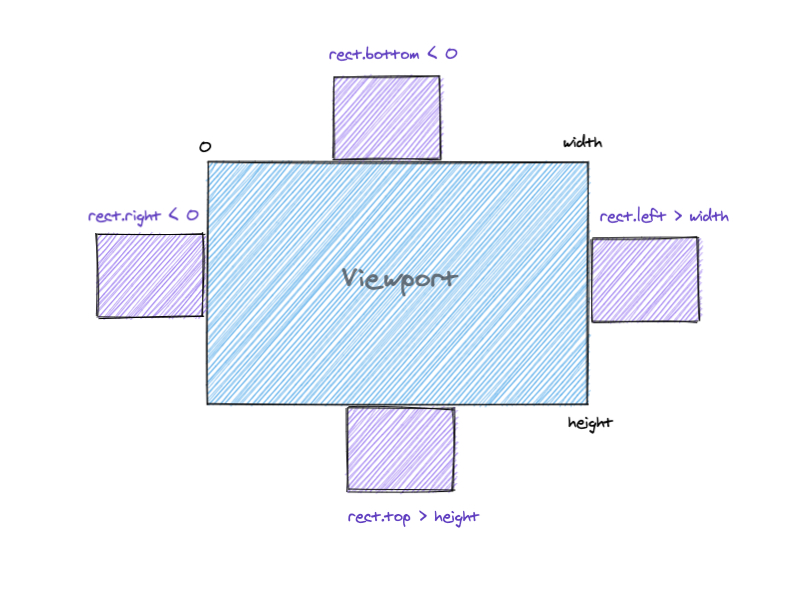
const isElementVisible = (el) => {
  const rect = el.getBoundingClientRect()
  const vWidth = window.innerWidth || document.documentElement.clientWidth
  const vHeight = window.innerHeight || document.documentElement.clientHeight


  if (
    rect.right < 0 ||
    rect.bottom < 0 ||
    rect.left > vWidth ||
    rect.top > vHeight
  ) {
    return false
  }

  return true
}
需要注意的是,getBoundingClientRect 方法会触发浏览器的回流与重绘操作,因此性能消耗相对较高,但其浏览器兼容性优于 Intersection Observer。
2. 使用 Intersection Observer API
The Intersection Observer API provides a way to asynchronously observe changes in the intersection of a target element with an ancestor element or with a top-level document's viewport.
Intersection Observer API 提供了一种异步检测目标元素与祖先元素或视口相交情况变化的机制。当目标元素与视口或其他指定元素发生交集时,将触发配置的回调函数。
// 获取要监测的元素
const boxes = document.querySelectorAll('.box')

// 创建观察者,配置回调函数
// 通过 isIntersecting 属性判断元素与视口是否相交
const observer = new IntersectionObserver((entries, observer) => {
 entries.forEach((entry) => {
    console.log(
      entry.target,
      entry.isIntersecting ? "visible" : "invisible"
    );
  });
})

boxes.forEach((box) => {
  observer.observe(box);
});
参考
how-to-check-an-element-is-in-viewport-4bcl
Intersection Observer API
总结
至此,关于利用JS检查元素是否在视口内的内容已介绍完毕。如需了解更多相关JS检查元素在视口内的知识,请搜索本站以前的文章或继续浏览下面的相关文章,希望大家以后多多支持本站!