
直接通过 element.offsetWidth 获取包含边框和滚动条的实际宽度;通过 element.clientWidth 获取可视区域宽度(含内边距,不含边框);通过 element.style.width 仅获取行内样式设置的宽度值。

当前位置:首页 > JavaScript DOM 与事件 > 正文
JS获取div宽度的三种方式:offsetWidth、clientWidth与style.width的区别
作者:微光
时间:2026-11-28
浏览:119
文章目录
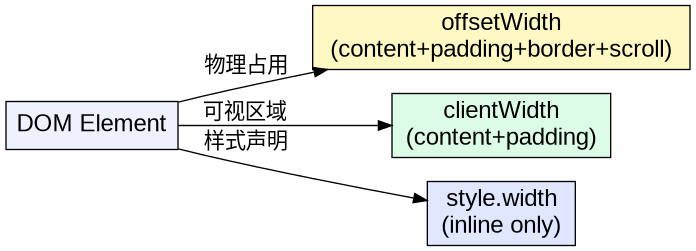
布局盒模型与 DOM 属性映射
offsetWidth 反映元素在页面中占据的物理空间,计算方式为:内容宽度 + padding + border + 垂直滚动条宽度。它不受 CSS 布局方式影响,始终返回整数像素值。
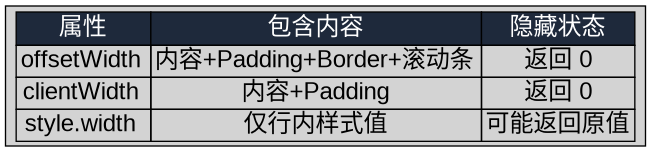
clientWidth 表示元素内容区加上内边距的宽度,不包含边框和滚动条。当元素被隐藏(display: none)时,该值为 0。这两个属性常用于响应式布局中的尺寸判断。
style.width 的限制与使用场景
将以下代码保存为 index.html,用浏览器打开即可验证三种宽度的差异。注意观察行内样式、CSS 类样式和无样式情况下的返回值变化。
<!DOCTYPE html>
<html lang="zh">
<head>
<meta charset="UTF-8">
<title>Div Width Test</title>
<style>
.box { width: 200px; height: 100px; background: #eee; margin: 10px; }
#box1 { border: 5px solid black; padding: 10px; }
#box2 { border: 5px solid red; padding: 10px; }
</style>
</head>
<body>
<div id="box1" class="box">Box 1 (Inline Style)</div>
<div id="box2" class="box">Box 2 (CSS Class)</div>
<script>
const box1 = document.getElementById('box1');
const box2 = document.getElementById('box2');

// Set inline style for box1
box1.style.width = '300px';

console.log('Box 1 offsetWidth:', box1.offsetWidth);
console.log('Box 1 clientWidth:', box1.clientWidth);
console.log('Box 1 style.width:', box1.style.width);

console.log('Box 2 offsetWidth:', box2.offsetWidth);
console.log('Box 2 clientWidth:', box2.clientWidth);
console.log('Box 2 style.width:', box2.style.width);
</script>
</body>
</html>
运行后控制台输出:
Box 1 offsetWidth: 330
Box 1 clientWidth: 320
Box 1 style.width: 300px
Box 2 offsetWidth: 230
Box 2 clientWidth: 220
Box 2 style.width:
Box 1 因设置了行内样式,style.width 有值;Box 2 无行内样式,返回空字符串。offsetWidth 比 clientWidth 大 10px,即左右各 5px 的边框总和。
程序展示了不同样式来源对 style.width 的影响。当宽度由外部 CSS 或默认流决定时,style.width 返回空字符串,此时应改用前两种方法。
隐藏元素与动态样式的处理结果
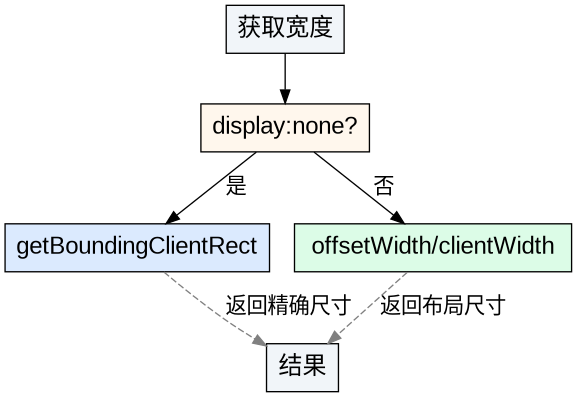
当元素设置为 display: none 时,offsetWidth 和 clientWidth 均返回 0,因为元素未参与布局渲染。style.width 仍可能返回之前设置的值,但实际不可见。
若需获取隐藏元素的真实尺寸,可临时设置 visibility: hidden 并保留占位,或使用 getBoundingClientRect() 方法。后者能准确返回元素相对于视口的位置和尺寸,即使元素隐藏也能获取非零值。
实用工具推荐
电子包浆
使用 ›绿化、压缩、噪点和虚拟水印,自由调节做旧程度。
图片压缩
使用 ›选择画质和输出格式,预览压缩前后的大小。
作者最新文章
相关文章