
介绍在JavaScript中实现平滑滚动到指定高度的常用方法,包括原生window.scrollTo配置、结合固定导航栏计算目标坐标、使用requestAnimationFrame自定义动画时长与缓动效果,以及局部容器滚动和常见细节处理。

当前位置:首页 > JavaScript DOM 与事件 > 正文
JS实现平滑滚动到指定高度的方法
作者:小圆点
时间:2026-11-22
浏览:516
文章目录
假设你正在编写一个内容较长的页面,例如商品参数说明页或长表单页面。用户点击“定位到参数区”或“返回顶部”按钮时,如果直接修改滚动距离,画面会瞬间跳变,读者很容易丢失当前阅读位置。在 JavaScript 中,最直接的做法是调用原生 window.scrollTo 并传入 behavior: 'smooth';如果你需要指定动画持续时间、自定义缓动曲线,或者兼容不支持平滑参数的运行环境,则可以通过 requestAnimationFrame 逐帧计算并更新滚动位置。
一、使用原生 window.scrollTo 实现平滑滚动
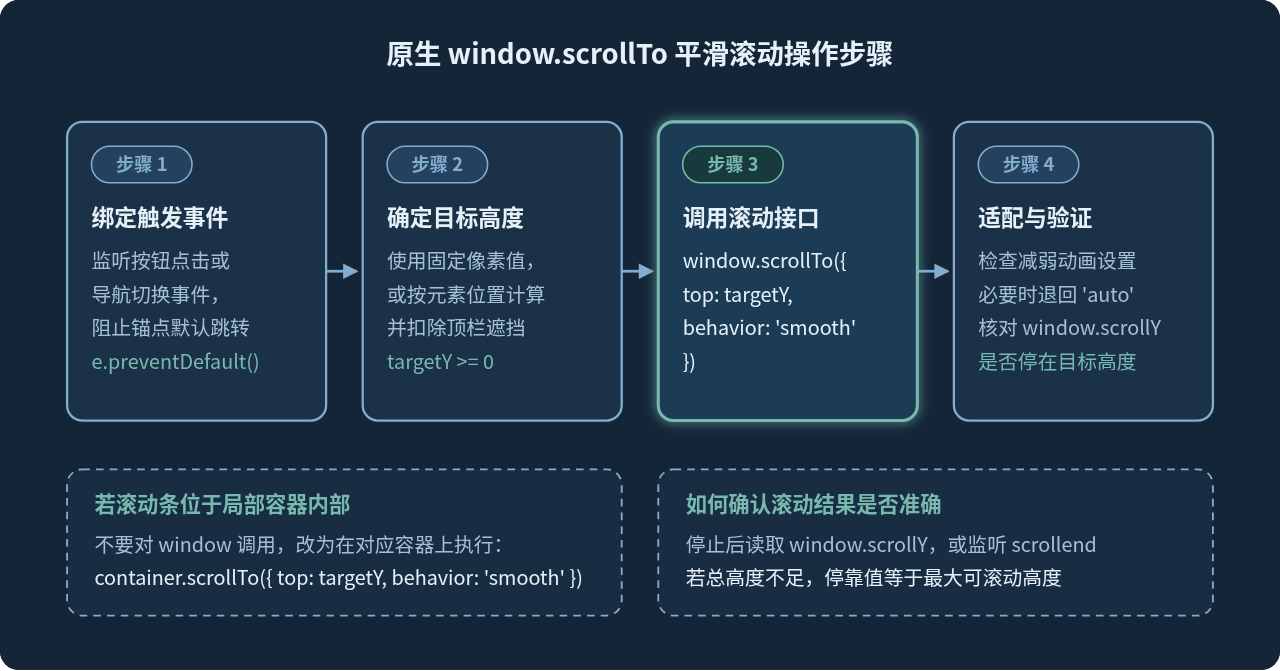
如果需求只是让浏览器窗口以平缓的动画滚到某个垂直像素位置,直接给 window.scrollTo 传入配置对象即可。这个对象接收三个常用属性:top 表示距离文档顶部的垂直目标高度(单位为像素),left 表示水平目标距离,behavior 设为 'smooth' 表示启用平滑过渡。
// 让页面平滑滚动到距离文档顶部 800 像素的位置
window.scrollTo({
  top: 800,
  left: 0,
  behavior: 'smooth'
});
为了让这段逻辑在实际页面中可验证,下面给出一个可直接保存为本地 HTML 文件并在浏览器中打开测试的完整示例。页面中放置了固定高度的占位区域和两个按钮,分别用于滚到指定高度和返回顶部。
<!DOCTYPE html>
<html lang="zh-CN">
<head>
  <meta charset="UTF-8">
  <title>平滑滚动测试</title>
  <style>
    body { margin: 0; font-family: sans-serif; }
    .toolbar { position: fixed; top: 16px; left: 16px; }
    .spacer { height: 2200px; padding: 80px 20px; background: linear-gradient(#f8fafc, #e2e8f0); }
    .marker { margin-top: 720px; padding: 16px; background: #dbeafe; }
  </style>
</head>
<body>
  <div class="toolbar">
    <button id="btn-to-800">平滑滚动到 800px</button>
    <button id="btn-to-top">平滑返回顶部</button>
  </div>
  <div class="spacer">
    <div class="marker">距离顶部约 800px 附近的参考区域</div>
  </div>

  <script>
    document.getElementById('btn-to-800').addEventListener('click', function () {
      window.scrollTo({
        top: 800,
        behavior: 'smooth'
      });
    });

    document.getElementById('btn-to-top').addEventListener('click', function () {
      window.scrollTo({
        top: 0,
        behavior: 'smooth'
      });
    });
  </script>
</body>
</html>
点击“平滑滚动到 800px”按钮后,页面不会立刻闪现过去,而是会用一段平滑动画向下移动。动画停止后,打开浏览器开发者工具控制台输入 window.scrollY(在文档总高度足够且未触底的情况下),通常可以看到类似如下的示例输出:
// 示例输出(页面高度足够时)
800注意边界:如果页面剩余可滚动高度不足 800 像素(例如页面总高度只有 1200px,而视口高度为 700px,最大可滚动距离只有 500px),浏览器会自动停在页面最底部,此时 window.scrollY 会停在 500 而不是 800。
二、计算动态目标高度:元素位置与固定顶栏偏移
在实际业务中,“指定高度”往往不是一个写死的数字,而是某个区块在文档中的绝对纵坐标,并且需要避开页面顶部的固定导航栏(position: fixed 或 sticky)。如果直接滚到元素顶部,元素标题会被导航栏遮住一部分。
计算这类目标高度需要把三个数值组合起来:元素相对当前视口顶部的距离(el.getBoundingClientRect().top)、页面当前已经卷去的高度(window.scrollY),以及需要预留的固定顶栏高度(例如 headerHeight)。把前两项相加得到元素在整份文档中的绝对位置,再减去顶栏高度,就是实际要传入的 targetY。
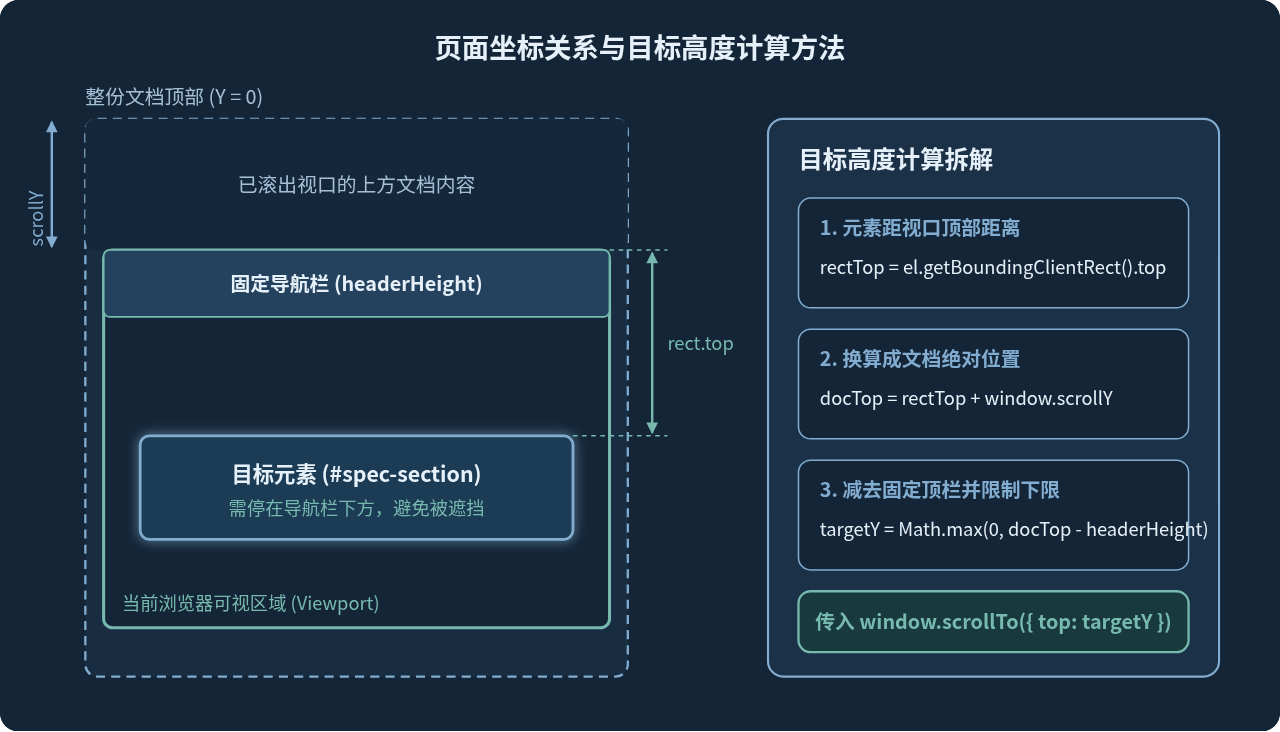
按照图中的公式写成函数,每次点击导航项时动态读取当前顶栏高度,即便页面字体缩放或窗口尺寸改变,也能停在准确的位置:
function scrollToElementWithOffset(selector, extraGap = 16) {
  const targetEl = document.querySelector(selector);
  const headerEl = document.querySelector('.site-header');
  if (!targetEl) return;

  const headerHeight = headerEl ? headerEl.getBoundingClientRect().height : 0;
  const rectTop = targetEl.getBoundingClientRect().top;
  const rawTargetY = rectTop + window.scrollY - headerHeight - extraGap;
  const targetY = Math.max(0, rawTargetY);

  window.scrollTo({
    top: targetY,
    behavior: 'smooth'
  });
}

// 示例调用:滚动到 #spec-section 上方,保留固定导航栏和 16px 呼吸间距
scrollToElementWithOffset('#spec-section', 16);
代码中用 Math.max(0, rawTargetY) 做了一次保护。当目标元素本身就在页面最顶端时,减去顶栏高度和额外留白后可能算出负数,限制最小为 0 可以保证行为清晰一致。
三、用 requestAnimationFrame 自定义动画时长与缓动效果
原生 behavior: 'smooth' 的优点是代码极短,但浏览器把滚动时长和速度曲线封装在内部,开发者无法指定“必须用 600 毫秒滚完”,也无法统一不同浏览器的加减速节奏。如果产品要求精确控制时长或缓动曲线,就需要通过 requestAnimationFrame 自己驱动每一帧的位置更新。
实现思路很明确:开始时记下当前滚动位置 startY 和起始时间戳;在每一帧回调中,计算已流逝时间占总时长的比例 progress(限制在 0 到 1 之间),经过缓动函数映射得到位移比例,再用瞬时调用 window.scrollTo(0, nextY) 更新这一帧的位置,直到比例到达 1 结束循环。
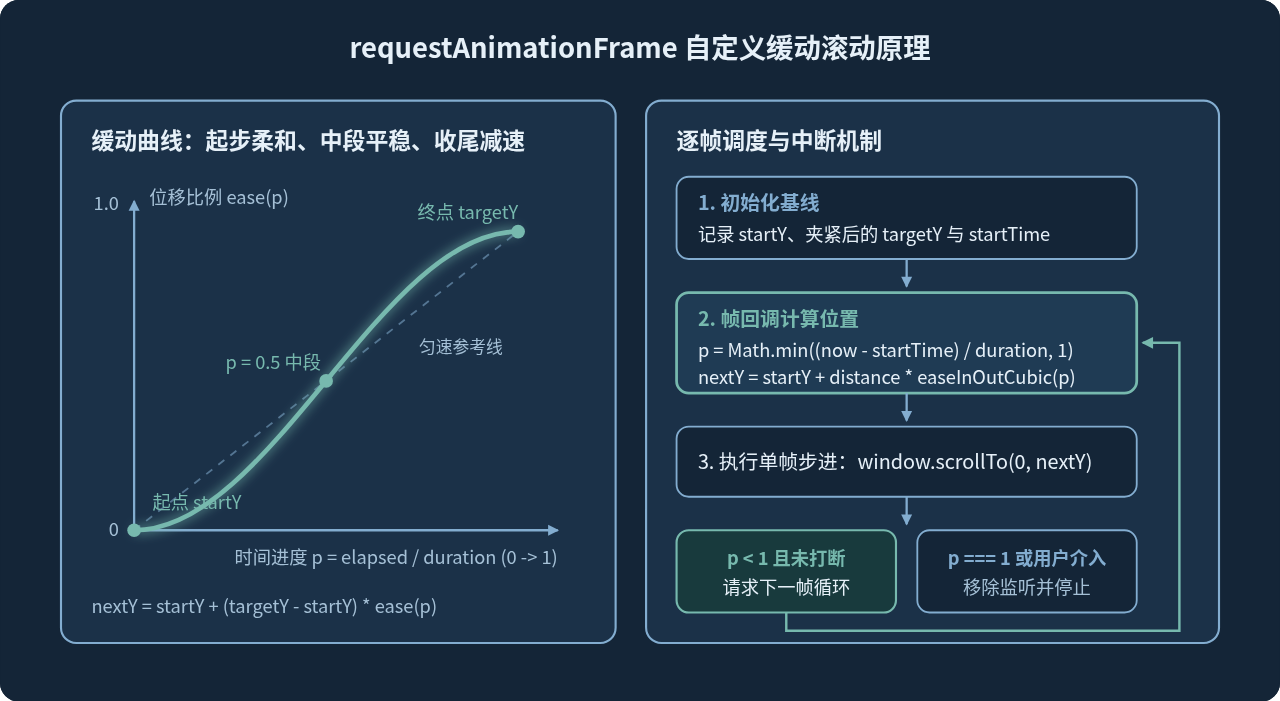
编写自定义滚动函数时,有两处细节必须处理:一是计算当前文档最大可滚动高度,避免目标超出底部导致尾帧停顿异常;二是监听用户的滚轮、触控或按键操作,一旦用户在动画中途手动滚动,立即取消动画并清理监听器,防止页面“抢回”控制权。
let activeScrollCancel = null;

function easeInOutCubic(progress) {
  return progress < 0.5
    ? 4 * progress * progress * progress
    : 1 - Math.pow(-2 * progress + 2, 3) / 2;
}

function smoothScrollTo(rawTargetY, duration = 500) {
  // 若上一次滚动尚未结束,先取消它
  if (typeof activeScrollCancel === 'function') {
    activeScrollCancel();
  }

  const maxScrollY = Math.max(
    0,
    document.documentElement.scrollHeight - window.innerHeight
  );
  const targetY = Math.min(Math.max(0, rawTargetY), maxScrollY);
  const startY = window.scrollY;
  const distance = targetY - startY;

  if (distance === 0 || duration <= 0) {
    window.scrollTo(0, targetY);
    return;
  }

  let rafId = null;
  let startTime = null;

  function cleanup() {
    if (rafId !== null) {
      cancelAnimationFrame(rafId);
      rafId = null;
    }
    window.removeEventListener('wheel', cleanup);
    window.removeEventListener('touchstart', cleanup);
    window.removeEventListener('keydown', onKeyInterrupt);
    activeScrollCancel = null;
  }

  function onKeyInterrupt(event) {
    const scrollKeys = ['ArrowUp', 'ArrowDown', 'PageUp', 'PageDown', 'Home', 'End', ' '];
    if (scrollKeys.includes(event.key)) {
      cleanup();
    }
  }

  activeScrollCancel = cleanup;
  window.addEventListener('wheel', cleanup, { passive: true });
  window.addEventListener('touchstart', cleanup, { passive: true });
  window.addEventListener('keydown', onKeyInterrupt);

  function step(currentTime) {
    if (startTime === null) {
      startTime = currentTime;
    }

    const elapsed = currentTime - startTime;
    const progress = Math.min(elapsed / duration, 1);
    const eased = easeInOutCubic(progress);
    const nextY = startY + distance * eased;

    window.scrollTo(0, nextY);

    if (progress < 1) {
      rafId = requestAnimationFrame(step);
    } else {
      cleanup();
    }
  }

  rafId = requestAnimationFrame(step);
}

// 示例:用 600 毫秒平滑滚动到距离顶部 1200px 的高度
smoothScrollTo(1200, 600);
上面这段代码保存在全局作用域或模块中都可以直接调用。函数内的 cleanup 保证了无论是自然到达终点、中途被下一次点击覆盖,还是用户用鼠标滚轮和触屏接管页面,都不会留下多余的事件监听器。
四、局部滚动容器的平滑定位方法
很多后台管理系统或左右分栏布局并不是整个页面在滚动,而是右侧主区域或者某个固定高度的列表容器设置了 overflow-y: auto。在这种情况下,调用 window.scrollTo 不会产生任何视觉变化,因为 window.scrollY 始终是 0。
对局部容器同样可以使用原生的 scrollTo 方法,只需要把调用对象从 window 换成该容器 DOM 节点,并参考容器自身的 scrollTop:
const panel = document.querySelector('.scroll-panel');

// 让局部容器平滑滚动到内部高度 420px 处
if (panel) {
  panel.scrollTo({
    top: 420,
    behavior: 'smooth'
  });
}
如果要在容器内滚动到某个子元素所在位置,可以用子元素的 offsetTop(前提是容器自身具备定位属性如 position: relative),或者用两者 getBoundingClientRect().top 的差值加上当前 panel.scrollTop:
function scrollPanelToChild(panel, childEl, topPadding = 12) {
  if (!panel || !childEl) return;
  const panelRect = panel.getBoundingClientRect();
  const childRect = childEl.getBoundingClientRect();
  const targetTop = panel.scrollTop + (childRect.top - panelRect.top) - topPadding;

  panel.scrollTo({
    top: Math.max(0, targetTop),
    behavior: 'smooth'
  });
}
五、实现时容易忽略的细节与排查方法
1. CSS 的 scroll-behavior 会干扰帧动画
如果项目全局 CSS 中写了 html { scroll-behavior: smooth; },同时 JavaScript 又用 requestAnimationFrame 每一帧调用 window.scrollTo(0, nextY),浏览器会把每一小步的 scrollTo 都再做一次平滑插值,结果表现为动画拖沓、卡顿甚至到达终点后还在缓慢晃动。
解决方法是在使用自定义帧动画时明确传入 behavior: 'instant'(或在全局避免同时混用):
window.scrollTo({ top: nextY, behavior: 'instant' });2. 尊重用户的“减弱动态效果”偏好
部分用户会在操作系统中开启“减弱动态效果”(例如前庭功能敏感的用户)。JavaScript 可以通过媒体查询检测这项偏好;当用户开启该设置时,把平滑滚动切换为即时跳转:
function accessibleScrollTo(targetY) {
  const reduceMotion = window.matchMedia('(prefers-reduced-motion: reduce)').matches;
  window.scrollTo({
    top: Math.max(0, targetY),
    behavior: reduceMotion ? 'auto' : 'smooth'
  });
}
3. 确认滚动是否真正完成与常见异常排查
如果调用代码后页面没有动静,可以从以下三项逐一排查:
- 滚动发生在内层容器而非 window:在开发者工具控制台查看
document.documentElement.scrollHeight > window.innerHeight是否为true。如果是false,说明窗口本身没有滚动条,滚动条在某个带有overflow-y: auto或scroll的内层元素上。 - 目标高度超出可滚动范围或为负值:确认传入的
top为非负数字,如果用字符串拼接(如'800px')会被忽略或转换失败,必须传入数值800。 - 需要等待滚动结束后执行后续操作:不要盲目用固定
setTimeout估算原生平滑滚动的结束时间。现代浏览器支持在滚动对象上监听scrollend事件来触发后续逻辑(如高亮提示或聚焦输入框),自定义requestAnimationFrame方案则可以在progress === 1的分支里直接执行回调。
六、不同实现方式的选择建议
在实际项目中,并不是越复杂的动画越好。除了前面介绍的 window.scrollTo 和 requestAnimationFrame,如果目标只是让某个 DOM 节点进入视野且不需要精确传入像素数值,原生的 element.scrollIntoView({ behavior: 'smooth', block: 'start' }) 配合 CSS 的 scroll-margin-top 也能胜任。下表整理了三种方案的适用条件:
| 实现方式 | 适用条件 | 主要限制 |
|---|---|---|
window.scrollTo({ top, behavior: 'smooth' }) |
已知精确像素高度,或通过元素坐标减去顶栏偏移后得出目标高度;不需要控制动画时长。 | 动画时长与缓动曲线由浏览器决定,无法手动指定毫秒数。 |
element.scrollIntoView({ behavior: 'smooth' }) |
只需滚动到某个 DOM 元素,搭配 CSS scroll-margin-top 即可处理固定导航栏遮挡。 |
面向元素节点而非任意数值高度,无法直接滚动到纯像素坐标。 |
requestAnimationFrame 自定义插值 |
需要固定动画毫秒数、自定义缓动曲线,或在滚动结束时精确触发回调。 | 代码量较多,需自行处理边界夹紧、重复触发取消与用户打断清理。 |
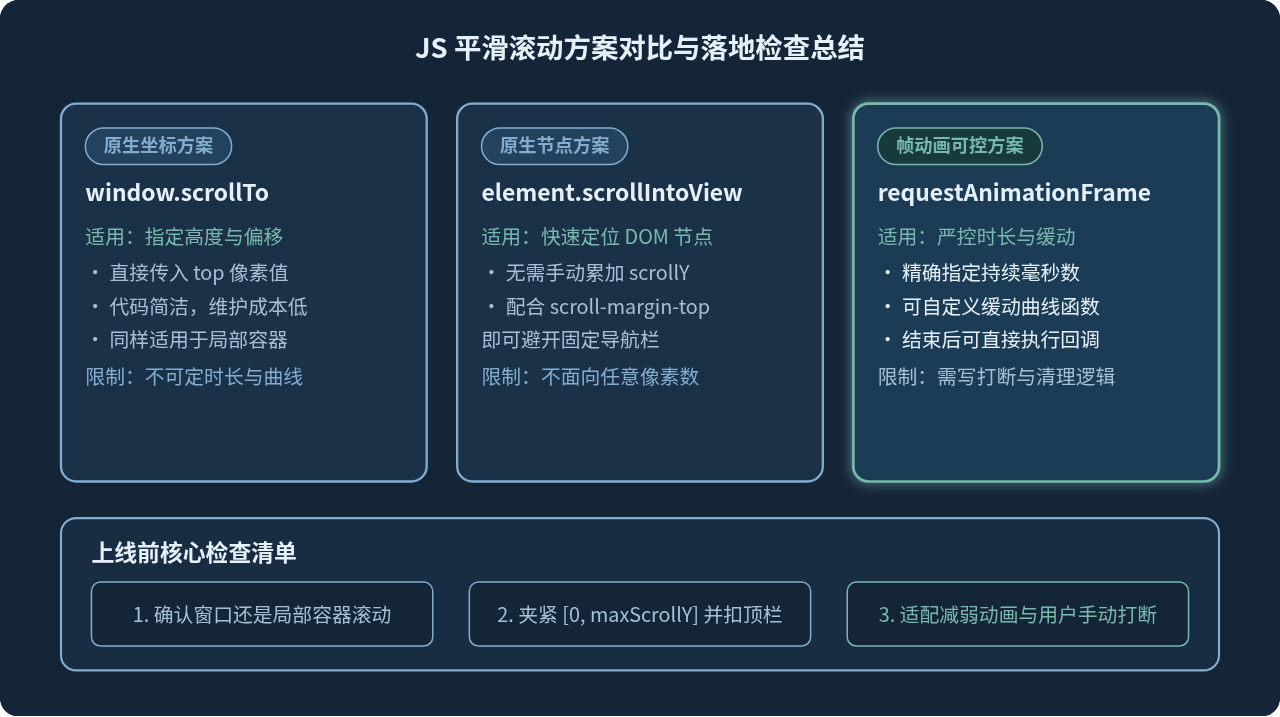
大多数业务场景里,先优先考虑原生 window.scrollTo({ top, behavior: 'smooth' }),只有在明确需要固定时长、特定缓动曲线或精细控制中断行为时,再引入 requestAnimationFrame 方案,这样既能保证阅读体验顺滑,也能减少不必要的维护负担。
实用工具推荐
电子包浆
使用 ›绿化、压缩、噪点和虚拟水印,自由调节做旧程度。
图片压缩
使用 ›选择画质和输出格式,预览压缩前后的大小。
作者最新文章
相关文章