
本文详细讲解如何使用原生JavaScript实现无缝循环滚动的图片轮播效果,深入剖析首尾节点克隆与transitionend瞬移复位的核心原理,并提供完整的可运行代码、交互增强及避坑指南。

当前位置:首页 > JavaScript DOM 与事件 > 正文
怎么用JS实现无缝循环滚动的图片轮播效果
作者:页面旅途
时间:2026-11-18
浏览:359
文章目录
分类:前端开发技术
难度:中级入门
阅读时长:约 10 分钟
原生 JavaScript

缩略图概览:无缝循环轮播核心架构与“首尾克隆 + 0ms瞬移”工作模型
在前端开发中,要让图片轮播在翻到最后一张时能够平滑滑到第一张,而不是突兀地反向倒带,最经典且可靠的方案是首尾克隆副本 + transitionend 监听瞬移复位。本文将通过原理剖析、DOM 结构搭建、位移动画控制、边界无感复位及交互增强等步骤,带你彻底掌握用原生 JavaScript 编写高可靠无缝轮播的核心方法。
一、为什么常规轮播无法真正“无缝”?
初学者在制作图片轮播时,通常会将所有图片并排放在一个容器轨道(Track)中,通过改变 CSS 的 transform: translateX(-index * width) 来实现横向滚动。当图片从第 1 张切到第 2 张、第 3 张时,滑动效果非常平稳。
然而,当播放到最后一张并尝试回到第 1 张时,问题就会出现:如果直接将 index 改回 0,轨道会带着过渡动画以相反的方向高速倒退(从最后一幅快速反向掠过所有前面的图片)滚回起点。这种“倒带”效果不仅破坏了视觉上的连续感,也违背了“同一方向无限滚动”的用户预期。
要实现真正的单向“无缝”循环,核心逻辑不能靠简单的索引归零,而要借助一种**障眼法(视觉欺骗)**:在滑轨首尾各克隆一个镜像节点充当替身缓冲。当滑到替身停稳后,在人眼不可见的瞬间(0 毫秒内)关闭动画过渡,瞬移回真实节点的相同位置。
二、无缝轮播的核心原理:首尾克隆与瞬移复位
假定我们一共有 4 张真实的图片(编号 1、2、3、4),无缝滚动的完整生命周期可以分为三个关键设定:
- 末尾克隆第一张:在图片 4 的后面追加一张克隆的“图片 1”。当用户从图片 4 向右滑动时,窗口平滑滑向这张“克隆图片 1”。因为画面完全一样,用户以为已经回到了第一张。
- 开头克隆最后一张:同理,在图片 1 的前面插入一张克隆的“图片 4”。当用户从图片 1 往左点击“上一张”时,能够向左平滑滑入“克隆图片 4”,实现双向平滑。
- transitionend 事件瞬移:当过渡动画结束的瞬间(触发
transitionend事件),JavaScript 立即检测当前位置。如果当前停在“克隆图片 1”,程序便立刻将 CSStransition设置为none(关闭动画),并将轨道瞬移到真正的“图片 1”。由于两张图片画面尺寸与显示内容 100% 重合,用户在视觉上完全察觉不到这次位置跳跃。

图解 1:DOM 节点扩展结构与 Transform 位移映射关系
三、实现步骤一:HTML 结构设计与 CSS 关键样式
实现无缝轮播需要三层嵌套的 DOM 元素:外层定位包裹器、中间裁剪视口容器、内层横向排布的滑轨。我们在 HTML 中只需要写出真实的图片,首尾克隆项交由 JavaScript 动态生成,避免冗余的静态代码。
<!-- 轮播图外层包裹容器 -->
<div class="carousel-wrapper">
<!-- 裁剪视口:只展示一张图片的大小,超出部分隐藏 -->
<div class="carousel-viewport" id="carouselViewport">
<!-- 滑轨:横向并排承载所有轮播项 -->
<div class="carousel-track" id="carouselTrack">
<div class="carousel-slide"><img src="img1.jpg" alt="图片 1"></div>
<div class="carousel-slide"><img src="img2.jpg" alt="图片 2"></div>
<div class="carousel-slide"><img src="img3.jpg" alt="图片 3"></div>
<div class="carousel-slide"><img src="img4.jpg" alt="图片 4"></div>
</div>
</div>
<!-- 左右翻页控制器 -->
<button class="carousel-btn prev-btn" id="prevBtn" aria-label="上一张">❮</button>
<button class="carousel-btn next-btn" id="nextBtn" aria-label="下一张">❯</button>
<!-- 底部指示圆点容器 -->
<div class="carousel-dots" id="carouselDots"></div>
</div>对应的 CSS 核心样式重点在于容器的裁切与滑轨的弹性排布。必须确保每个轮播项严格占据 100% 的视口宽度,并让滑轨的硬件加速属性生效:
/* 关键 CSS 样式 */
.carousel-wrapper {
  position: relative;
  width: 600px; /* 可按需设定宽度或响应式百分比 */
  height: 340px;
  margin: 0 auto;
  user-select: none;
}

.carousel-viewport {
  position: relative;
  width: 100%;
  height: 100%;
  overflow: hidden; /* 裁剪视口外的其他图片 */
  border-radius: 8px;
}

.carousel-track {
  display: flex;
  height: 100%;
  will-change: transform; /* 提示浏览器进行 GPU 渲染加速 */
}

.carousel-slide {
  flex-shrink: 0;
  width: 100%; /* 单项宽度严格与视口等宽 */
  height: 100%;
}

.carousel-slide img {
  width: 100%;
  height: 100%;
  object-fit: cover;
  display: block;
}
四、实现步骤二:JS 克隆节点与初始化位置
进入 JavaScript 逻辑后,第一件事就是获取真实子节点,使用 cloneNode(true) 进行深拷贝。克隆完成后,滑轨的子元素总数由原来的 $N$ 个变成 $N + 2$ 个。
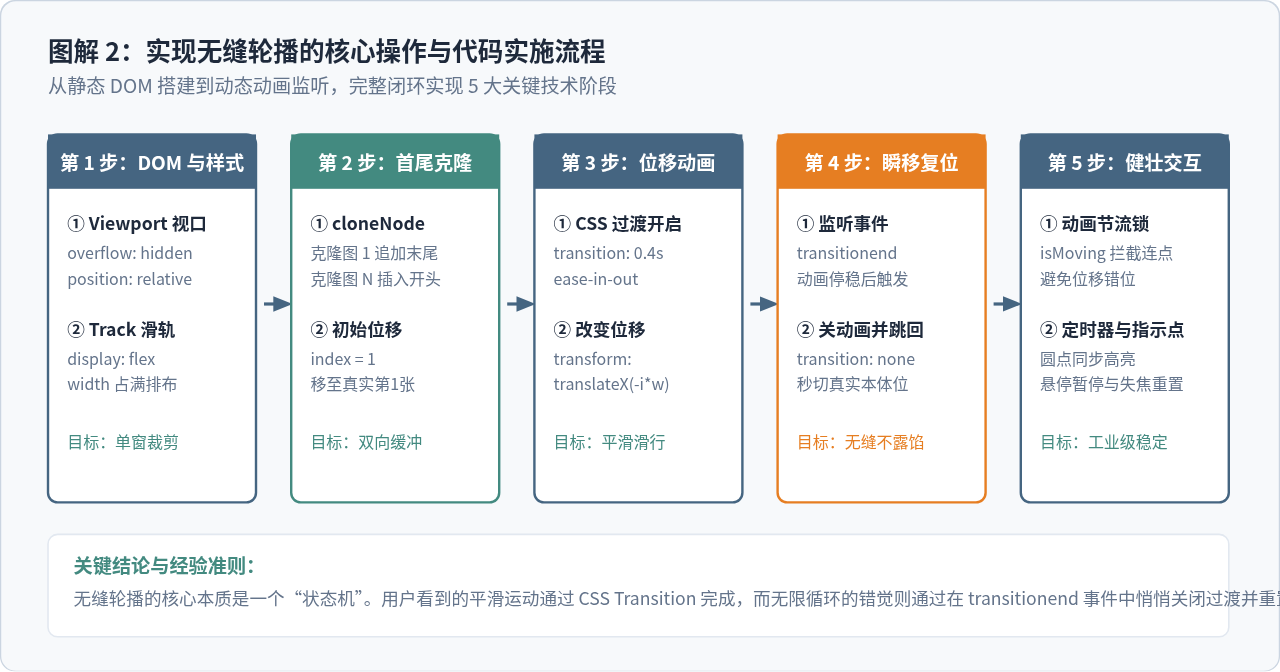
图解 2:实现无缝轮播的核心操作与代码实施流程
请特别注意:由于我们在最前面插入了最后一张图片的克隆节点,滑轨的物理索引 0 实际上对准的是克隆节点。因此,页面加载完成后的**初始显示索引必须设置为 1**,并立即将滑轨偏移一个视口宽度,确保用户第一眼看到的是真正的第一张图:
const track = document.getElementById('carouselTrack');
const realSlides = Array.from(track.children);
const slideCount = realSlides.length; // 真实图片数量 N = 4

// 1. 克隆真实首节点和尾节点
const firstClone = realSlides[0].cloneNode(true);
const lastClone = realSlides[slideCount - 1].cloneNode(true);

// 2. 将尾克隆插入到最前,首克隆追加到末尾
track.insertBefore(lastClone, track.firstElementChild);
track.appendChild(firstClone);

// 3. 初始化索引:0 是克隆尾图,1 才是真实第 1 图
let currentIndex = 1;

// 4. 获取单屏宽度并设置初始位移(关闭过渡,瞬间归位)
let slideWidth = track.clientWidth;
track.style.transition = 'none';
track.style.transform = `translateX(-${currentIndex * slideWidth}px)`;
五、实现步骤三与四:过渡动画与 transitionend 瞬移复位
当用户点击“下一张”时,让 currentIndex++,同时开启平滑过渡 track.style.transition = 'transform 0.4s ease-in-out',滑轨就会平稳向左滑动一个身位。
最关键的核心逻辑在于监听滑轨的 transitionend 事件。该事件会在 CSS 过渡动画结束时精确触发一次。我们在此处判断 currentIndex 是否已经越界:
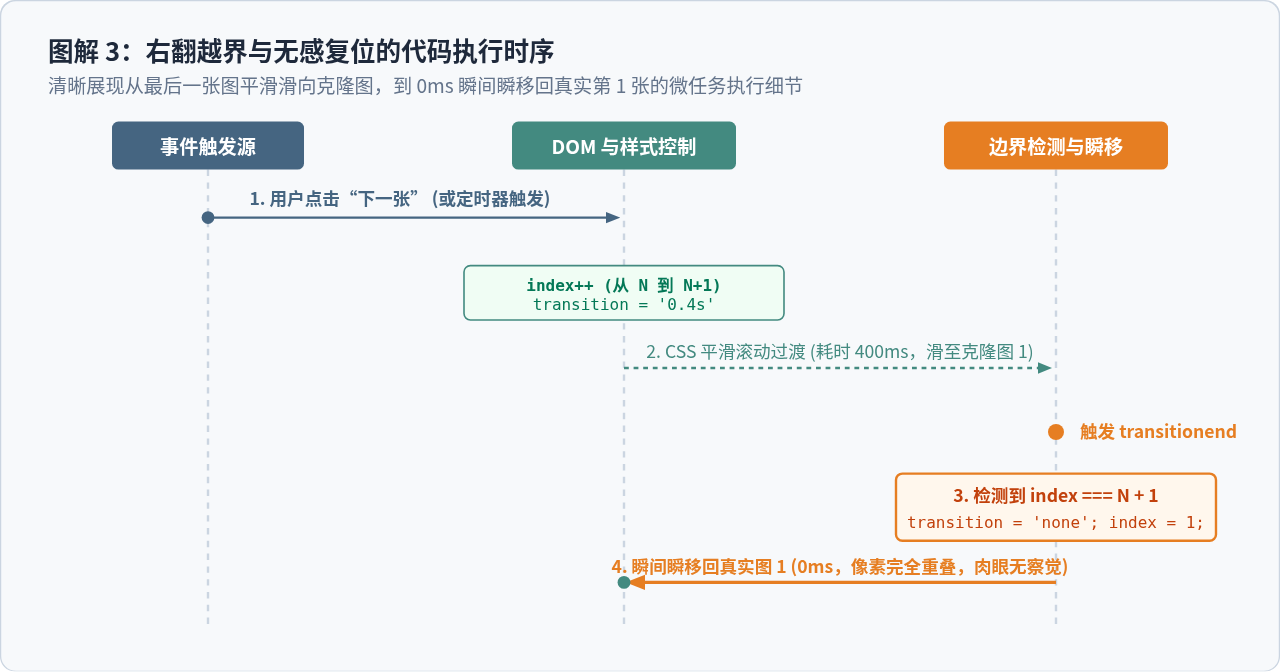
图解 3:右翻越界与无感复位的代码执行时序
// 位移执行函数
function updatePosition(smooth = true) {
  if (smooth) {
    track.style.transition = 'transform 0.4s ease-in-out';
  } else {
    track.style.transition = 'none'; // 0ms 瞬间归位,无肉眼过渡
  }
  track.style.transform = `translateX(-${currentIndex * slideWidth}px)`;
}

// 监听过渡结束事件,执行障眼法重置
track.addEventListener('transitionend', () => {
  // 情况 A:向右翻到了最右侧的【克隆图 1】(索引达到 slideCount + 1)
  if (currentIndex === slideCount + 1) {
    track.style.transition = 'none'; // 立即关闭动画
    currentIndex = 1;                // 索引瞬移回【真实图 1】
    track.style.transform = `translateX(-${currentIndex * slideWidth}px)`;
  }

  // 情况 B:向左翻到了最左侧的【克隆图 N】(索引到达 0)
  if (currentIndex === 0) {
    track.style.transition = 'none'; // 立即关闭动画
    currentIndex = slideCount;       // 索引瞬移回【真实图 N】
    track.style.transform = `translateX(-${currentIndex * slideWidth}px)`;
  }

  // 解锁动画标志位,允许下一次点击
  isMoving = false;
  // 同步更新圆点高亮状态
  updateDots();
});
关键细节解析:
为什么一定要在
transitionend 内部重置,而不是用 setTimeout(..., 400)?因为不同设备或在浏览器卡顿时,400ms 的 JavaScript 定时器可能早于或晚于真实渲染结束时间。使用原生 transitionend 能严格保证在动画完全停稳的一瞬间执行位移重置,彻底避免重置错位或动画被中途打断的情况。
六、完善交互:指示点联动、自动播放与防抖节流
一个成熟的工业级轮播图,还需要补全指示圆点联动、防暴力点击节流锁以及自动播放等交互功能:
1. 指示圆点(Dots)的高亮计算公式
由于存在克隆节点,滑轨的物理 currentIndex 取值范围是 0 ~ slideCount + 1。然而底部指示圆点只有 slideCount 个。在更新圆点时,我们需要将克隆节点映射回它们对应的本体:
- 当
currentIndex = slideCount + 1(克隆图 1)时,高亮圆点应为第 0 个(对应真实图 1)。 - 当
currentIndex = 0(克隆图 N)时,高亮圆点应为最后一个(对应真实图 N)。
使用简洁的数学取模公式即可实现精准映射:const activeDot = (currentIndex - 1 + slideCount) % slideCount;
2. 防止连击的动画节流锁(isMoving)
如果用户连续快速狂点“下一张”,上一次位移动画尚未完成,下一次位移指令又叠加进来,会导致索引计算错乱、甚至在克隆节点尚未到达终点时就被提前重置。我们通过引入一个布尔变量 let isMoving = false;,在点击时如果 isMoving === true 则直接 return 拦截,只在 transitionend 触发后才恢复为 false。
3. 鼠标悬停暂停与页面切后台保护
使用 setInterval 定时触发下一张。当用户将鼠标移入轮播图区域时,应当通过 clearInterval 暂停自动播放,移出时重新开启。
更重要的是,现代浏览器在标签页切入后台(用户切换了浏览器 Tab)时,会自动对 setInterval 进行降频节流,而 CSS 动画可能会挂起。当用户几分钟后重新切回页面时,积压的定时器可能会连环触发导致画面抽搐。我们应当监听 document.addEventListener('visibilitychange'),在页面不可见时暂停定时器,恢复可见时重新启动。
七、完整可运行的原生 JS 代码示例
下面是整合了结构搭建、克隆扩展、过渡位移、瞬移重置、指示圆点联动、节流锁与自动播放的完整 JavaScript 模块化代码:
/**
 * 无缝图片轮播封装类
 */
class SeamlessCarousel {
  constructor(containerId, options = {}) {
    this.container = document.getElementById(containerId);
    this.track = this.container.querySelector('.carousel-track');
    this.viewport = this.container.querySelector('.carousel-viewport');
    this.prevBtn = this.container.querySelector('.prev-btn');
    this.nextBtn = this.container.querySelector('.next-btn');
    this.dotsContainer = this.container.querySelector('.carousel-dots');

    this.autoPlayInterval = options.interval || 3000;
    this.duration = options.duration || 400; // 动画时长 ms

    this.realSlides = Array.from(this.track.children);
    this.slideCount = this.realSlides.length;
    this.currentIndex = 1;
    this.isMoving = false;
    this.timer = null;

    if (this.slideCount <= 1) return; // 单张无需轮播

    this.init();
  }

  init() {
    this.createClones();
    this.createDots();
    this.updateSlideWidth();
    this.resetToFirst();
    this.bindEvents();
    this.startAutoPlay();
  }

  // 1. 克隆首尾节点
  createClones() {
    const firstClone = this.realSlides[0].cloneNode(true);
    const lastClone = this.realSlides[this.slideCount - 1].cloneNode(true);
    firstClone.classList.add('clone-node');
    lastClone.classList.add('clone-node');

    this.track.insertBefore(lastClone, this.track.firstElementChild);
    this.track.appendChild(firstClone);
  }

  // 2. 动态生成指示圆点
  createDots() {
    this.dotsContainer.innerHTML = '';
    for (let i = 0; i < this.slideCount; i++) {
      const dot = document.createElement('span');
      dot.classList.add('carousel-dot');
      if (i === 0) dot.classList.add('active');
      dot.addEventListener('click', () => {
        if (this.isMoving) return;
        this.currentIndex = i + 1;
        this.moveToCurrent();
      });
      this.dotsContainer.appendChild(dot);
    }
    this.dots = Array.from(this.dotsContainer.children);
  }

  // 3. 计算单图宽度
  updateSlideWidth() {
    this.slideWidth = this.viewport.clientWidth;
  }

  // 4. 初始化停靠在真实第一张
  resetToFirst() {
    this.track.style.transition = 'none';
    this.track.style.transform = `translateX(-${this.currentIndex * this.slideWidth}px)`;
  }

  // 5. 绑定所有交互事件
  bindEvents() {
    // 下一张 / 上一张按键
    this.nextBtn.addEventListener('click', () => this.next());
    this.prevBtn.addEventListener('click', () => this.prev());

    // 核心:监听过渡动画结束
    this.track.addEventListener('transitionend', () => this.handleTransitionEnd());

    // 鼠标悬停暂停
    this.container.addEventListener('mouseenter', () => this.stopAutoPlay());
    this.container.addEventListener('mouseleave', () => this.startAutoPlay());

    // 窗口尺寸调整自适应
    window.addEventListener('resize', () => {
      this.updateSlideWidth();
      this.track.style.transition = 'none';
      this.track.style.transform = `translateX(-${this.currentIndex * this.slideWidth}px)`;
    });

    // 页面切后台保护
    document.addEventListener('visibilitychange', () => {
      if (document.hidden) {
        this.stopAutoPlay();
      } else {
        this.startAutoPlay();
      }
    });
  }

  next() {
    if (this.isMoving) return;
    this.isMoving = true;
    this.currentIndex++;
    this.moveToCurrent();
  }

  prev() {
    if (this.isMoving) return;
    this.isMoving = true;
    this.currentIndex--;
    this.moveToCurrent();
  }

  moveToCurrent() {
    this.track.style.transition = `transform ${this.duration}ms ease-in-out`;
    this.track.style.transform = `translateX(-${this.currentIndex * this.slideWidth}px)`;
    this.updateDots();
  }

  // 6. 核心障眼法瞬移复位
  handleTransitionEnd() {
    // 右越界:停在克隆第一张
    if (this.currentIndex === this.slideCount + 1) {
      this.track.style.transition = 'none';
      this.currentIndex = 1;
      this.track.style.transform = `translateX(-${this.currentIndex * this.slideWidth}px)`;
    }
    // 左越界:停在克隆最后一张
    else if (this.currentIndex === 0) {
      this.track.style.transition = 'none';
      this.currentIndex = this.slideCount;
      this.track.style.transform = `translateX(-${this.currentIndex * this.slideWidth}px)`;
    }

    this.isMoving = false;
    this.updateDots();
  }

  updateDots() {
    const activeDotIndex = (this.currentIndex - 1 + this.slideCount) % this.slideCount;
    this.dots.forEach((dot, idx) => {
      dot.classList.toggle('active', idx === activeDotIndex);
    });
  }

  startAutoPlay() {
    this.stopAutoPlay();
    this.timer = setInterval(() => this.next(), this.autoPlayInterval);
  }

  stopAutoPlay() {
    if (this.timer) {
      clearInterval(this.timer);
      this.timer = null;
    }
  }
}

// 实例化运行
document.addEventListener('DOMContentLoaded', () => {
  new SeamlessCarousel('carouselViewport', {
    interval: 3500,
    duration: 450
  });
});
八、常见踩坑排查与关键总结
在实际项目中落地无缝轮播时,开发者常常会遇到一些看似莫名其妙的问题。以下是 4 个最典型的问题排查与避坑要点:

图解 4:无缝轮播核心知识点总结与避坑清单
| 常见问题表现 | 根本原因 | 正确解决措施 |
|---|---|---|
| 翻到最后一张时依旧能看到反向倒带动画 | 在修改 transform 前未将 transition 彻底清除为 none |
严格按顺序执行:先 style.transition = 'none',再修改位移属性,确保瞬间生效。 |
| 快速狂点翻页按钮,图片发生严重错位或卡白 | 上一次位移动画未完成时响应了新的位移事件,动画状态重叠 | 配置节流标志位 isMoving。点击时检查该标志,动画结束前直接拦截多余事件。 |
| 页面首次加载时出现短暂的闪烁或宽度不对 | 在图片尚未加载完成时读取了 clientWidth,得到宽度为 0 |
在外层容器或样式表中显式限定固定宽度,或监听 window.onload / 确保图片预设宽高比例。 |
| 长时间切出页面后再切回,轮播图疯狂快速翻转 | 浏览器后台标签页将 setInterval 定时回调积压排队 |
监听 document.visibilitychange,切后台时清除定时器,切回页面时重新创建。 |
补充要点:
如果你的项目涉及移动端触控,可以在容器上绑定
touchstart、touchmove 和 touchend 事件。在 touchmove 中实时更新 translateX,而在 touchend 中计算拖拽距离:滑动距离超过视口宽度的 20% 时判定为翻页,否则回弹到当前索引,同样无缝接入 transitionend 机制。
实用工具推荐
电子包浆
使用 ›绿化、压缩、噪点和虚拟水印,自由调节做旧程度。
图片压缩
使用 ›选择画质和输出格式,预览压缩前后的大小。
作者最新文章
相关文章