

本文介绍如何在Selenium WebDriver中通过execute_script()方法执行JavaScript代码。详细讲解文档级与元素级两种操作方式,涵盖元素定位、点击、获取返回值、页面滑动及属性修改等实战场景,帮助解决常规操作无法处理的交互问题。
JavaScript作为运行于客户端浏览器及服务器端的脚本语言,能够将静态网页转化为具备交互性的页面。借助Python Selenium WebDriver,开发者可以直接执行JavaScript语句,从而在Web页面中实现JS交互。理论上,JavaScript能完成的功能,Selenium大多也能实现。由于WebDriver旨在模拟终端用户的真实交互行为,它无法直接点击不可见的元素,甚至在某些可见元素上也会遇到点击失败的情况。针对这类限制,通过WebDriver执行JavaScript来触发点击或执行页面元素操作成为一种有效的解决方案。本文将具体阐述如何利用WebDriver执行JavaScript语句。
Web元素定位及操作
利用execute_script()方法执行JavaScript代码时,主要有两种实现元素操作的途径。
方法1:文档级别操作
该方法直接通过JavaScript实现元素的定位与动作执行,核心手段包括:
document.getElementById
document.getElementsByClassName
document.getElementsByName
document.getElementsByTagName
document.getElementsByTagNameNS
测试示例:
- 打开百度首页
- 在输入框中输入“test”
- 点击“百度一下”按钮
对应的Python代码实现如下:
def test_baidu(self):
  self.driver.get("http://www.baidu.com")
  self.driver.execute_script('document.getElementById("kw").value = "test"')
  time.sleep(2)
  self.driver.execute_script('document.getElementById("su").click()')
  time.sleep(2)
在执行过程中,WebDriver会将JavaScript语句注入到当前浏览器环境中,随后脚本开始执行。这种注入机制拥有独立的名称空间,因此不会干扰网页原有的JavaScript正常运行。
方法2:元素级别操作
另一种方式是先利用WebDriver获取目标元素对象,随后再通过JavaScript对该元素执行具体操作。
input_ele = driver.find_element_by_id("su")
driver.execute_script("arguments[0].click();", input_ele)
对应的Python代码实现如下:
def test_baidu2(self):
  self.driver.get("http://www.baidu.com")
  input_ele = self.driver.find_element_by_id("kw")
  self.driver.execute_script("arguments[0].value = 'test';", input_ele)
  time.sleep(2)
  baidu_ele = self.driver.find_element_by_id("su")
  self.driver.execute_script("arguments[0].click();", baidu_ele)
  time.sleep(2)
在JavaScript语句中,可以组合执行多个动作:
username = driver.find_element_by_xpath("//*[@id='username']")
password = driver.find_element_by_xpath("//*[@id='password']")
driver.execute_script("arguments[0].value = 'admin';arguments[1].value = 'admin';", username, password)
获取返回值
JavaScript执行后,可以返回相应的执行结果供后续处理:
driver.execute_script("return document.getElementById('kw').value")
driver.execute_script("return document.title;") # 返回网页标题
页面滑动操作
此前在《Web自动化测试 | ActionChains、TouchAction》一文中曾介绍过,TouchAction类中的scroll_from_element()方法同样可用于页面滑动。
将页面滚动至浏览器底部:
document.documentElement.scrollTop=10000
window.scrollTo(0, document.body.scrollHeight)
将页面滚动至浏览器顶部:
document.documentElement.scrollTop=0
window.scrollTo(document.body.scrollHeight,0)
修改元素属性
在实际应用中,许多时间控件默认具有readonly属性,需要用户手动选择具体日期。在自动化测试场景中,可以通过JavaScript代码移除该readonly属性,从而实现自动选择。
测试页面地址:https://www.12306.cn/index/
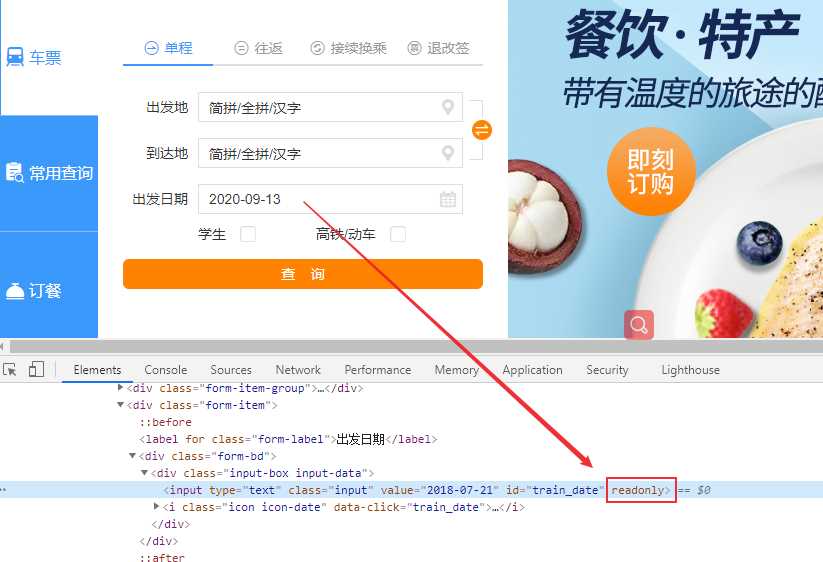
具体测试步骤如下:
- 访问测试页面
- 修改出发日期字段
- 验证日期是否修改成功
对应的Python测试代码如下:
def test_datettime(self):
  self.driver.get("https://www.12306.cn/index/")
  # 取消readonly属性
  self.driver.execute_script("dat=document.getElementById('train_date'); dat.removeAttribute('readonly')")
  self.driver.execute_script("document.getElementById('train_date').value='2020-10-01'")
  time.sleep(3)
  now_time = self.driver.execute_script("return document.getElementById('train_date').value")
  assert '2020-10-01' == now_time
总结
Selenium WebDriver执行JavaScript代码是一项极为强大的功能,它不仅能实现WebElement接口涵盖的所有功能,还能扩展出更多高级应用。例如,在Web性能测试中,可以通过调用Web API接口window.performance来评估Web性能表现。
至此,关于Selenium执行JavaScript脚本的方法示例介绍完毕。如需了解更多相关Selenium执行JavaScript脚本的内容,建议搜索本站过往文章或继续浏览下方的相关文章。感谢大家的支持!