

本文详细介绍使用JavaScript实现图片轮播图的方法,涵盖自动播放、鼠标悬停暂停、小圆点点击切换及左右箭头导航功能。通过调整容器位置实现平滑滚动,并提供HTML结构、CSS样式及JS逻辑代码参考,帮助开发者快速掌握轮播图核心实现逻辑。
JS轮播图实现概述
本文分享了一段JavaScript实现轮播图的完整代码示例,供读者参考学习。
具体需求如下:
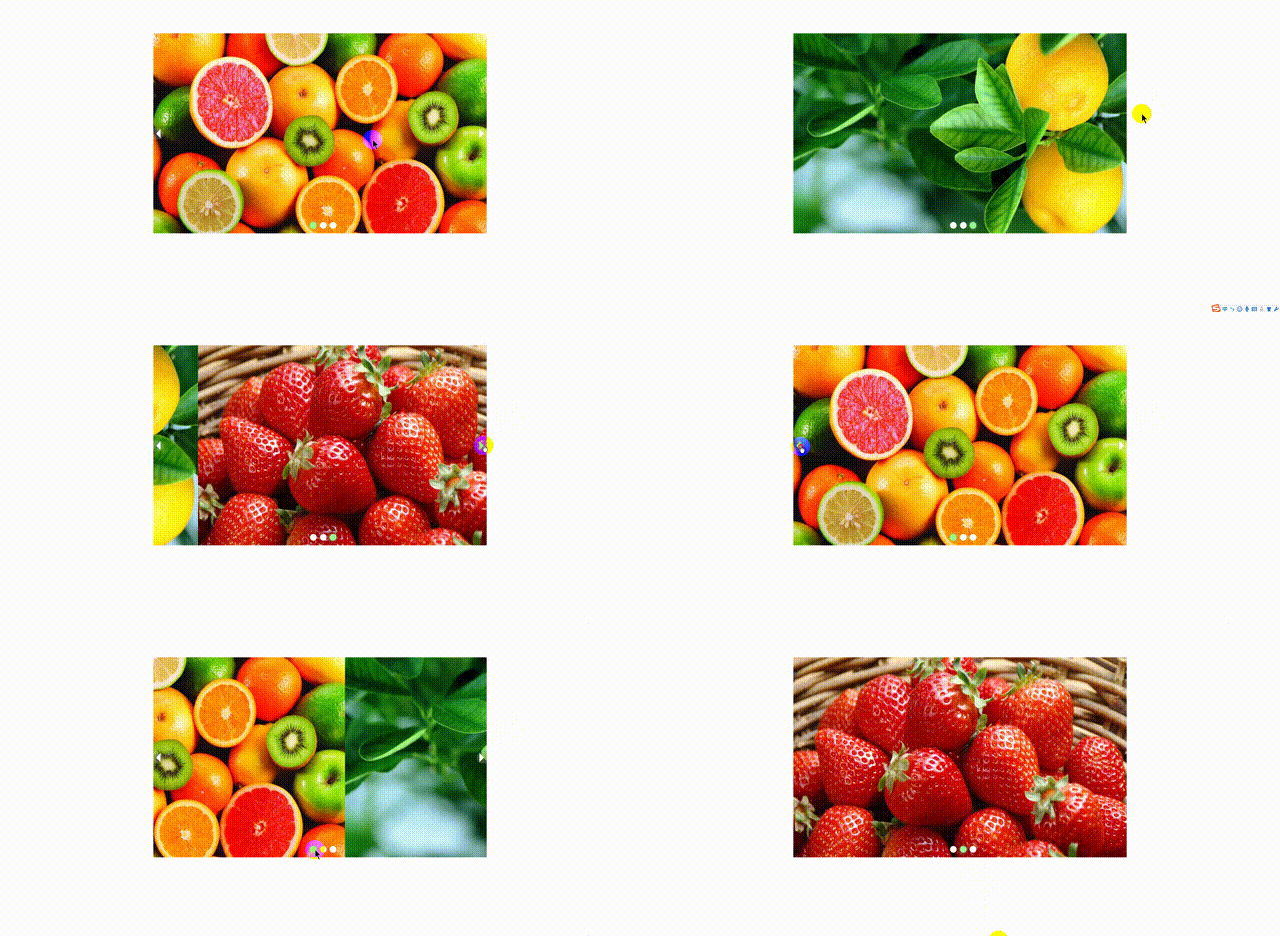
需要实现自动轮播功能,当鼠标移入轮播区域时暂停播放,移出后继续自动播放;同时支持点击小圆点切换图片,以及通过左右箭头按钮进行图片切换。
最终效果如下图所示:
轮播图实现思路
实现思路如下:
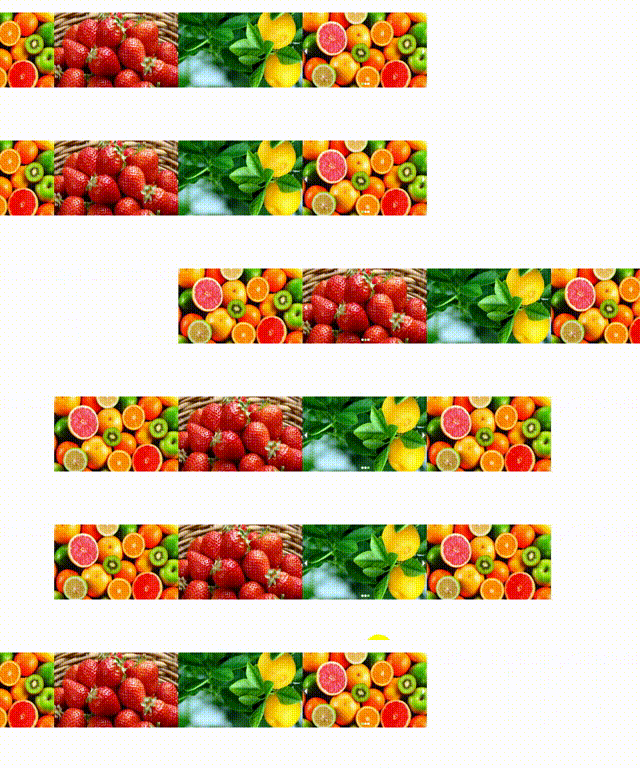
首先将所有待轮播的图片横向排列,将可视区域大小设置为仅显示一张图片的宽度,并给容器设置溢出隐藏(overflow: hidden),这样可视区域外的图片部分会被隐藏,用户只能看到当前的一张图片。轮播的核心是通过改变整个图片画幅的left值或margin-left值来实现;当触发切换时,移动整个画幅一个图片宽度的距离,即可实现滚动到下一张图片的效果。后续功能的实现逻辑与第一种写法思路一致。
相关代码链接:写法一地址
HTML结构部分:
HTML结构代码
<div id="banner">
 <div class="w">
<!-- 左右箭头-->
 <span class="iconfont icon-zuojiantou"></span>
 <span class="iconfont icon-youjiantou"></span>
<!-- 轮播图-->
 <ul >
 <li><img src="img/1.jpg" alt=""></li>
 <li><img src="img/2.jpg" alt=""></li>
 <li><img src="img/3.jpg" alt=""></li>
 </ul>
<!-- /小圆点-->
 <ol id="circleContainer">

 </ol>
 </div>
</div>
CSS样式部分:
CSS样式代码
<style>
 *{
 margin: 0;
 padding: 0;
 list-style: none;
 }
 .w {
 width: 1000px;
 height: 600px;
 margin: 100px auto 0;
 position: relative;
 overflow: hidden;
 }
 ul {
 width: 1000%;
 transition: all .5s ease-in-out;
 }
 ul li {
 float: left;
 width: 1000px;
 }
 ul li img {
 width: 100%;
 height: 600px;
 }
 .iconfont {
 color: white;
 position: absolute;
 font-size: 30px;
 top: calc(50% - 15px);
 background-color: rgba(216, 216, 216, 0.23);
 border-top-right-radius: 50%;
 border-bottom-right-radius: 50%;
 cursor: pointer;
 }
 .iconfont:hover {
 color: palegreen;
 }
 .icon-zuojiantou {
 left: 0;
 }
 .icon-youjiantou {
 right: 0;
 }
 #circleContainer {
 position: absolute;
 bottom: 10px;
 left: calc(50% - 30px);
 }
 #circleContainer li {
 display: inline-block;
 width: 20px;
 height: 20px;
 border-radius: 50%;
 background-color: white;
 margin-right: 5px;
 }
 #circleContainer .change {
 background-color: palegreen;
 }
</style>
JavaScript逻辑部分:
JavaScript逻辑代码
<script>
 let timer = setInterval(function () {
 arrow_r.onclick();
 },2000);
 let w = document.querySelector(".w");
 w.addEventListener("mouseenter",function () {
 clearInterval(timer);
 });
 w.addEventListener("mouseleave",function () {
 clearInterval(timer);
 timer = setInterval(function () {
 arrow_r.onclick();
 },2000);
 });
 //获取元素
 let ul = document.querySelector("ul");
 let ol = document.querySelector("#circleContainer");
 let arrow_r = document.querySelector(".icon-youjiantou");
 let arrow_l = document.querySelector(".icon-zuojiantou");
 let ImgWidth = ul.children[0].offsetWidth;
 let location_i = 0 ;
 // 创建小圆点 动态生成小圆点,图片增加时小圆点也随之增加
 for (let i = 0; i<ul.children.length;i++){
 let li = document.createElement("li");
 li.setAttribute("index",i);
 li.addEventListener("click",function () {
 let index = this.getAttribute("index");
 move(ul,index);
 location_i = index ;
 });
 ol.appendChild(li);
 }

 let liclone = ul.children[0].cloneNode(true);
 ul.appendChild(liclone);
 // 轮播函数
 function move(targetObj,n) {
 if (n === targetObj.children.length ) {
 targetObj.style.marginLeft = "0px";
 n = 0;
 }
 targetObj.style.marginLeft = -n * ImgWidth +"px";
 for (let i =0 ;i<ol.children.length;i++){
 ol.children[i].className = "";
 }
 n === 3 ? ol.children[0].className = "change": ol.children[n].className = "change";

 }
 ol.children[0].className = "change";
 // 右箭头点击
 arrow_r.onclick = function () {
 if (location_i === 3) {
 location_i = 0 ;
 ul.style.marginLeft = "0px" ;
 }
 location_i++;
 move(ul,location_i);

 };
 // 左箭头点击
 arrow_l.addEventListener("click",function () {
 if (location_i == 0) {
 location_i = ul.children.length -1 ;
 }
 location_i--;
 move(ul,location_i);
 })
</script>
相关专题推荐:jQuery图片轮播、JavaScript图片轮播、Bootstrap图片轮播
以上就是本文的全部内容,希望对读者的学习有所帮助,也欢迎大家继续支持本站。