

本文介绍利用Vue和Label标签实现移动端验证码输入框的交互方案。通过将透明Input与多个Label关联,点击Label即可触发Input焦点并唤起数字键盘。结合Vue数据绑定与监听,实现输入限制、光标定位及完成后的自动处理,适用于需要简洁UI的移动端验证场景。
此前在“掘金”平台看到一个相关示例,觉得设计思路巧妙,遂将其整理记录以供后续项目参考。虽然完全独立开发也能实现类似功能,但采用此方案可能在实现效率与交互体验上更具优势。
核心实现思路
核心实现思路如下:
首先,利用label标签构建验证码的显示区域,用于呈现输入的字符。
其次,为每个label设置for属性,使其指向同一个id为vcode的input元素,建立关联。
接着,通过CSS将input元素的透明度设为0以隐藏其视觉外观,但保持其功能可用。
最终,通过点击label触发关联的input获取焦点,从而在移动端唤起数字键盘,实现自然的输入体验。
运行效果如示例图片所示,点击任意位置即可激活输入状态。
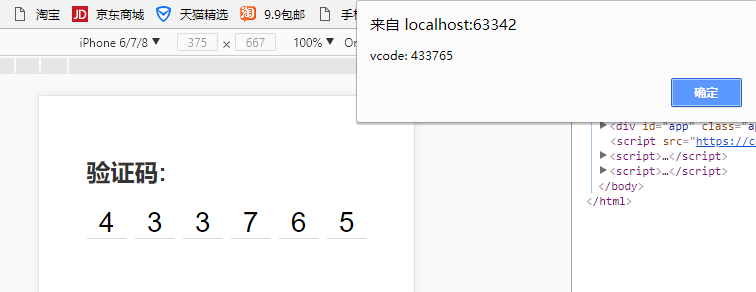
具体实现代码分为结构、样式与逻辑三部分。
HTML结构部分主要包含一个容器及用于显示的label列表。
HTML结构实现
<div id="app" class="app">
  <h2 class="heading-2">验证码:</h2>
  <div class="v-code">
    <input
        ref="vcode"
        id="vcode"
        type="tel"
        maxlength="6"
        v-model="code"
        @focus="focused = true"
        @blur="focused = false"
        :disabled="telDisabled">

    <label
        for="vcode"
        class="line"
        v-for="item,index in codeLength"
        :class="{'animated': focused && cursorIndex === index}"
        v-text="codeArr[index]"
    >
    </label>
  </div>
</div>
CSS部分负责布局、隐藏input以及定义光标动画效果。
CSS样式与动画
<style>
    * {
      margin: 0;
      padding: 0;
      box-sizing: border-box;
    }
    body {
      background-color: #ffffff;
      font-family: -apple-system, PingFang SC, Hiragino Sans GB, Helvetica Neue, Arial;
      -webkit-tap-highlight-color: transparent;
    }
    .app {
      padding-left: 20px;
      padding-right: 20px;
      padding-top: 60px;
      max-width: 320px;
      margin-left: auto;
      margin-right: auto;
    }
    .heading-2 {
      color: #333333;
    }
    .v-code {
      margin-top: 20px;
      display: -webkit-box;
      display: -ms-flexbox;
      display: flex;
      -webkit-box-pack: justify;
      -ms-flex-pack: justify;
      justify-content: space-between;
      -webkit-box-align: center;
      -ms-flex-align: center;
      align-items: center;
      position: relative;
      width: 280px;
      margin-left: auto;
      margin-right: auto;
    }
    .v-code input {
      position: absolute;
      top: 200%;
      opacity:0;
    }
    .v-code .line {
      position: relative;
      width: 40px;
      height: 32px;
      line-height: 32px;
      text-align: center;
      font-size: 28px;
    }
    .v-code .line::after {
      display: block;
      position: absolute;
      content: '';
      left: 0;
      width: 100%;
      bottom: 0;
      height: 1px;
      background-color: #aaaaaa;
      transform: scaleY(.5);
      transform-origin: 0 100%;
    }
    .v-code .line.animated::before {
      display: block;
      position: absolute;
      left: 50%;
      top: 20%;
      width: 1px;
      height: 60%;
      content: '';
      background-color: #333333;
      animation-name: coruscate;
      animation-duration: 1s;
      animation-iteration-count: infinite;
      animation-fill-mode: both;
    }
    @keyframes coruscate {
      0% {
        opacity: 0
      }
      25% {
        opacity: 0
      }
      50% {
        opacity: 1
      }
      75% {
        opacity: 1
      }
      to {
        opacity: 0
      }
    }
  </style>
JavaScript部分基于Vue框架实现数据绑定与交互逻辑。
首先需要通过CDN引入Vue.js库以支持数据驱动视图。
<script src="https://cdn.bootcss.com/vue/2.5.16/vue.min.js"></script>
完整的Vue组件代码实现如下,包含数据定义、计算属性及监听器。
Vue逻辑与交互处理
var app = new Vue({
    el: '#app',
    data: {
      code: '',
      codeLength: 6,
      telDisabled: false,
      focused: false
    },
    computed: {
      codeArr() {
        return this.code.split('')
      },
      cursorIndex() {
        return this.code.length
      }
    },
    watch: {
      code(newVal) {
        this.code = newVal.replace(/[^\d]/g,'')
        if (newVal.length > 5) {
          // this.telDisabled = true
          this.$refs.vcode.blur()
          setTimeout(() => {
            alert(`vcode: ${this.code}`)
          }, 500)
        }
      }
    },
  })
以上即为基于Vue实现移动端验证码输入框的完整方案,希望能为相关开发提供借鉴。