

本文详细讲解如何利用微信小程序技术制作个性化婚礼邀请函。内容涵盖从功能规划、界面布局到多媒体资源(图片、音乐、视频)整合的开发流程。通过解析核心代码架构与配置文件,指导开发者完成从设计到上线发布的全步骤,帮助新人轻松创建并分享独特的婚礼电子请柬。
开发目标
首先,需要熟练掌握微信小程序的核心开发技能,重点掌握页面布局构建、交互逻辑设计以及本地数据存储等技术要点。
其次,深入理解并应用微信小程序提供的各类UI组件与API接口,从而开发出具有个性化特色的婚礼邀请函功能模块。
通过实际制作婚礼邀请函小程序,锻炼创意视觉设计能力,并持续优化用户交互体验,提升产品的整体质感。
学习如何在小程序环境中高效整合多媒体资源,包括高清图片、背景音乐及视频内容,以增强邀请函的视觉吸引力和互动性。
掌握小程序的完整发布流程,包括代码上传、提交审核及最终上线操作,确保能够顺利向亲友分享这一重要时刻,同时熟悉平台的相关审核规范。
开发流程
明确婚礼邀请函小程序的功能需求,核心功能包括展示新人婚纱照、显示婚礼具体时间地点、提供RSVP(回复确认)功能以及集成地图导航服务。在此基础上,规划清晰的页面跳转结构与用户交互路径,确保浏览和操作便捷流畅。
界面设计阶段,需打造精美的页面视觉效果,涵盖首页、婚礼详情页及RSVP确认页等关键页面。利用微信小程序内置的基础组件,如视图容器(view)、图片组件(image)和文本组件(text)等,搭建起完整的页面框架。
测试与优化环节贯穿开发全过程,需进行多轮功能测试,确保各项功能运行正常、界面显示美观且交互响应流畅。重点检查不同设备型号及操作系统下的兼容性问题,根据测试反馈修复潜在漏洞,持续改进用户体验。
代码架构说明
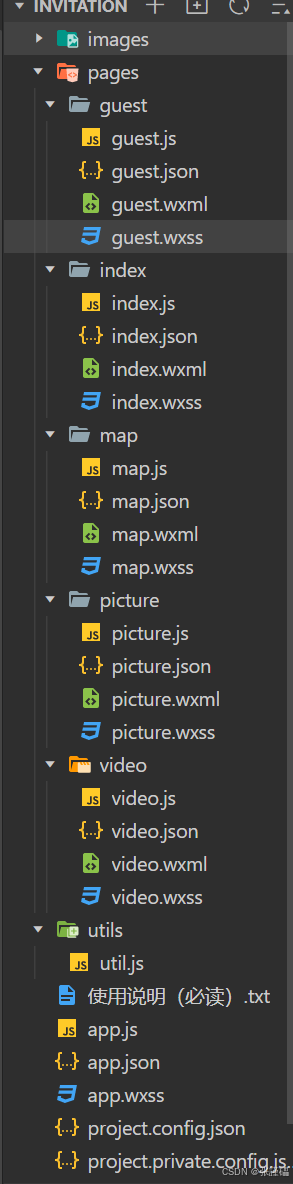
核心代码实现
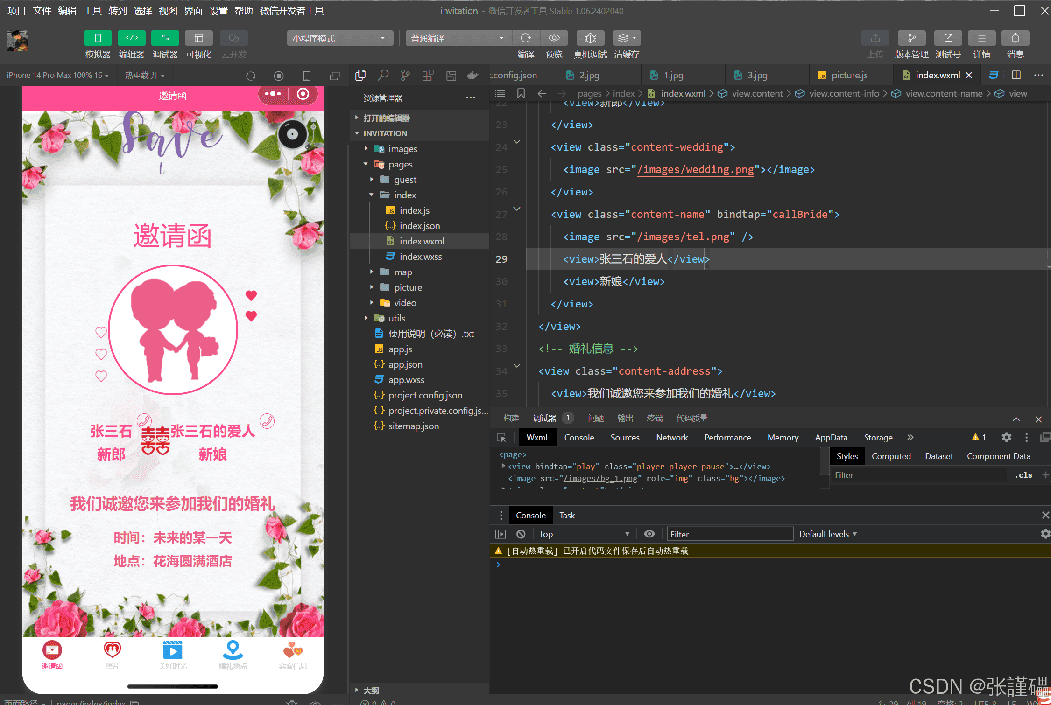
首页视图文件 index.wxml
<view class="player player-{{isPlayingMusic ? 'play' : 'pause'}}" bindtap="play">
  <image src="/images/music_icon.png" />
  <image src="/images/music_play.png" />
</view>
<!-- 背景图片 -->
<image class="bg" src="/images/bg_1.png" />
<!-- 内容区域 -->
<view class="content">
  <!-- 顶部GIF图片 -->
  <image class="content-gif" src="/images/save_the_date.gif" />
  <!-- 标题 -->
  <view class="content-title">邀请函</view>
  <!-- 新郎和新娘的合照 -->
  <view class="content-avatar">
    <image src="/images/avatar.png" />
  </view>
  <!-- 新娘和新郎的名字 -->
  <view class="content-info">
    <view class="content-name" bindtap="callGroom">
      <image src="/images/tel.png" />
      <view>张三石</view>
      <view>新郎</view>
    </view>
    <view class="content-wedding">
      <image src="/images/wedding.png"></image>
    </view>
    <view class="content-name" bindtap="callBride">
      <image src="/images/tel.png" />
      <view>张三石的爱人</view>
      <view>新娘</view>
    </view>
  </view>
  <!-- 婚礼信息 -->
  <view class="content-address">
    <view>我们诚邀您来参加我们的婚礼</view>
    <view>时间:未来的某一天</view>
    <view>地点:花海圆满酒店</view>
  </view>
</view>
首页样式文件 index.wxss
/* 音乐播放图标 */

.player {
  position: fixed;
  top: 20rpx;
  right: 20rpx;
  /* 提高堆叠顺序 */
  z-index: 1;
}

.player > image:first-child {
  width: 80rpx;
  height: 80rpx;
  /* 为唱片图标设置旋转动画 */
  animation: musicRotate 3s linear infinite;
}

@keyframes musicRotate {
  from {
    transform: rotate(0deg);
  }

  to {
    transform: rotate(360deg);
  }
}

.player > image:last-child {
  width: 28rpx;
  height: 80rpx;
  margin-left: -5px;
}

/* 播放状态 class为.player-play */

.player-play > image:first-child {
  animation-play-state: running;
}

.player-play > image:last-child {
  animation: musicStart 0.2s linear forwards;
}

/* 暂停状态 class为.player-pause */

.player-pause > image:first-child {
  animation-play-state: paused;
}

.player-pause > image:last-child {
  animation: musicStop 0.2s linear forwards;
}

@keyframes musicStart {
  from {
    transform: rotate(0deg);
  }

  to {
    transform: rotate(20deg);
  }
}

@keyframes musicStop {
  from {
    transform: rotate(20deg);
  }

  to {
    transform: rotate(0deg);
  }
}

/* 背景图 */

.bg {
  width: 100vw;
  height: 100vh;
}

/* 内容区域 */

.content {
  width: 100vw;
  height: 100vh;
  position: fixed;
  display: flex;
  flex-direction: column;
  align-items: center;
}

/* 顶部gif图 */

.content-gif {
  width: 19vh;
  height: 18.6vh;
  margin-bottom: 1.5vh;
}

/* 标题 */

.content-title {
  font-size: 5vh;
  color: #ff4c91;
  text-align: center;
  margin-bottom: 2.5vh;
}

/* 头像 */

.content-avatar image {
  width: 24vh;
  height: 24vh;
  border: 3px solid #ff4c91;
  border-radius: 50%;
}

/* 新郎新娘信息 */

.content-info {
  width: 55vw;
  text-align: center;
  margin-top: 4vh;
  display: flex;
  align-items: center;
}

.content-name {
  color: #ff4c91;
  font-size: 2.7vh;
  line-height: 4.5vh;
  font-weight: bold;
  position: relative;
}

.content-name > image {
  width: 2.6vh;
  height: 2.6vh;
  border: 1px solid #ff4c91;
  border-radius: 50%;
  position: absolute;
  top: -1vh;
  right: -3.6vh;
}

.content-wedding {
  flex: 1;
}

.content-wedding > image {
  width: 5.5vh;
  height: 5.5vh;
  margin-left: 20rpx;
}

/* 婚礼信息 */

.content-address {
  margin-top: 5vh;
  color: #ec5f89;
  font-size: 2.5vh;
  font-weight: bold;
  text-align: center;
  line-height: 4.5vh;
}

.content-address view:first-child {
  font-size: 3vh;
  padding-bottom: 2vh;
}
地图页面视图文件 map.wxml
<map latitude="{{latitude}}" longitude="{{longitude}}" markers="{{markers}}" bindmarkertap="markertap" />地图页面样式文件 map.wxss
map {
  width: 100vw;
  height: 100vh;
}
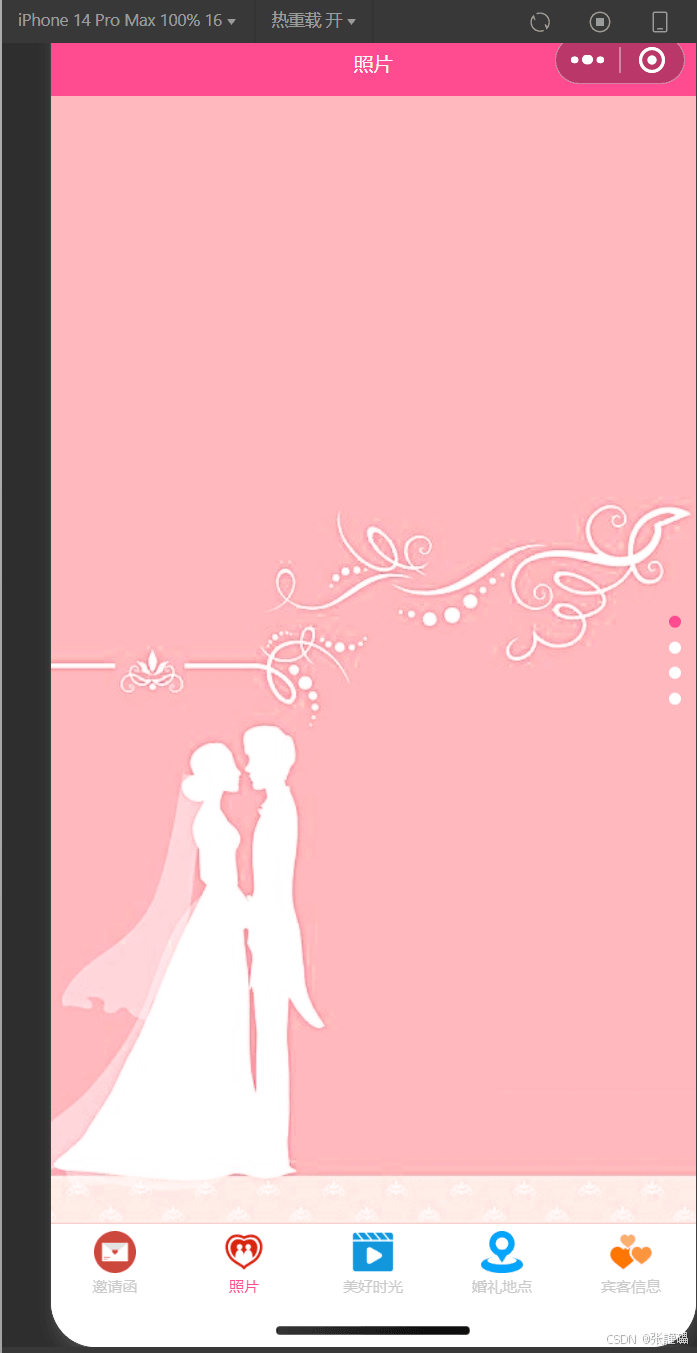
图片展示页面视图文件 picture.wxml
<swiper indicator-color="white" indicator-active-color="#ff4c91" indicator-dots autoplay interval="3500" duration="1000" vertical circular>
  <swiper-item wx:for="{{imgUrls}}" wx:key="*this">
    <image src="{{item}}" mode="aspectFill" />
  </swiper-item>
</swiper>
图片展示页面样式文件 picture.wxss
swiper {
  height: 100vh;
}

image {
  width: 100vw;
  height: 100vh;
}
关于腾讯视频插件:该功能需注册企业主体微信公众号并支付相关费用方可使用,若仅为个人学习用途,可忽略此部分集成。
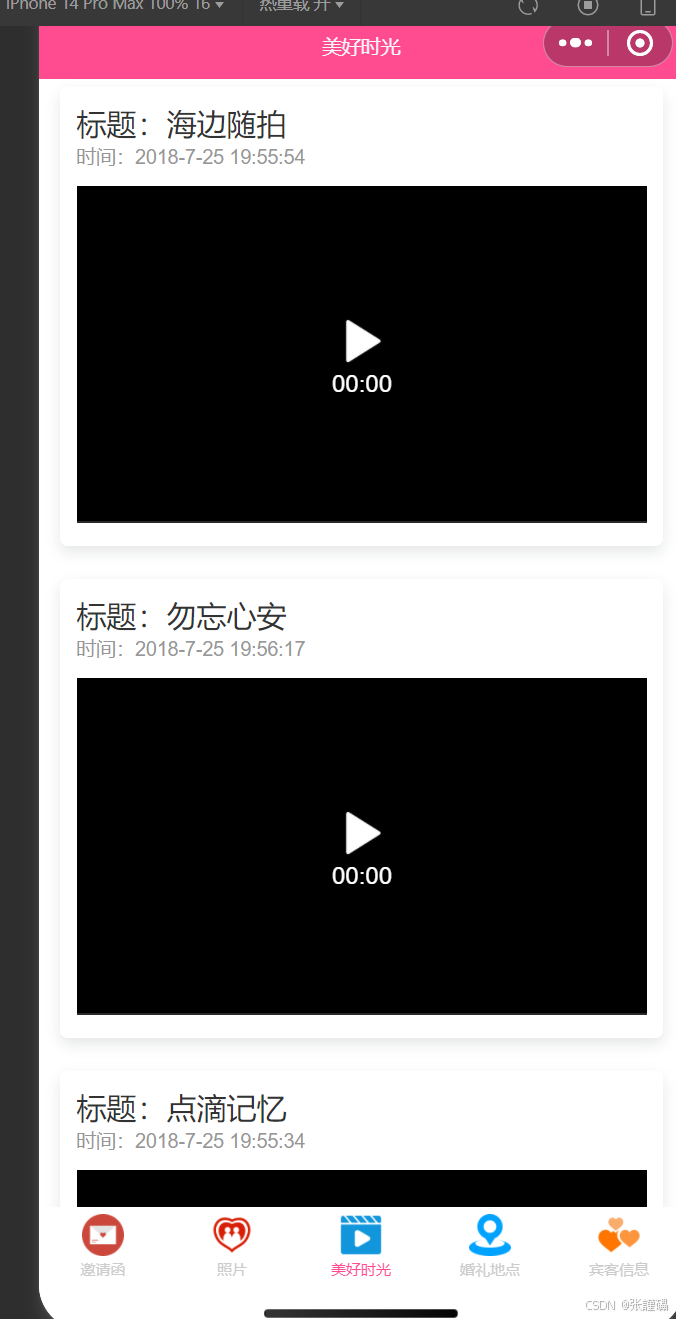
视频页面视图文件 video.wxml
<view class="video-list" wx:for="{{movieList}}" wx:key="user">
  <view class="video-title">标题:{{item.title}}</view>
  <view class="video-time">时间:{{formatData(item.create_time)}}</view>
  <video src="{{item.src}}" objectFit="fill"></video>
</view>
<view class="video-list">
  <view class="video-title">标题:腾讯视频插件演示</view>
  <view class="video-time">时间:2019-1-1 10:11:12</view>
  <txv-video vid="y0371c5p9cc" playerid="txv1"></txv-video>
</view>
<wxs module="formatData">
  module.exports = function(timestamp) {
    var date = getDate(timestamp)
    var y = date.getFullYear()
    var m = date.getMonth() + 1
    var d = date.getDate()
    var h = date.getHours()
    var i = date.getMinutes()
    var s = date.getSeconds()
    return y + '-' + m + '-' + d + ' ' + h + ':' + i + ':' + s
  }
</wxs>
视频页面样式文件 vide.wxss
.video-list {
  box-shadow: 0 8rpx 17rpx 0 rgba(7, 17, 27, 0.1);
  margin: 10rpx 25rpx;
  padding: 20rpx;
  border-radius: 10rpx;
  margin-bottom: 30rpx;
  background: #fff;
}

.video-title {
  font-size: 35rpx;
  color: #333;
}

.video-time {
  font-size: 13px;
  color: #979797;
}

.video-list video {
  width: 100%;
  margin-top: 20rpx;
}
项目配置文件
项目全局配置 project.config.json
{
  "description": "项目配置文件",
  "packOptions": {
    "ignore": [],
    "include": []
  },
  "setting": {
    "urlCheck": false,
    "es6": true,
    "enhance": false,
    "postcss": true,
    "preloadBackgroundData": false,
    "minified": true,
    "newFeature": true,
    "coverView": true,
    "nodeModules": false,
    "autoAudits": false,
    "showShadowRootInWxmlPanel": true,
    "scopeDataCheck": false,
    "uglifyFileName": false,
    "checkInvalidKey": true,
    "checkSiteMap": true,
    "uploadWithSourceMap": true,
    "compileHotReLoad": false,
    "useMultiFrameRuntime": true,
    "useApiHook": true,
    "useApiHostProcess": true,
    "babelSetting": {
      "ignore": [],
      "disablePlugins": [],
      "outputPath": ""
    },
    "enableEngineNative": false,
    "bundle": false,
    "useIsolateContext": true,
    "useCompilerModule": true,
    "userConfirmedUseCompilerModuleSwitch": false,
    "userConfirmedBundleSwitch": false,
    "packNpmManually": false,
    "packNpmRelationList": [],
    "minifyWXSS": true
  },
  "compileType": "miniprogram",
  "libVersion": "2.14.1",
  "appid": "wx0298165ccea56bb4",
  "projectname": "invitation",
  "condition": {},
  "editorSetting": {
    "tabIndent": "insertSpaces",
    "tabSize": 2
  }
}
运行效果展示
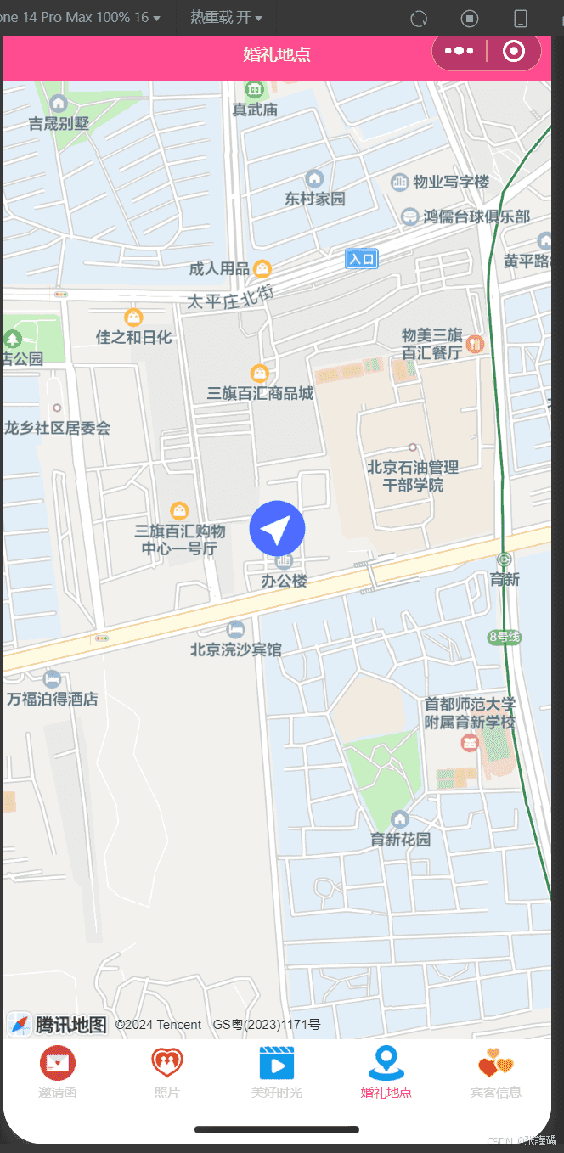
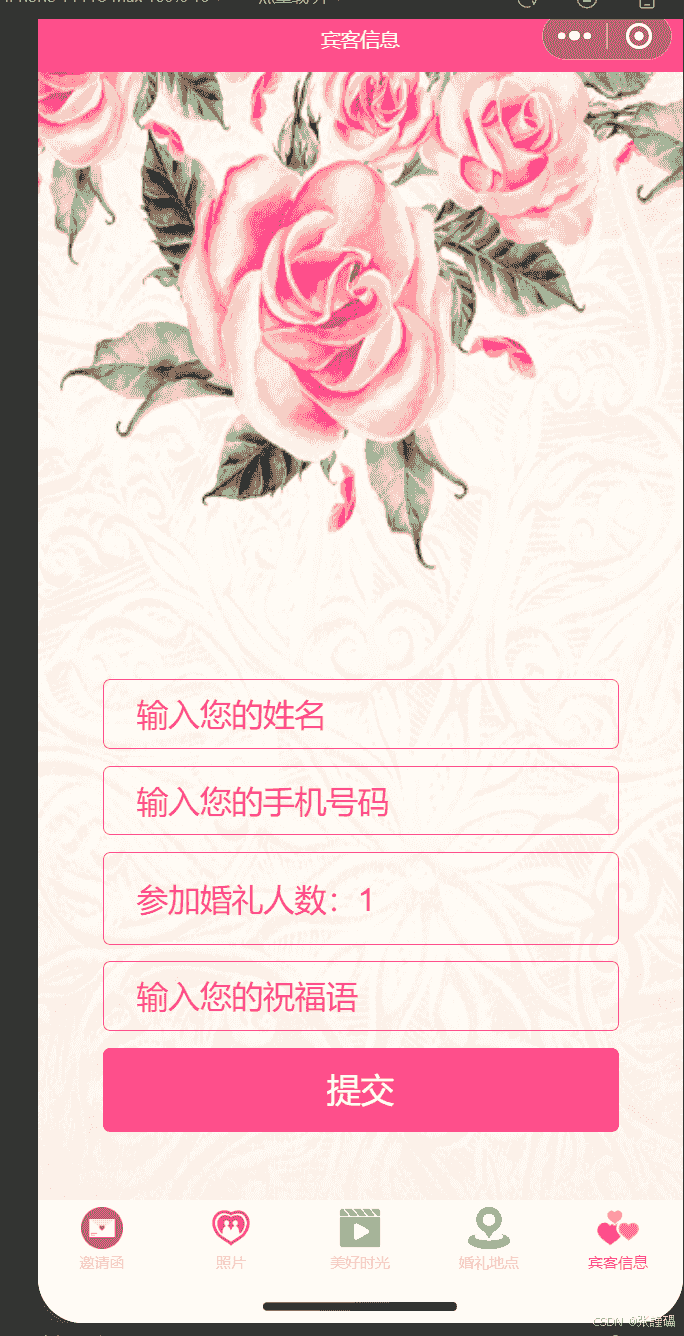
总结
至此,关于微信小程序实现婚礼邀请函的完整介绍已结束。如需获取更多相关小程序开发技巧与婚礼邀请函案例,建议查阅本站往期文章或继续浏览后续相关内容,感谢大家的支持与关注!