

本文介绍如何使用JavaScript结合iRotate插件实现简单的转盘抽奖功能。通过配置起始角度、持续时间及缓动效果,结合回调函数处理交互逻辑,展示完整的HTML与JS代码示例,帮助开发者快速掌握前端转盘动画的实现方法。
iRotate插件接口说明
首先查看插件的接口说明:
核心配置参数
var _rotate = new iRotate('#div',{
 start : 0, //开始角度,可不写,默认0
 end :45, //结束角度
 time :5000, //持续时间,可不写,默认1000
 easing : 'easeOut', //动画形式,目前只有'linear'和'easeOut'两种,可不写,默认'easeOut'
 callback : function(){ //回调函数
  //this为当前对象
 }
});
_rotate.stop(function(){ //停止回调函数
 //this为当前对象
});
转盘效果展示
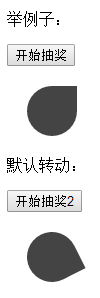
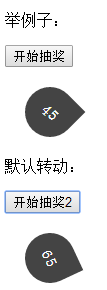
实现后的效果如下图所示:
完整代码实现
以下是完整的示例代码:
HTML与JS结构分析
<!DOCTYPE html PUBLIC "-//W3C//DTD XHTML 1.0 Transitional//EN" "http://www.w3.org/TR/xhtml1/DTD/xhtml1-transitional.dtd">
<html xmlns="http://www.w3.org/1999/xhtml">
<head>
<meta http-equiv="Content-Type" content="text/html; charset=utf-8" />
<title>简单转盘效果</title>
<style>
#RotateDiv{border-radius:50px 0 50px 50px }
#RotateDiv,#RotateDiv2{ width: 50px;height: 50px; color: #fff;text-align: center; line-height: 50px; background: #444; position: relative; margin: 20px;border-radius:50px 0 50px 50px}
</style>
</head>

<body>
<p>举例子:</p>
<p> <button id="RotateBtn">开始抽奖</button> </p>
<div id="RotateDiv"></div>
<p>默认转动:</p>
<p> <button id="RotateBtn2">开始抽奖2</button> </p>
<div id="RotateDiv2"></div>

<script type="text/javascript">
window.iRotate = (function(w,d){
 function R(obj,json){
 this.obj = (typeof obj=='object') ? obj : d.querySelector(obj);
 this.startTime = Date.now();
 this.timer = null;
 this.rotate(json);
 };
 R.prototype = {
 rotate : function(json){
 var t = this,times = json['time'] || 1000;
 clearInterval(t.timer)
 t.timer = setInterval(function(){
 var changeTime = Date.now(),
 tm = times - Math.max(0,t.startTime - changeTime + times),
 value = Tween[json['easing'] || 'easeOut'](tm,+json['start'] || 0,json['end'] - (+json['start'] || 0),times);
 t.obj.style['transform'] = t.obj.style['-webkit-transform'] = 'rotate('+value%360+'deg)';
 t.obj.setAttribute('data-rotate',value%360)
 if(tm==times){
  clearInterval(t.timer);
  json.callback && json.callback.call(t.obj)
 }
 },10)
 },
 stop : function(fn){
 clearInterval(this.timer);
 fn && fn.call(this.obj)
 }
 };
 return R;
})(window,document);
var Tween = {linear: function (t, b, c, d){return c*t/d + b;},easeOut: function(t, b, c, d){return -c *(t/=d)*(t-2) + b;}}

//默认转动
;(function(){
 var off = true,off2 = true;
 RotateBtn.onclick = function(){
 if(!off) return //判断是否在旋转
 off = false
 new iRotate('#RotateDiv',{
 end :45+1800,
 time :5000,
 callback : function(){ //回调函数
  this.innerHTML = this.getAttribute('data-rotate')
  off = true
  }
 });
 }
 var r = null;
 function rotate2(){ //递归持续旋转
 r = new iRotate('#RotateDiv2',{
 start : 0,
 end :360,
 time :1000,
 easing : 'linear',
 callback : function(){
 rotate2()
 }
 });
 }
 rotate2()
 RotateBtn2.onclick = function(){
 if(!off2) return //判断是否在旋转
 off2 = false
 r.stop(); //停止之前的旋转
 new iRotate('#RotateDiv2',{
 start : RotateDiv2.getAttribute('data-rotate'),
 end :65+1800,
 time :5000,
 callback : function(){ //回调函数
  this.innerHTML = this.getAttribute('data-rotate')
  off2 = true
  }
 });
 }
})();

</script>

</body>
</html>
总结
总结
以上就是本文的全部内容,希望能为各位的学习或工作提供参考。如有任何疑问,欢迎留言交流。