

本文介绍如何在Vue项目中实现页面内容的自动向上滚动效果。核心思路是通过获取包含列表项的父级容器ID,利用jQuery的animate函数结合scrollTop属性,实现带有平滑动画的自动滚动展示。文章提供了HTML结构与JavaScript逻辑的具体代码参考,适用于需要展示隐藏内容的场景。
Vue自动滚动效果实现概述
本文分享了一段使用Vue和JavaScript实现页面自动向上滚动效果的具体代码,供读者参考。
在新项目的需求中,需要让原本不可见的区域内容自动向上滚动一定距离,从而展示出来。以下分享具体的实现方法。
具体效果如下图所示:
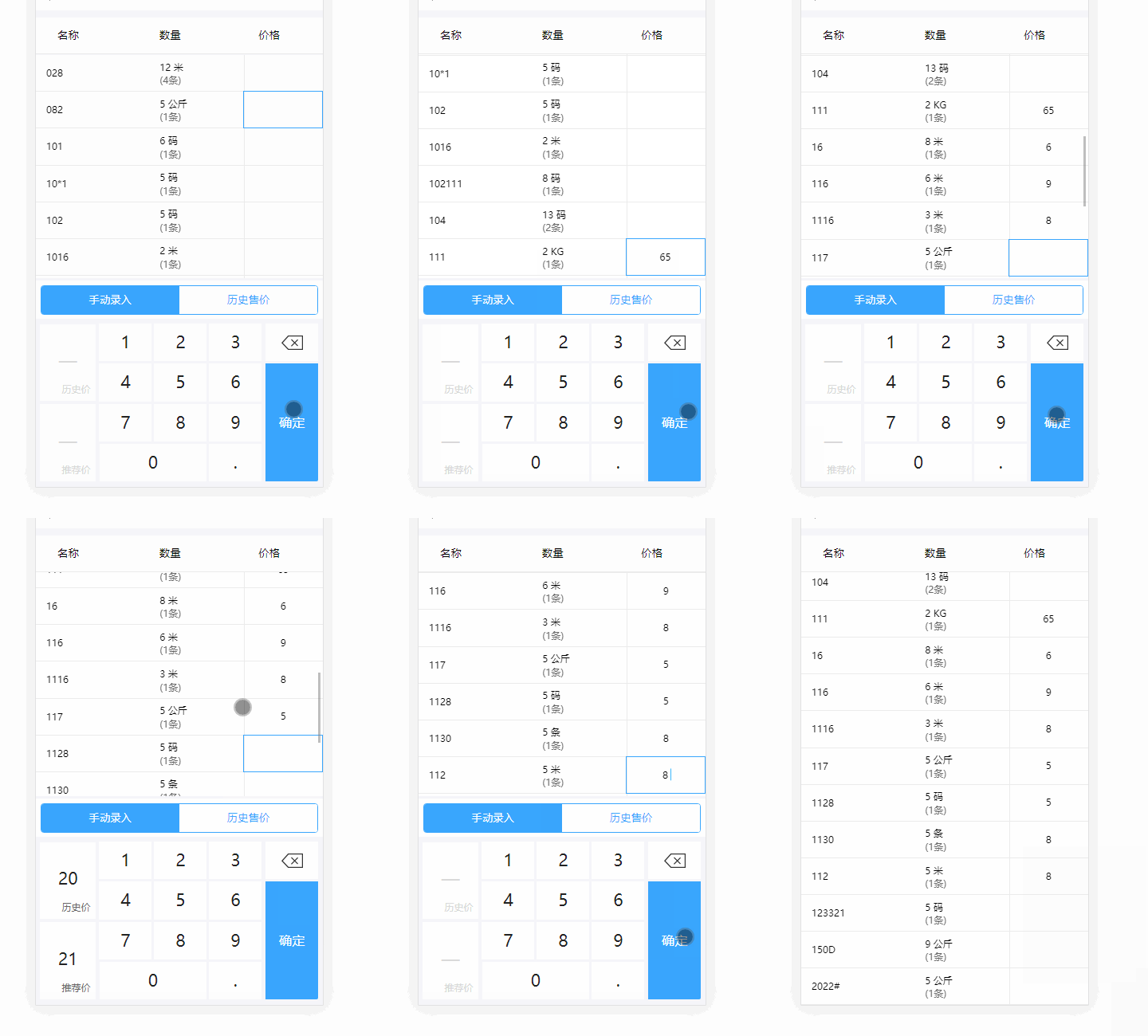
核心原理与DOM结构要点
实现原理主要依赖scrollTop属性来控制滚动位置,并配合animate函数添加平滑的动画过渡效果。需要注意的是,需要滚动的目标元素应当是父级容器。例如,在示例代码中,id为“scrollbody”的元素位于父级标签上,它包裹了多个class为“item”的子元素。如果对此有疑问,可以观察v-for指令应用在哪个标签上,然后获取该标签的父级元素即可。
以下是相关的代码实现,供参考:
HTML与JS代码示例
1、HTML结构代码
<div class="bodyblockcons" :style="'padding-top:'+heightHeader+'px'">
      <div class="content">
        <div class="title" id="titles">
          <span class="name">名称</span>
          <span class="num">数量</span>
          <span class="price plt">价格</span>
        </div>
        <div class="item-content">
          <div class="ct-content" id="scrollbody" :style="ShowKey?'height:'+boHeights+'px;':''" @click="enterNull">
            <div
              class="item"
              v-for="(item,index) in newList"
              :key="index+item"
              @click.stop="enterNull"
              :id="'itemID'+index"
            >
              <div class="name">{{item.Product}}</div>
              <!--红色字体样式 colorRed -->
              <div class="num">
                <div class="nums">
                  {{item.numAccount}}
                  <span
                    :class="(item.ProductUnit==item.StockProductUnit)?'':'colorRed'"
                  >{{item.ProductUnit}}</span>
                </div>
                <div class="row">({{item.barAccount}}条)</div>
              </div>
              <!-- colorFD 蓝色边框 -->
              <div
                :class="(indid==item.id)?'price colorFD':'price'"
                @click.stop="enterItem(item,index,$event)"
              >
                <!-- pribgc 背景色(全选) -->
                <span
                  :class="!isTab&&(indid==item.id)&&!item.state&&isClear?'pri pribgc':'pri'"
                >{{item.UnitPrice}}</span>
                <span class="icon" v-if="!isTab&&(indid==item.id)&&!item.state&&!isClear"></span>
              </div>
            </div>
          </div>
        </div>
    </div>
</div>
2、JavaScript逻辑代码
import $ from '../../../../static/js/jquery-3.3.1.min.js';
import {
  mapState
} from "vuex";
let timer;
export default {
  data() {
    return {
      name: '填价格',
      newList: [], // 合并填单价
      keyHeight: 0,
      boHeights: 0,
    }
  },
  computed: {
    marginTop() {
      let height = 0;
      let result = (1.877 + 1.621 + 0.426 * 2 - 2.5);

      let restheight = hotcss.rem2px(result, window.innerWidth);
      console.log('marginTop---------------->', restheight);
      return restheight;
    },
    ...mapState({
      detailsInfo: state => state.detailsInfo.all,
    }),
  },
  methods: {
    // 确定按钮,只是用于定位到下一行
    makesure() {
      console.log('makesure-->val', this.isNull);
      console.log('保存。。。。');
      let _this = this;
      _this.inputVal = '';
      _this.inds = _this.inds + 1;
      _this.indid = _this.indid + 1;
      if (_this.inds < _this.newList.length - 1 || _this.inds == _this.newList.length - 1) {
        _this.getTop(); // 在这里调用滑动的方法
    },
    getTop() {
      $('#scrollbody').animate = "";
      let tops = $('#itemID' + this.inds).offset();
      let tps = tops['top'];  // 获取当前框距离顶部的距离
      let height = $('#itemID' + this.inds).outerHeight();  // 获取当前框的高度

      console.log('滑动的高度--->', height * (this.inds - (indss - 1)))
      if (tps > this.boHeights) {  // 如何当前框的距离顶部的距离大于某个值(该值可以自动动态设置),那么就让它往上滑动
        console.log('-------------->', tps);
        $('#scrollbody').animate({
          scrollTop: height * (this.inds*2)  // 注意:这里的数值一定要动态变化,不然只会滑动一次而已
        }, 300 /*scroll实现定位滚动*/ ); /*让整个页面可以滚动*/
      }
    },
  },
  mounted() {
    console.log('proList------->111', this.proList);
   this.newList  = [...this.detailsInfo.settlmentList]
  },
}
以上就是本文的全部内容,希望能为读者的学习提供帮助,也欢迎大家继续支持本站。