
通过监听鼠标事件实现点击日期选中、月份切换及日期范围限制,核心在于动态生成日历网格并处理跨月与闰年逻辑。

当前位置:首页 > JavaScript DOM 与事件 > 正文
原生JavaScript手写日期选择器核心逻辑与实现步骤
作者:微光
时间:2026-11-26
浏览:78
文章目录
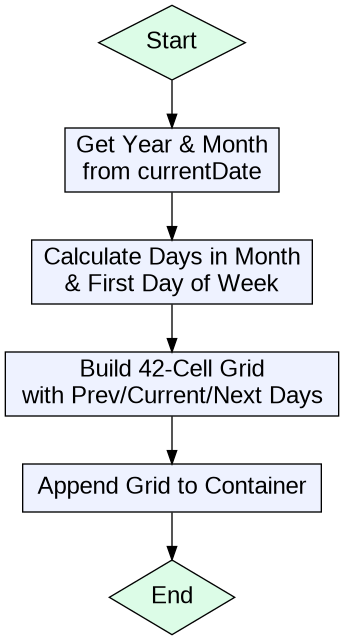
renderCalendar 渲染逻辑与月份计算
日历渲染的核心是确定当月第一天是星期几以及当月总天数。需要获取当前年月对应的 Date 对象,利用 getMonth() 和 getFullYear() 提取信息,并通过 new Date(year, month + 1, 0).getDate() 巧妙获取当月末尾的一天即总天数。接着计算当月第一天是周几(getDay()),从而确定第一行需要填充的前置空白格子数量,确保日期从正确的星期列开始排列。

在构建 HTML 结构时,通常使用一个包含 42 个格子的容器(6 行 x 7 列)来覆盖所有可能的日期分布情况。遍历这 42 个位置,如果索引小于前置空白数或大于等于前置空白数加当月总天数,则对应格子为空或非本月日期。对于有效日期格子,需设置其文本内容,并根据是否属于当前月、是否被禁用、是否为今天等状态添加不同的 CSS 类名。这种固定网格布局能简化定位逻辑,避免复杂的行列计算。
handleDateClick 交互处理与状态管理
程序应挂载在一个特定的 DOM 容器上,用户点击任意日期格子触发选择事件。代码需维护一个内部状态变量存储当前选中的日期值。当用户点击某个格子时,先验证该日期是否在允许的范围内(如最小日期和最大日期之间),若超出范围则忽略点击或给出视觉反馈。随后更新内部状态,移除其他格子的选中样式,并为新选中的格子添加高亮类名,同时触发一个自定义事件或回调函数通知外部调用者。

<!DOCTYPE html>
<html lang="zh">
<head>
<meta charset="UTF-8">
<title>JS Date Picker</title>
<style>
.picker-container {
width: 300px;
border: 1px solid #ccc;
padding: 10px;
font-family: Arial, sans-serif;
}
.header {
display: flex;
justify-content: space-between;
align-items: center;
margin-bottom: 10px;
}
.btn {
cursor: pointer;
padding: 5px 10px;
background: #f0f0f0;
border: 1px solid #ddd;
}
.weekdays {
display: grid;
grid-template-columns: repeat(7, 1fr);
text-align: center;
margin-bottom: 5px;
font-weight: bold;
}
.days-grid {
display: grid;
grid-template-columns: repeat(7, 1fr);
gap: 2px;
}
.day-cell {
padding: 8px;
text-align: center;
cursor: pointer;
border-radius: 4px;
}
.day-cell:hover:not(.disabled) {
background-color: #eef2ff;
}
.day-cell.selected {
background-color: #3b82f6;
color: white;
}
.day-cell.disabled {
color: #ccc;
cursor: not-allowed;
}
.day-cell.other-month {
color: #aaa;
}
</style>
</head>
<body>
<div id="date-picker" class="picker-container"></div>
<script>
class DatePicker {
constructor(containerId, options = {}) {
this.container = document.getElementById(containerId);
this.currentDate = new Date();
this.selectedDate = null;
this.minDate = options.minDate ? new Date(options.minDate) : null;
this.maxDate = options.maxDate ? new Date(options.maxDate) : null;
this.init();
}
init() {
this.renderHeader();
this.renderWeekdays();
this.renderDays();
this.bindEvents();
}
renderHeader() {
const header = document.createElement('div');
header.className = 'header';
header.innerHTML = `
<button class="btn prev"><</button>
<span class="month-year"></span>
<button class="btn next">></button>
`;
this.container.appendChild(header);
this.headerEl = header;
this.monthYearEl = header.querySelector('.month-year');
}
renderWeekdays() {
const weekdays = document.createElement('div');
weekdays.className = 'weekdays';
['Sun', 'Mon', 'Tue', 'Wed', 'Thu', 'Fri', 'Sat'].forEach(day => {
const el = document.createElement('div');
el.textContent = day;
weekdays.appendChild(el);
});
this.container.appendChild(weekdays);
}
renderDays() {
// Remove old days grid if exists
const oldGrid = this.container.querySelector('.days-grid');
if (oldGrid) oldGrid.remove();
const year = this.currentDate.getFullYear();
const month = this.currentDate.getMonth();
// Update header
this.monthYearEl.textContent = `${year} ${month + 1}`;
// Calculate days in current month and first day of week
const daysInMonth = new Date(year, month + 1, 0).getDate();
const firstDayOfWeek = new Date(year, month, 1).getDay();
const grid = document.createElement('div');
grid.className = 'days-grid';
// Previous month days
const prevMonthDays = new Date(year, month, 0).getDate();
for (let i = firstDayOfWeek - 1; i >= 0; i--) {
const cell = this.createDayCell(prevMonthDays - i, true, false);
grid.appendChild(cell);
}
// Current month days
for (let i = 1; i <= daysInMonth; i++) {
const isToday = i === new Date().getDate() &&
month === new Date().getMonth() &&
year === new Date().getFullYear();
const cell = this.createDayCell(i, false, isToday);
grid.appendChild(cell);
}
// Next month days to fill 42 cells (6 rows)
const totalCells = 42;
const filledCells = firstDayOfWeek + daysInMonth;
const remainingCells = totalCells - filledCells;
for (let i = 1; i <= remainingCells; i++) {
const cell = this.createDayCell(i, true, false);
grid.appendChild(cell);
}
this.container.appendChild(grid);
}
createDayCell(day, isOtherMonth, isToday) {
const cell = document.createElement('div');
cell.className = 'day-cell';
cell.textContent = day;
if (isOtherMonth) {
cell.classList.add('other-month');
}
if (isToday) {
cell.style.border = '1px solid #3b82f6';
}
// Check disabled status
const dateToCheck = new Date(this.currentDate.getFullYear(),
this.currentDate.getMonth(), day);
if (this.isDisabled(dateToCheck)) {
cell.classList.add('disabled');
} else {
cell.addEventListener('click', () => this.selectDate(dateToCheck));
}
return cell;
}
isDisabled(date) {
if (this.minDate && date < this.minDate) return true;
if (this.maxDate && date > this.maxDate) return true;
return false;
}
selectDate(date) {
if (this.isDisabled(date)) return;
// Remove previous selection
const prevSelected = this.container.querySelector('.day-cell.selected');
if (prevSelected) prevSelected.classList.remove('selected');
// Add new selection
const clickedCell = event.target;
clickedCell.classList.add('selected');
this.selectedDate = date;
console.log('Selected:', this.selectedDate.toDateString());
}
bindEvents() {
this.headerEl.querySelector('.prev').addEventListener('click', () => {
this.currentDate.setMonth(this.currentDate.getMonth() - 1);
this.renderDays();
});
this.headerEl.querySelector('.next').addEventListener('click', () => {
this.currentDate.setMonth(this.currentDate.getMonth() + 1);
this.renderDays();
});
}
}
// Initialize
const picker = new DatePicker('date-picker', {
minDate: new Date(2023, 0, 1),
maxDate: new Date(2025, 11, 31)
});
</script>
</body>
</html>
运行上述 HTML 文件后,页面将显示一个完整的日期选择器。点击左右箭头可切换月份,点击具体日期格子会在控制台输出选中的日期字符串,并在界面上高亮显示。若尝试点击被禁用范围内的日期(如早于 2023-01-01 或晚于 2025-12-31),则无反应且保持灰色不可点状态。此示例展示了基础的状态管理和 DOM 操作,实际项目中可根据需求扩展多选、范围选择等功能。
为了实现平滑的月份切换,需要在日历头部添加上一月和下一月的按钮。点击这些按钮时,修改内部的年月状态变量,重新调用渲染函数。注意处理年份进位和月份回退的边界情况,例如从 1 月切换到上月应变为上一年的 12 月。为了提升用户体验,可以添加键盘导航支持,允许用户使用方向键在日期间移动焦点,但这部分逻辑较为复杂,基础版本可先聚焦于鼠标点击交互。
setMinDate 与 setMaxDate 范围限制细节
日期选择器在实际应用中常需限制可选范围,例如禁止选择过去的时间或未来的特定日期。这一功能通过在初始化时传入配置项或在运行时调用方法来实现。核心逻辑是在渲染每个日期格子时,对比格子代表的日期与配置的 minDate 和 maxDate。如果格子日期小于最小日期或大于最大日期,则赋予其禁用样式,并阻止点击事件传播,确保用户无法选中非法日期。
在比较日期时,务必将字符串形式的日期转换为 Date 对象进行比较,避免直接比较字符串导致的逻辑错误。例如,"2023-01-01" 和 "2023-01-10" 的字符串比较是正确的,但 "2023-1-1" 和 "2023-10-1" 的字符串比较则会出错。因此,推荐使用 Date.parse() 或构造函数进行标准化转换。另外,当用户切换月份导致当前选中的日期超出新月份的范围时(如在 1 月选中 31 日,切换到只有 30 天的 4 月),应自动调整选中日期为该月末尾的一天或清空选择,以保持数据一致性。
实用工具推荐
电子包浆
使用 ›绿化、压缩、噪点和虚拟水印,自由调节做旧程度。
图片压缩
使用 ›选择画质和输出格式,预览压缩前后的大小。
作者最新文章
相关文章